


Chromeboxes offer the same Chrome OS experience as Chromebooks but in a desktop form. Many users wonder if a Chromebox fits their needs before spending hundreds of dollars on one.
You can test the experience by installing Chromium OS on a Raspberry Pi. This approach costs less than buying a full Chromebox and lets you evaluate whether the desktop Chrome OS environment works for your workflow.
Chromium OS is the open-source foundation of Chrome OS. While it lacks some Google proprietary features like Android app support, it provides an authentic feel for how you’d use a Chromebox daily.
This method requires a Raspberry Pi and basic setup skills. The investment ranges from $100 to $150 depending on what hardware you already own, compared to $250-$300 for entry-level Chromeboxes.
Is a Chromebox right for you? How to try Chromium OS on a Raspberry Pi to find out
Get compatible Raspberry Pi hardware
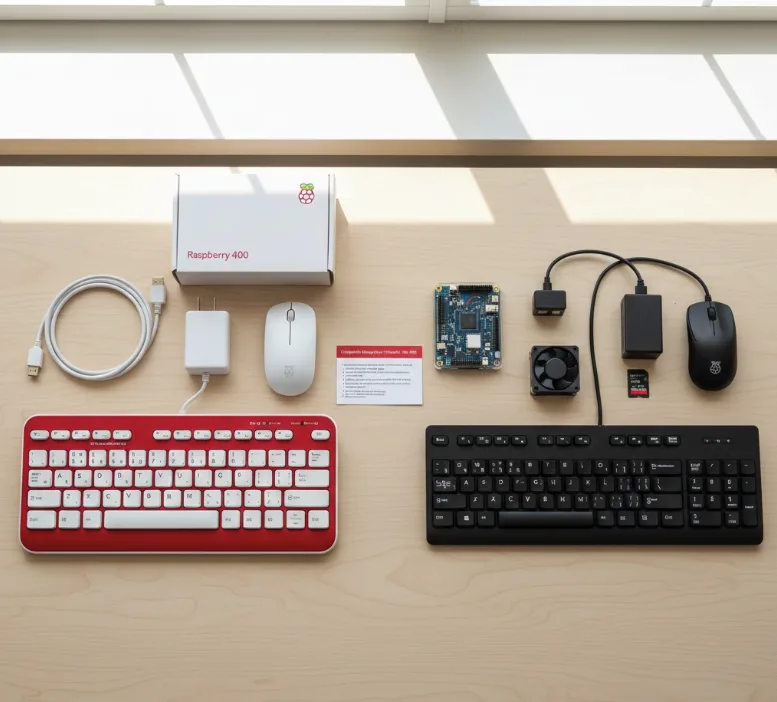
You need one of four supported Raspberry Pi models: the 3B, 3B+, 4B, or Raspberry Pi 400.
The Raspberry Pi 400 all-in-one computer with 4GB RAM costs under $100. Add a power supply to complete your setup.
Alternatively, grab a Raspberry Pi 4B kit with 8GB memory, case, microSD card, and power supply for around $150. You’ll need a separate keyboard and mouse for this option.
Download the Chromium OS image
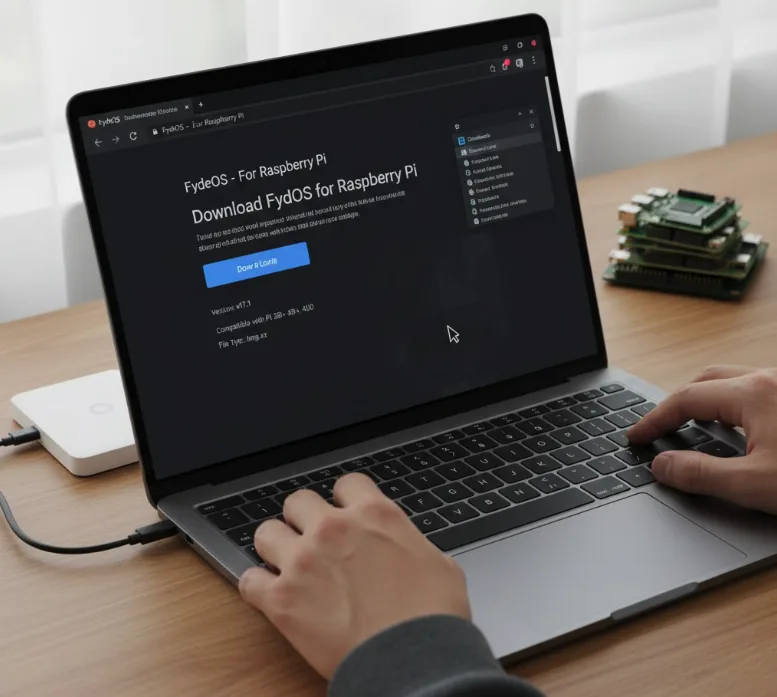
Visit the FydeOS website to download their Chromium OS image file. FydeOS maintains this Chromium-based distribution specifically for Raspberry Pi devices.
Save the image file to your computer. You’ll use this file in the next step to create your bootable system.
Flash the image to a microSD card
Download Balena Etcher to flash the Chromium OS image onto a microSD card. This free app works on Windows, Mac, and Linux.
Open Balena Etcher and select your downloaded Chromium OS image. Choose your microSD card as the target drive.
Click “Flash” and wait for the process to complete. This creates a bootable microSD card with Chromium OS.
Boot your Raspberry Pi with Chromium OS
Insert the flashed microSD card into your Raspberry Pi. Connect your display, keyboard, and mouse if needed.
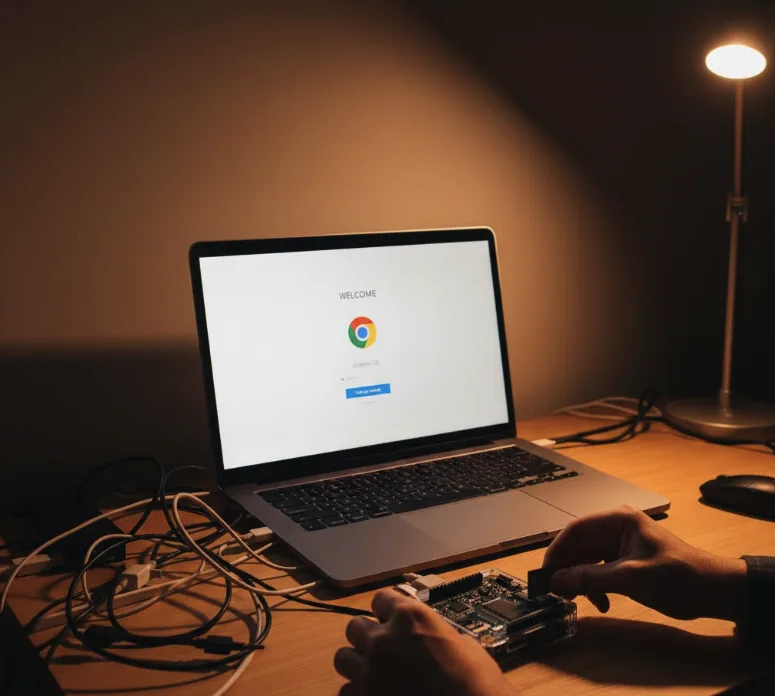
Power on the device. You’ll see the standard Chrome OS setup screen appear.
Enter your Gmail address when prompted. The setup process mirrors what you’d experience on an actual Chromebox.
Explore the Chromium OS environment
Navigate through the interface using the same gestures and shortcuts as Chrome OS. Open the Chrome browser and test your typical web-based workflows.
Access the Linux container if you need terminal access for development work. Keep in mind hardware limitations may affect performance for intensive tasks.
Note that Android apps won’t work since that feature requires proprietary Google code. Focus your testing on web apps and Progressive Web Apps instead.
The experience closely matches using a standard Chromebox. You can assess whether the desktop Chrome OS environment suits your needs before making a purchase decision.
You might find this Raspberry Pi setup sufficient for your daily use. The hardware can be repurposed for other projects if you decide a Chromebox isn’t right for you.
FAQs
What’s the difference between Chromium OS and Chrome OS?
Chromium OS is the open-source foundation while Chrome OS adds Google proprietary features like Android app support, automatic updates, and verified boot security.
Can I run Android apps on Chromium OS on Raspberry Pi?
No, Android app support is exclusive to Chrome OS and requires Google’s proprietary code that isn’t included in the open-source Chromium OS build.
Which Raspberry Pi models support Chromium OS?
The officially supported models are Raspberry Pi 3B, 3B+, 4B, and Raspberry Pi 400. Other models may not work properly with this installation.
How much does it cost to try Chromium OS this way?
Expect to spend $100-$150 depending on your existing hardware. This includes a Raspberry Pi, power supply, microSD card, and peripherals you may need.
Will this setup perform like a real Chromebox?
The interface and web browsing experience closely match a Chromebox, but performance depends on your Raspberry Pi model and won’t match higher-end Chromebox processors.
