


Google’s Instant Tethering feature allows your Chromebook to automatically connect to your Android phone’s mobile data when Wi-Fi isn’t available. Originally exclusive to Pixel phones, this functionality now works with select non-Pixel Android devices running Chrome OS 73 or later.
The feature creates a seamless connection between your devices without manually enabling a hotspot each time. Your Chromebook detects when Wi-Fi is unavailable and switches to your phone’s data connection automatically.
You’ll need an active tethering plan from your carrier before setting this up. The process requires enabling a Chrome flag and connecting your Android phone through your Chromebook’s settings.
How to use a non-Pixel Android phone for Instant Tethering on a Chromebook wifi hotspot?
Setting up Instant Tethering requires accessing Chrome flags and configuring your device connection settings. Follow these steps to enable the feature on your non-Pixel Android phone.
Enable the Instant Tethering flag
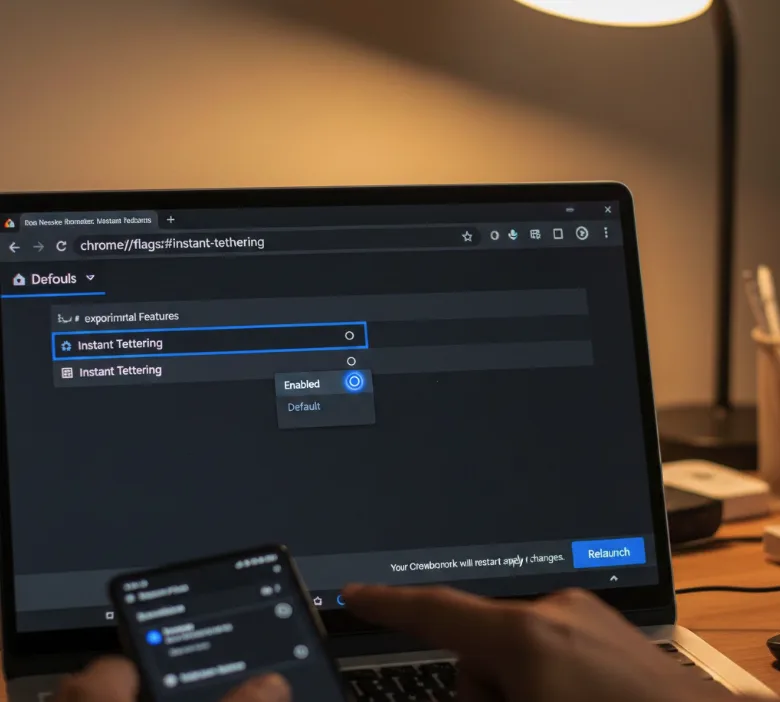
Open your Chrome browser and type chrome://flags/#instant-tethering in the address bar. Locate the Instant Tethering option from the list and change it from “Default” to “Enabled.”
Click the “Relaunch” button that appears at the bottom of your screen. Your Chromebook will restart to apply the changes.
Access Connected Devices settings
After your Chromebook restarts, click the status area in the bottom-right corner of your screen. Select the gear icon to open Settings.
Navigate to “Connected devices” in the left sidebar menu. Click on “Set up” next to the Android phone option.
Connect your Android phone
Your Chromebook will search for nearby Android devices. Unlock your Android phone and keep it close to your Chromebook during this process.
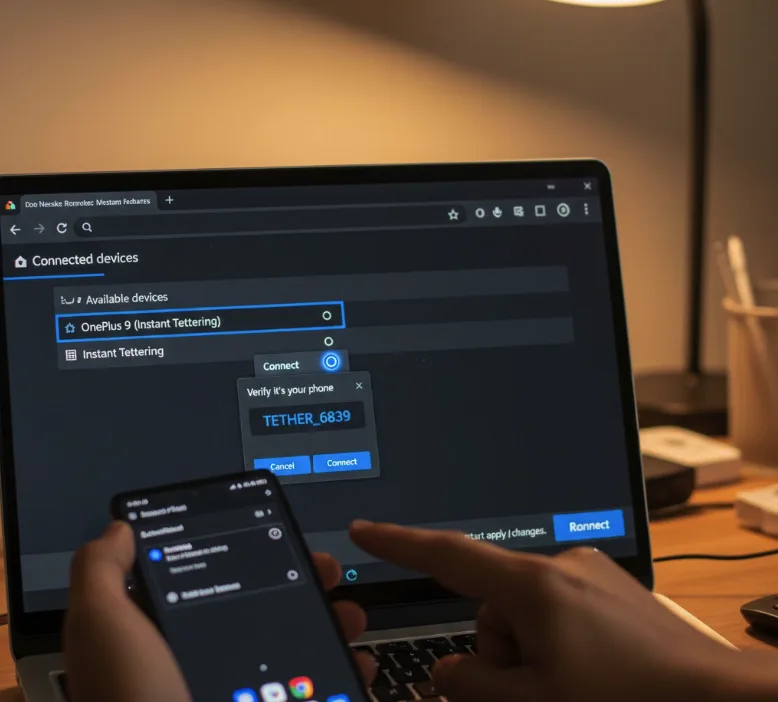
Select your phone from the list of available devices. A verification code will appear on both screens.
Complete the verification process
Confirm that the codes match on both devices. Tap “Verify” on your Android phone and click “Accept” on your Chromebook.
Your phone will prompt you to grant permissions for the connection. Accept all requested permissions to enable full functionality.
Test the Instant Tethering connection
Disable Wi-Fi on your Chromebook to trigger the Instant Tethering feature. Your Chromebook should automatically detect your phone and connect to its mobile data.
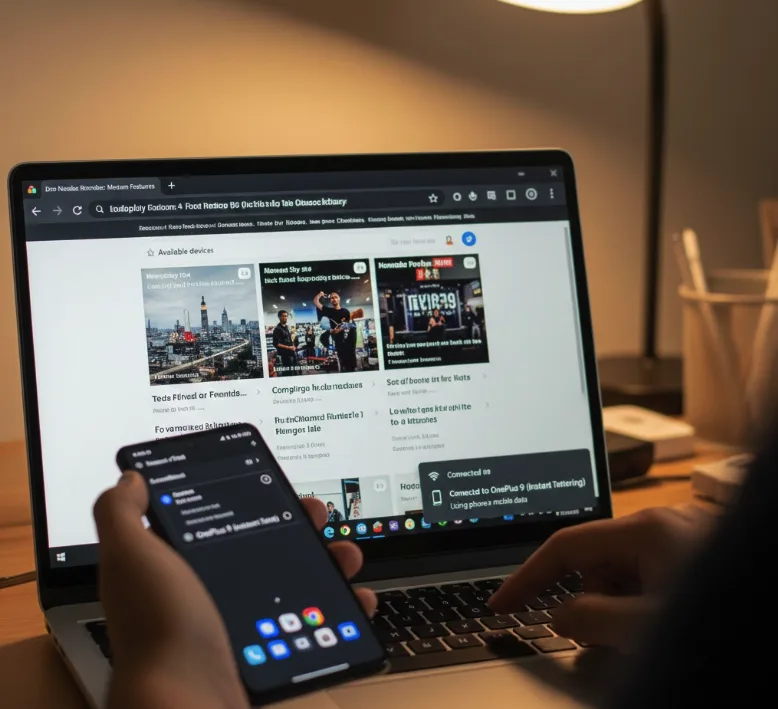
A notification will appear showing the active connection to your phone’s hotspot. You can now browse the internet using your phone’s cellular data.
The feature activates automatically whenever your Chromebook can’t find a trusted Wi-Fi network. You don’t need to manually enable the hotspot on your phone each time.
Devices like the Samsung Galaxy S9, OnePlus 6T, and Nokia 7 Plus have successfully used this feature. Compatibility varies by manufacturer and Android version.
Keep in mind that the Dev Channel of Chrome OS is a work in progress. You may encounter bugs that don’t appear on the Stable Channel. Instant Tethering is part of Google’s “Better Together” initiative, which also includes SMS messaging and device unlocking features. Google expanded Instant Tethering to 15 Chromebook models and over 30 Android phone models in 2019.
FAQs
Does Instant Tethering work with all Android phones?
No, Instant Tethering works with select non-Pixel devices. Compatibility depends on your phone’s manufacturer, Android version, and Chrome OS build. Test your specific device to verify support.
Do I need a special data plan for Instant Tethering?
Yes, you need an active mobile hotspot or tethering plan from your carrier. Instant Tethering uses your existing tethering allowance and doesn’t create a separate data connection.
Will Instant Tethering drain my phone battery faster?
Yes, using your phone as a hotspot consumes more battery power. Keep your phone charged or connected to a power source during extended Instant Tethering sessions to maintain battery life.
Can I use Instant Tethering on the Stable Chrome OS channel?
Instant Tethering initially required the Dev Channel but may now be available on Stable builds. Check your Chrome OS version and enable the feature flag to test compatibility.
How do I disconnect Instant Tethering manually?
Click the status area on your Chromebook and select your phone’s hotspot connection. Choose “Disconnect” to stop using mobile data and return to Wi-Fi or offline mode.
