


Step aside integrated ChromeOS Calendar and make room for tasks. More specifically, make room for a native system tray Tasks app on Chromebooks. I learned today that Google is developing a glanceable user interface to manage tasks using the Google Tasks API.
It’s a bit early on this effort to add a Tasks app to ChromeOS, so I don’t even have an experimental flag to get a peek. I believe the name “GlanceablesV2” will part of the flag, but could change. However, browsing through multiple code additions, I have a fairly good idea of how this will work.
For current testing, Google is using a default list of fake tasks, showing that you can have three levels of nested tasks, or sub-tasks:
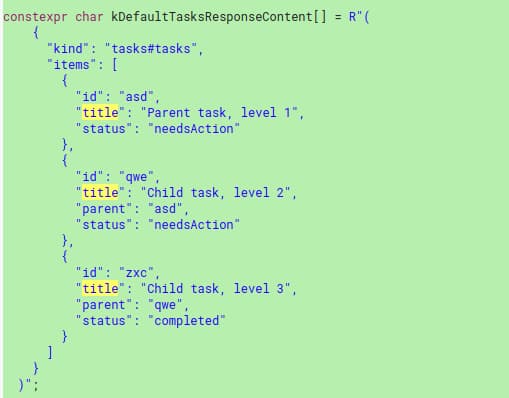
There are also three current actions to show the status of a task: the last update date, needs action and completed. These may just be placeholders for now, so the names could change.
The current code implementing a manual mark completed action can only be done on a “root” or parent task. However, that doesn’t mean your sub-tasks can’t be marked as completed; that will happen using the Google Tasks API. At least as the code reads now:

Yes, this is going to use the basic Google Tasks framework, which may not be exciting for a Chromebook tasks app. There are certainly a number of great third-party task managers out there with far more functionality.
However, keeping things light and breezy in a Tasks app on Chromebooks fits nicely with the “simplicity” of ChromeOS.
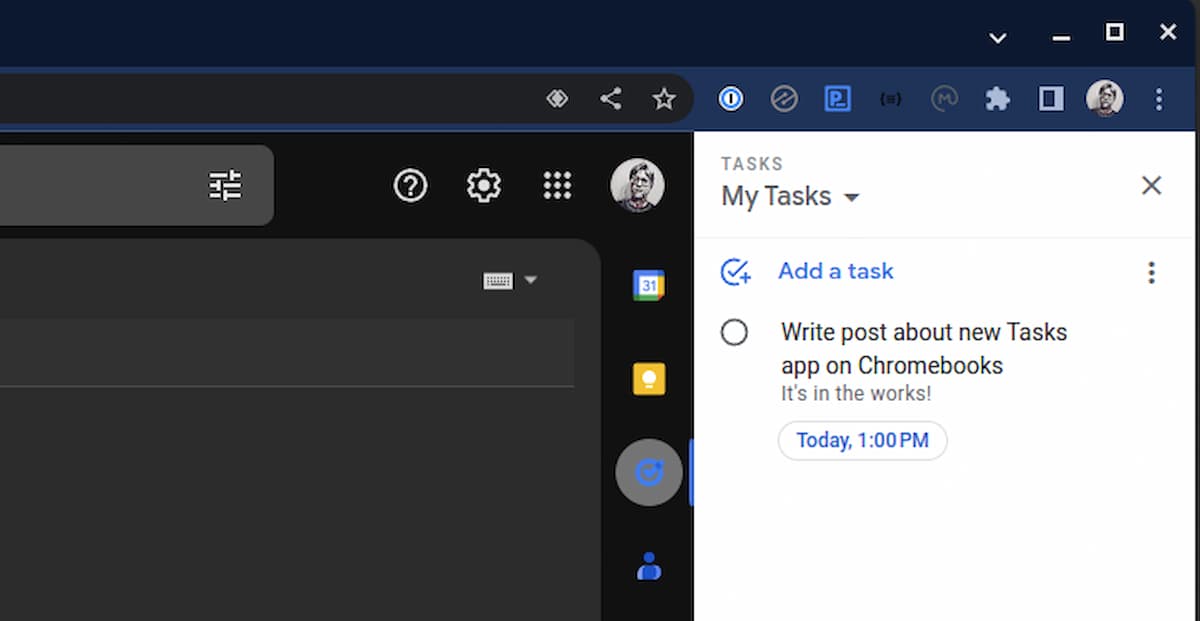
And this also jives with the integrated Calendar on Chromebooks. That feature sits in your system tray and sychnronizes with your Google Calendar. I know, I know, just one calendar: That’s another story for another time.
In terms of the user interface, the current code is using a “bubble view” for the Tasks app on Chromebooks. That may not sound familiar but you know what it looks like. Google uses a bubble view for the new video conferencing controls for example.
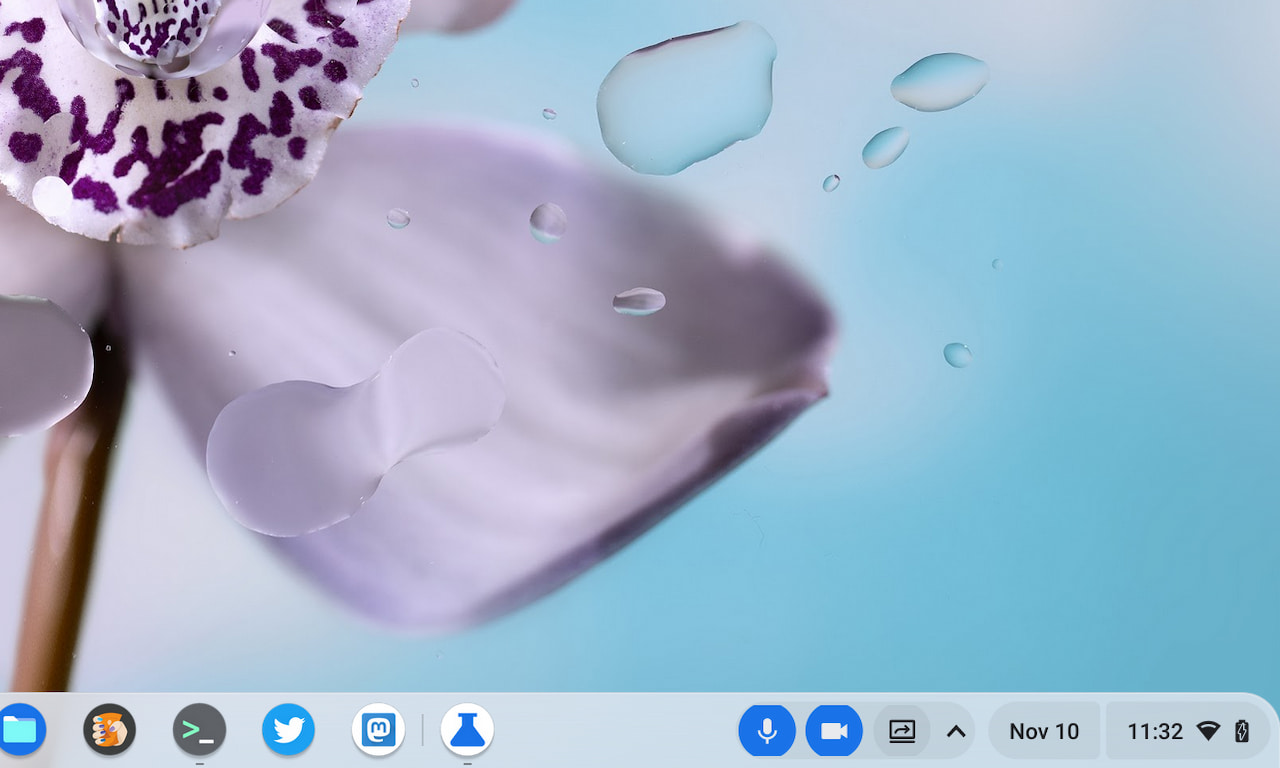
These bubble view interfaces generally sit in your task bar or tray to show some status. Hovering over them provides additional information and potentially some actions. As I read the code now, the Tasks app on Chromebooks will be visible in the system tray, near the calendar and quick settings status information. Again, it’s early so this can all change.
Personally, I take a simpler approach to tasks. After using all of the major options, I decided to timebox my calendar each morning with my top tasks for the day.
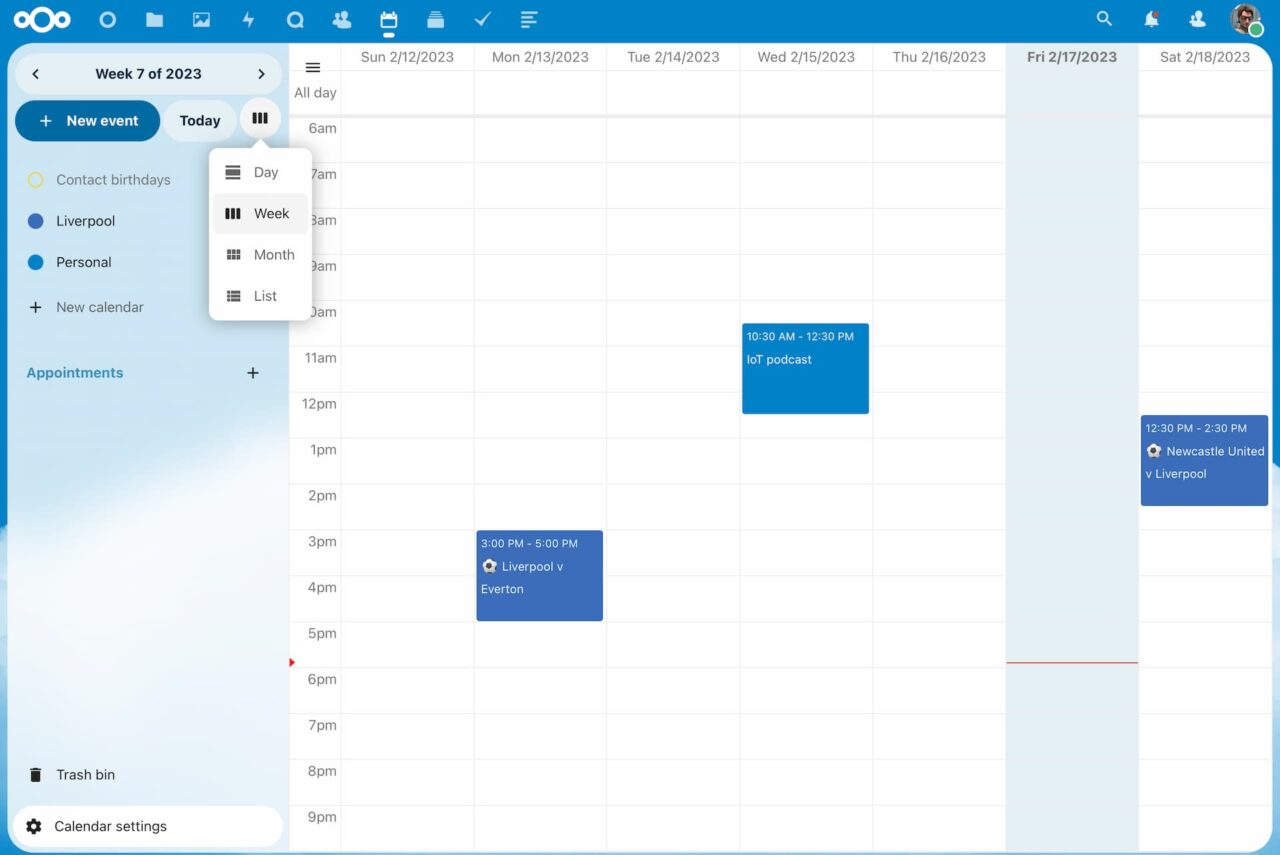
I estimate how long each will take and create a calendar event for all of them. As the day goes on, I use the calendar event to use the blocked time to complete a task. If the task takes longer than estimated (it’s never shorter!), I extend the event time. And I move tasks that I can’t get to when their event reminder pops up. It’s just a simple drag-and-drop in my calendar app.
Still, I think that a native Tasks app on Chromebooks is something that many will find useful. Yes, it will be basic but it sounds handy as well.
