


After roughly two years of effort, Steam launches on Chromebooks today. However, this isn’t even a beta. Google says that the project to bring PC gaming to Linux on Chromebooks is only in the alpha phase. It’s very limited and likely buggy. Here’s what you need to know.
What is Steam gaming on Chromebooks?
Created by Valve, Steam is a centralized gaming store with social features. The company sells games that run on Windows, macOS, and Linux. The idea is that if you buy a game title from Steam, it’s permanently in your Steam library and you can always re-download it on any of your devices. Steam also saves your game progress in the cloud in case you move between devices. Last year, Valve launched a handheld PC called the Steam Deck that runs its Steam OS for mobile gameplay.
Steam gaming on Chromebooks will bring your native games to a Linux container where you can play them on your laptop. Because most game titles aren’t built for Linux, there’s a compatibility layer called Proton, that can run these titles. The idea here is to bring a new aspect to Chromebooks: Native gaming without using any game streaming technology such as Nvidia GeForce Now or Stadia.
What Chromebooks support Steam?
As I noted earlier last month, you’re going to need a high-end Chromebook to run Steam games. For now, that means laptops with an 11th-generation Intel Core i5 or i7 CPU. You’ll also need at least 8 GB of memory.
Here are the supported Chromebooks for the alpha:
- Acer Chromebook 514 (CB514-1W)
- Acer Chromebook 515 (CB515-1W)
- Acer Chromebook Spin 713 (CP713-3W)
- ASUS Chromebook Flip CX5 (CX5500)
- ASUS Chromebook CX9 (CX9400)
- HP Pro c640 G2 Chromebook
- Lenovo 5i-14 Chromebook
For now, I’m on the outside looking in as I don’t have any of these devices. I recently reviewed the Lenovo Chromebook in the list, but even that wouldn’t cut it for Steam. It had a Core i3 processor.
The process to enable Steam isn’t exactly user friendly
Being an alpha, adding Steam to your supported Chromebook isn’t automatic. You’ll have to move to the Dev Channel of Chrome OS, enable a flag, go into a special terminal and enter an activation code. It’s not a difficult process, but it’s not end-user friendly either.
Here are the steps:
- On your supported Chromebook, switch to Dev channel.
- After updating, navigate to
chrome://flags#borealis-enabledand set the value to Enabled. - After restarting, open a crosh terminal with ctrl+alt+t.
- Type “insert_coin volteer-JOlkth573FBLGa” and hit enter.
- Follow the setup flow to install Steam.
- Log in with your Steam account and start playing!
Game experiences will vary and have to be dialed down in some cases
Obviously, Google isn’t going to test every Steam game. But it does offer a list of what it has tested, along with some mentions of bugs and optimized settings. I looked for some of my Steam games and see that my favorite, The Witcher III, is graphically limited.
On my custom-built gaming PC, for example, I can max out the graphics settings for a glorious-looking and smooth experience.
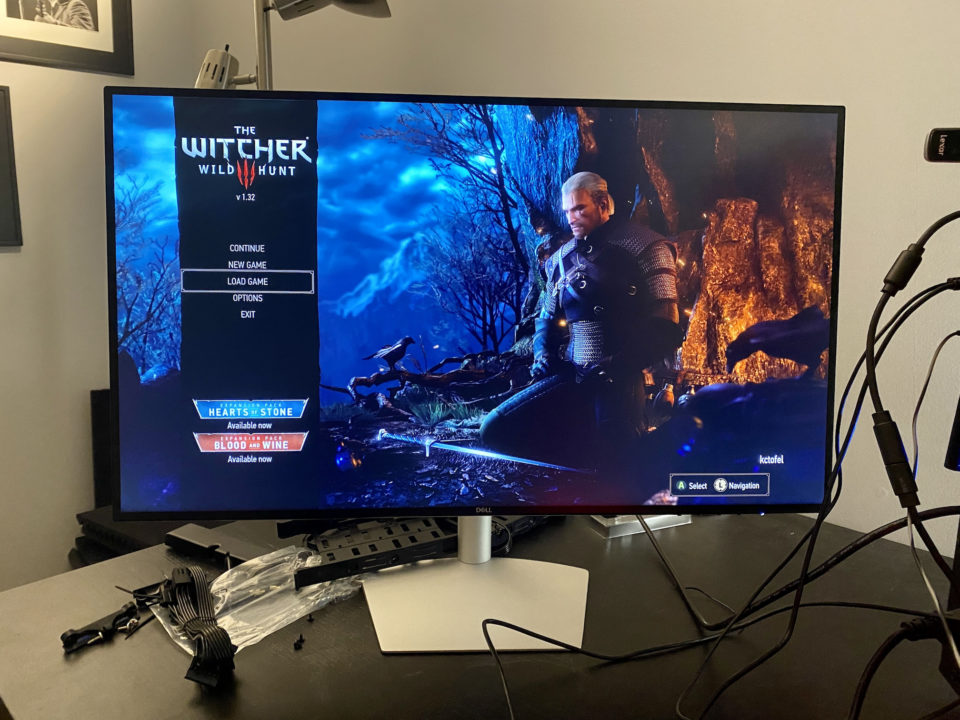
On a supported Chromebook, you need a Core i7 and have to dial the visuals down to low or medium.
But I expected this: The Nvidia RTX 3080 in my gaming PC cost me $699, which is more than most Chromebooks. It’s custom-made for a great gaming experience. The integrated graphics in Chromebooks are not. So keep your expectations in check if you do enable Steam for Chromebooks.
Oh, and if you do, share your experience! Like I said, I’m on the outside looking in right now. I am using a high-end Chromebook, but… it’s from 2018. Thankfully, I can use the GeForce Now streaming service, which syncs my Steam library, on any Chromebook.
