


The Chrome Flags setting at chrome://flags#scheduler-configuration in Google Chrome allows users to control how the browser utilizes CPU threads, particularly regarding Hyper-Threading (also known as Simultaneous Multi-Threading or SMT).
This feature can enhance performance on systems with Hyper-Threading-capable processors but may introduce security considerations.
What Is the Scheduler Configuration Flag?
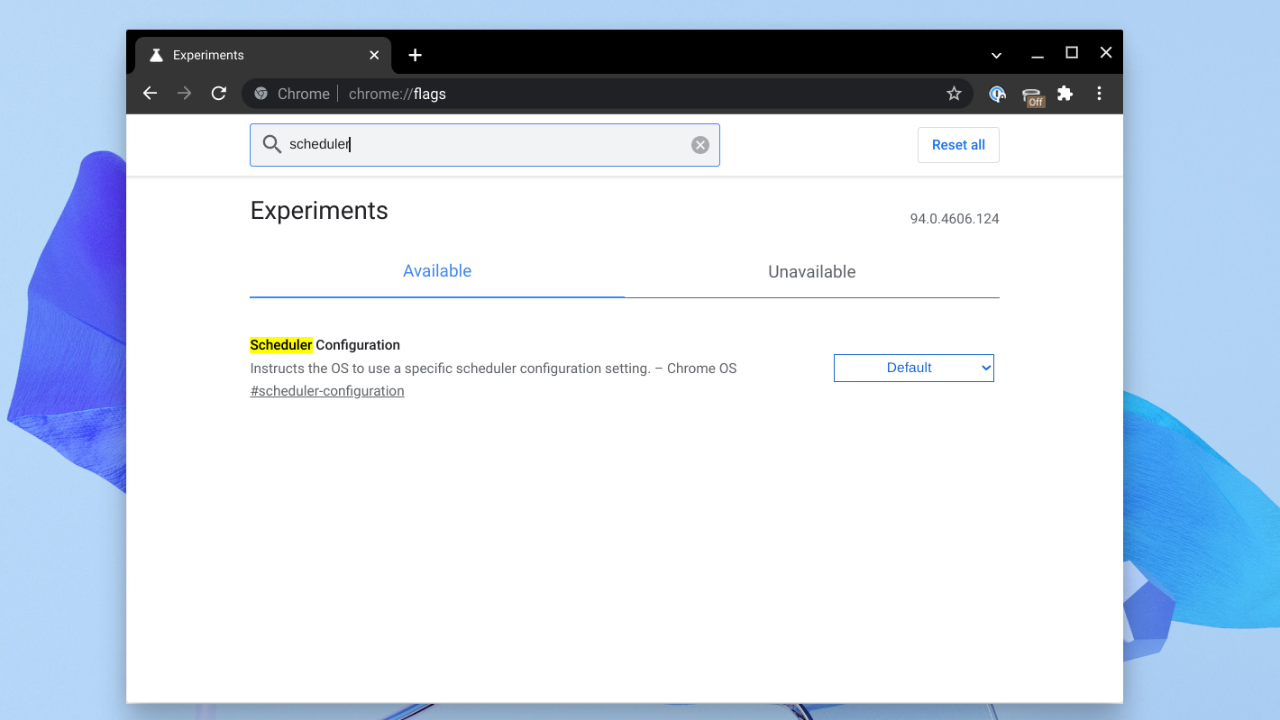
The Scheduler Configuration flag lets you manage Chrome’s CPU thread usage:
- Default: Chrome’s standard behavior, typically disabling Hyper-Threading for security reasons.
- Enables Hyper-Threading on relevant CPUs: Allows Chrome to utilize all logical cores, potentially improving performance in multi-threaded tasks.
- Disables Hyper-Threading on relevant CPUs: Restricts Chrome to physical cores only, enhancing security by reducing exposure to certain vulnerabilities.
How to Access and Modify the Flag
On Chrome OS:
- Open the Chrome browser.
- In the address bar, enter chrome://flags#scheduler-configuration and press Enter.
- Locate the “Scheduler Configuration” flag.
- Select your desired option from the dropdown menu.
- Click “Restart” to apply the changes.Acer Corner+5Acer Community+5Google Help+5
On Windows, macOS, and Linux:
- Open the Chrome browser.
- Navigate to chrome://flags#scheduler-configuration.
- Find the “Scheduler Configuration” flag.
- Choose the preferred setting from the dropdown.
- Click “Relaunch” to restart Chrome with the new configuration. Acer Community+1Chromium Git Repositories+1
System Requirements
- Chrome OS: Version 74 or later; device with a Hyper-Threading-capable CPU.
- Windows/macOS/Linux: Chrome version 74 or later; operating system and hardware with Hyper-Threading support.
Security Considerations
Enabling Hyper-Threading can expose your system to certain security vulnerabilities, such as speculative execution attacks (e.g., Spectre, Meltdown) and side-channel attacks.
These vulnerabilities can potentially leak sensitive information. Google disables Hyper-Threading by default in Chrome OS 74 and later to mitigate these risks.
Performance Testing
To assess the impact of enabling Hyper-Threading:
- Before Changes:
- Run a CPU benchmark (e.g., Geekbench browser test).
- Test specific workflows you aim to improve.
- Run a CPU benchmark (e.g., Geekbench browser test).
- After Enabling Hyper-Threading:
- Apply the flag changes as described above.
- Run the same benchmarks.
- Apply the flag changes as described above.
- Compare Results:
- Look for improvements in multi-threaded performance.
- Monitor for any stability issues.
- Look for improvements in multi-threaded performance.
Benchmark Tools:
- WebXPRT 3: Browser performance benchmark.
- Speedometer 2.0: JavaScript performance test.
- JetStream 2: JavaScript benchmark.
Troubleshooting
- Flag Not Appearing:
- Ensure Chrome is updated to the latest version.
- Navigate to chrome://flags and search for “Scheduler Configuration.”
- Ensure Chrome is updated to the latest version.
- Changes Not Taking Effect:
- Confirm that you clicked “Restart” or “Relaunch” after making changes.
- Verify that your CPU supports Hyper-Threading.
- Confirm that you clicked “Restart” or “Relaunch” after making changes.
- Performance Issues After Enabling:
- Monitor system resource usage via Task Manager or Activity Monitor.
- Consider reverting to the default setting if problems persist.
- Monitor system resource usage via Task Manager or Activity Monitor.
Advanced Configuration
Command Line Options:
- Enable Hyper-Threading:
chrome –enable-features=SchedulerConfiguration:scheduler_configuration/enabled
:contentReference[oaicite:122]{index=122}
– **Disable Hyper-Threading**:
chrome –enable-features=SchedulerConfiguration:scheduler_configuration/disabled
:contentReference[oaicite:126]{index=126}
**Enterprise Policy Management**:
:contentReference[oaicite:128]{index=128}:contentReference[oaicite:130]{index=130}
{
“ChromeFlagsPolicy”: {
“scheduler-configuration”: “enabled”
}
}
Additional Chrome Flags You Might Find Useful
If you’re exploring advanced Chrome configurations beyond CPU thread scheduling, here are some other useful flags you might want to try:
- Chrome Flags Settings on Android
Learn how to access and use experimental flags on Android devices for greater customization. - Enable Chrome Flags via Command Line on Non-Rooted Devices
A guide for enabling Chrome flags using command-line input, even on non-rooted Android devices. - Enable Force Dark Mode in Chrome
This flag forces websites to render in dark mode, even if they don’t support it natively. - Ash Debug Shortcuts Flag
Use this flag to activate system debug keyboard shortcuts on Chrome OS for troubleshooting and diagnostics.
Conclusion
The chrome://flags#scheduler-configuration flag offers control over Chrome’s CPU scheduling behavior, allowing users to enable or disable Hyper-Threading based on their performance needs and security considerations.
While enabling Hyper-Threading can enhance performance in multi-threaded applications, it may expose the system to certain vulnerabilities.
Users should weigh the benefits against the potential risks and test thoroughly in their specific use cases.
Note: Chrome flags are experimental features that may change or be removed in future versions.
Always test thoroughly and have a rollback plan when deploying changes in production environments.
For the latest updates and detailed security information, refer to the official Chrome documentation and security advisories.
