


Chrome OS users often overlook keyboard shortcuts in favor of trackpads or mice. But keyboard shortcuts can make your workflow faster and more efficient.
Reordering browser tabs with your Chromebook keyboard is now possible with the right key combination. This feature lets you organize your tabs without touching your trackpad.
You might want to know about this if you work with multiple tabs daily. It’s especially useful for Chrome OS tablet users with smaller trackpads, where dragging tabs can feel clunky.
The keyboard method often proves faster than using a trackpad. Once you learn the shortcut, you’ll wonder how you managed without it.
How to reorder browser tabs with your Chromebook keyboard
The tab reordering feature works through a specific keyboard combination. You’ll use four keys together to move tabs left or right in your browser.
This functionality originally appeared in Chrome 102 beta for Lacros browser users. Lacros is Google’s Linux-based Chrome browser that’s becoming the default for Chromebooks.
Press the Everything button (formerly Search)
Locate the Everything button on your Chromebook keyboard. This key replaced what used to be called the Search button on older models.

Hold down the Everything button throughout the entire process. You’ll keep this pressed while adding the other keys.
Add Shift and Ctrl to your combination
While holding the Everything button, press and hold Shift. Then add Ctrl to the combination.
These three keys sit close together on your Chromebook keyboard. This makes the combination easier to execute than it might initially sound.
Use arrow keys to move tabs
With all three modifier keys held down, press the up arrow to move your current tab left. Press the down arrow to move it right.
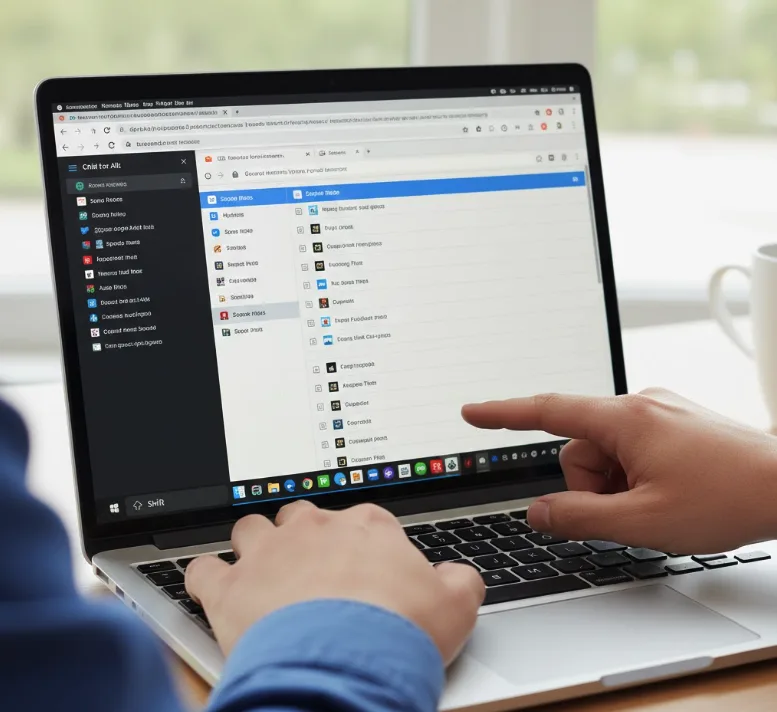
The currently active tab will shift position in your tab bar with each arrow press. You can move it multiple spaces by pressing the arrow key repeatedly.
Release all keys when finished
Once your tab reaches the desired position, release all four keys. Your tab stays in its new location.
You can repeat this process anytime you need to reorganize your tabs. No mouse or trackpad required.
The keyboard shortcut works immediately without enabling experimental flags. You just need Chrome 102 or later running on Lacros browser.
Chrome OS tablets benefit most from this feature since their smaller trackpads make dragging tabs more difficult. The larger keyboard provides better control than a compact trackpad.
FAQs
Can I reorder tabs on regular Chrome for Chromebook?
This feature currently works only with the Lacros browser on Chrome OS. Regular Chrome doesn’t support the keyboard shortcut for tab reordering yet.
What is the Lacros browser?
Lacros is Chrome’s Linux-based browser for Chrome OS. It will eventually replace the native Chrome app as the default browser on all Chromebooks.
Do I need to enable a flag for this feature?
No experimental flags are needed. The tab reordering shortcut works automatically once you have Chrome 102 or later on the Lacros browser.
Is using four keys too complicated?
The combination feels natural since the Everything, Shift, and Ctrl keys sit adjacent on Chromebook keyboards. Most users find it faster than trackpad dragging.
Will this feature come to standard Chromebook browsers?
Google hasn’t confirmed plans, but the feature will likely become standard once Lacros replaces native Chrome as the default Chromebook browser.
