


ChromeOS 105 introduced an experimental partial split feature that transforms how you manage windows on your Chromebook. This window management tool lets you arrange apps in multiple configurations, including half, partial, full, and float-on-top views.
The feature mimics Windows 11’s window tiling system and works with the browser, Android apps, Progressive Web Apps, and Linux apps. You can enable how to enable and use partial split on ChromeOS 105 by activating two experimental flags. This guide shows you the exact steps to set up and use this productivity feature.
How to enable and use partial split on ChromeOS 105 (video)?
The partial split feature requires enabling two experimental flags before you can use it. Here’s how to set up and use this window management tool on your Chromebook.
Enable the partial split flag
Open your Chrome browser and type chrome://flags#partial-split in the address bar. Press Enter to access the flag page.
Click the dropdown menu next to the partial split option. Select “Enabled” from the available choices.
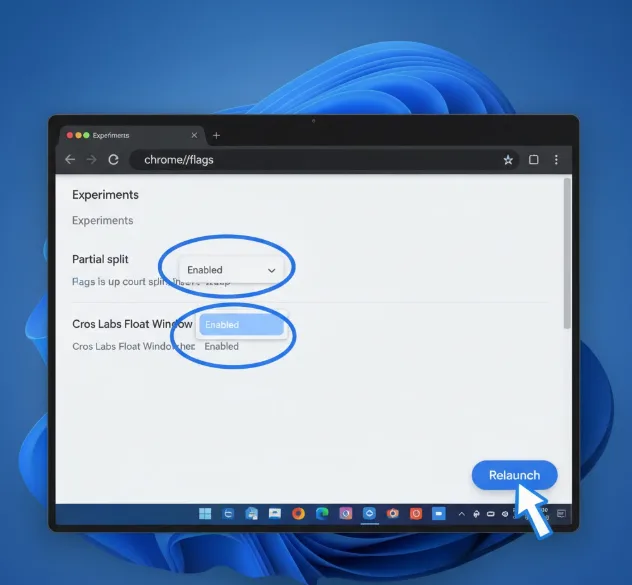
Enable the float window flag
Type chrome://flags#cros-labs-float-window in the address bar. This second flag is required for the partial split feature to work properly.
Click the dropdown menu and select “Enabled.” Both flags must be active for the feature to function.
Restart your browser
After enabling both flags, you’ll see a “Relaunch” button appear at the bottom of the screen. Click this button to restart your browser.
The restart takes just a few seconds. Your open tabs will reload automatically.
Access the window management options
Hover your cursor over the Maximize button of any open window. You’ll see a small indicator appear showing the partial split feature is available.
Long press the Maximize button. ChromeOS will display four different window position options on your screen.
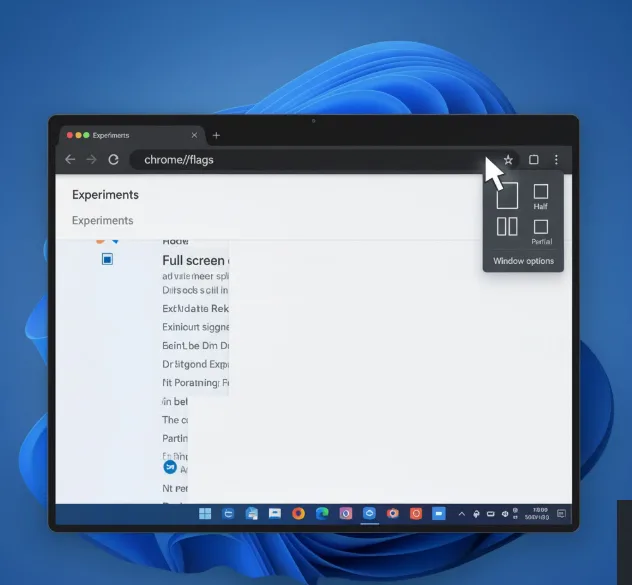
Choose your window layout
Move your cursor to any of the four available positions. You can select Half, Full, or Float on top options.
The Partial option appears but doesn’t function yet in ChromeOS 105. This is normal since the feature is still being developed.
Click your preferred layout to snap the window into position. The window will instantly resize and move to your selected area.
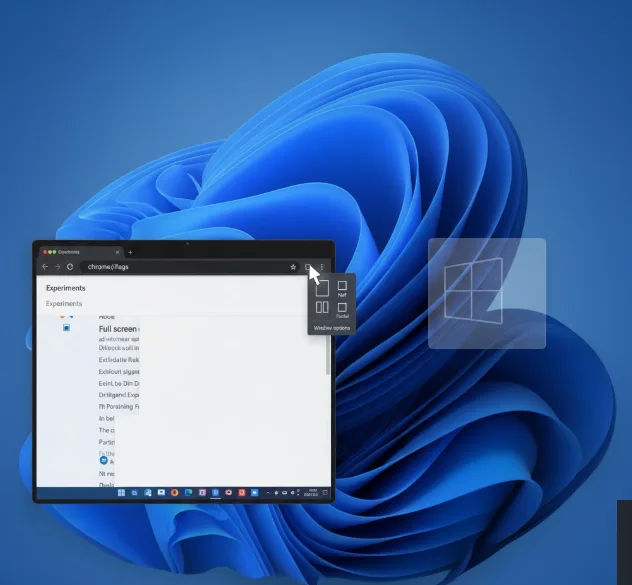
Test with different app types
Try the feature with your Chrome browser first. Then test it with an Android app or Progressive Web App.
Understanding ChromeOS window management features helps you work more efficiently across different app types. The partial split feature works universally across all window types on your device.
Disable the feature if needed
If you don’t like how to enable and use partial split on ChromeOS 105, you can reverse the process. Type the same flag addresses in your browser and select “Disabled” from the dropdown menus.
Click the Relaunch button to restart your browser. Your Chromebook will return to its previous window management settings.
The experimental nature means you might encounter bugs or incomplete functionality. Other experimental ChromeOS features can also enhance your workflow when you’re comfortable testing new tools.
You can combine this feature with Chromebook keyboard shortcuts for faster window management. The Alt + = shortcut maximizes windows, while Alt + – minimizes them.
FAQs
Does partial split work on all ChromeOS devices?
Yes, partial split works on any Chromebook running ChromeOS 105 or later. You need to enable two experimental flags to access this feature on your device.
Can I use partial split with Android apps?
Yes, partial split supports Android apps, Progressive Web Apps, Linux apps, and Chrome browser windows. The feature works universally across all app types on ChromeOS.
Why doesn’t the Partial option work?
The Partial window arrangement option is still under development in ChromeOS 105. Only Half, Full, and Float on top options are currently functional in this version.
How do I disable partial split after enabling it?
Open chrome://flags#partial-split and chrome://flags#cros-labs-float-window, select “Disabled” for both flags, then click Relaunch to restart your browser and remove the feature.
Is partial split safe to use on my Chromebook?
Yes, partial split is safe but experimental. It may have bugs or incomplete features. ChromeOS flags are designed for testing new functionality before official release.
