

Close Menu
    Facebook X (Twitter) Instagram
    • About
    • Privacy Policy
    • Write For Us
    • Newsletter
    • Contact
    Instagram
    About ChromebooksAbout Chromebooks
    • News
      • Stats
    • AI
    • How to
      • DevOps
      • IP Address
    • Apps
    • Business
    • Q&A
      • Opinion
    • Gaming
      • Google Games
    • Blog
    • Podcast
    • Contact
    About ChromebooksAbout Chromebooks
    News

    Steam on Chromebook comes to the ChromeOS 117 Stable Channel

    Kevin TofelBy Kevin TofelSeptember 27, 2023Updated:September 23, 2025No Comments3 Mins Read
    Share
    Facebook Twitter LinkedIn Pinterest

    Just like everything else in ChromeOS 117, the Steam on Chromebook installer gets a face lift too. And you no longer need to be on the ChromeOS Beta Channel. I powerwashed the Framework Chromebook and updated to ChromeOS 117 Stable Channel. I still had to enable Steam using an experimental flag, but Steam no longer requires the Beta Channel. Here’s how to get Steam on Chromebook running if you have a supported device.

    Enable Steam on Chromebook with a single flag

    Assuming you have a supported device and you’re on the just release ChromeOS 117 Stable Channel, head to chrome://flags#borealis-enabledin your browser. Change the setting to “Enabled” and click the Restart button. Note that you may also want to enable the chrome://flags#borealis-force-double-scale option as well. If you don’t and the Steam client app is small, this will fix that problem.

    With the first flag enabled, search for “Steam” in your Chromebook Launcher. You should now see an option for the Steam installation. Select it to start the process.

    Run through the new Steam on Chromebook installation

    Here’s where the face lift part comes in. All you have to do is watch it happen and click through any prompts.
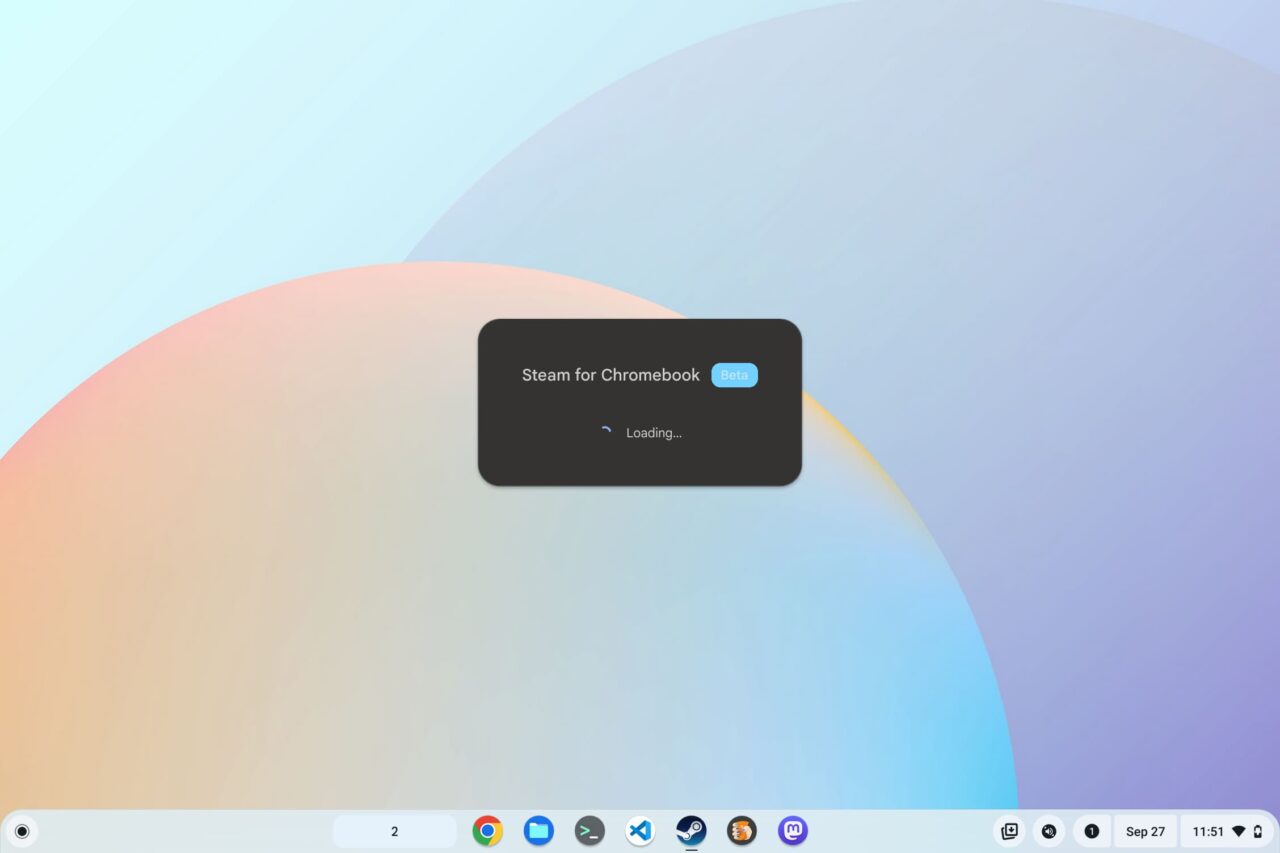
    Steam on Chromebook installer

    The installation process kicks off with the above information.

    All you have to do is wait until the process automatically moves to the next step. You’ll know when that happens because you’ll be greeted by this screen, shown below.
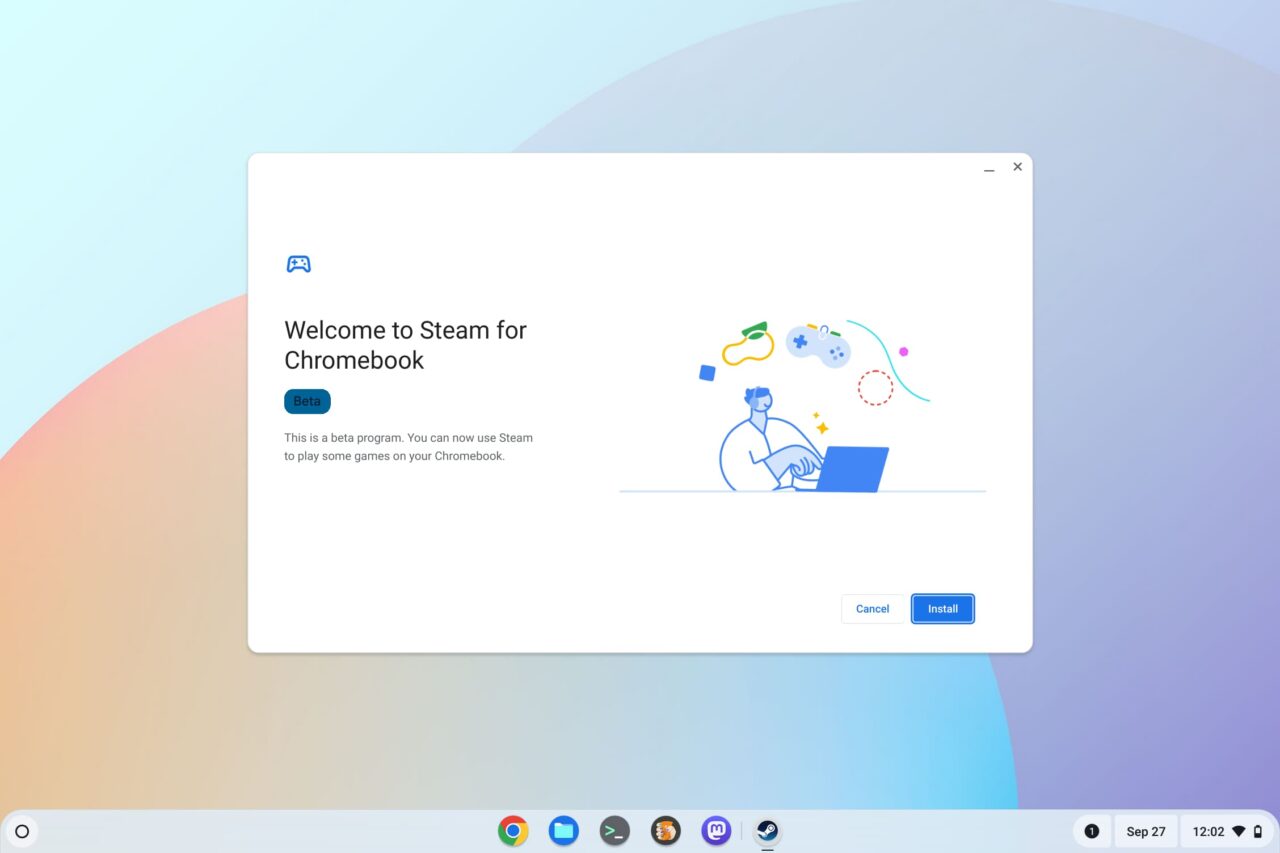
    Welcome to Steam for Chromebook

    Click the “Install” button to begin the Steam client download process. Once you do, you’ll see the download progress:
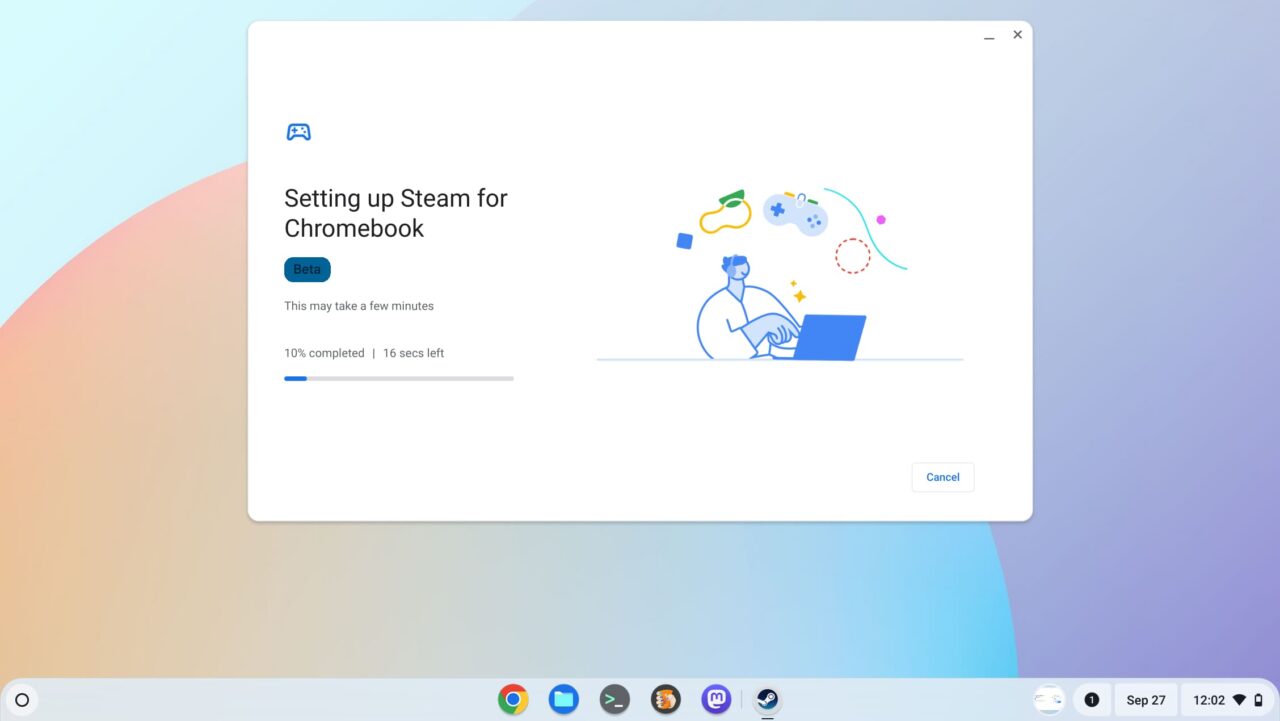
    Setting up Steam for Chromebook

    Once the installation process is completed, you’ll get a confirmation screen. From here you can click the “Open Steam” button.
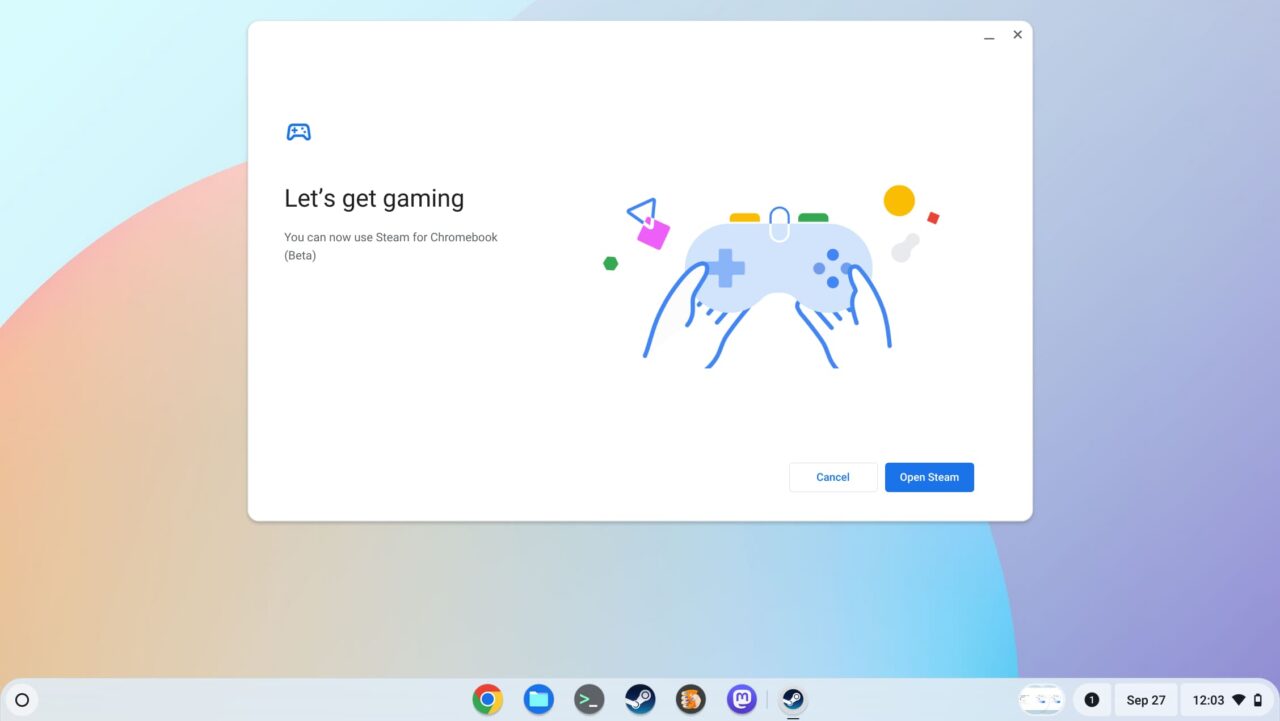
    Start playing with Steam on Chromebook

    Playing Steam on Chromebook games

    From here on out, playing Steam games on a Chromebook is no different than playing them on any other computer. Or the Steam Deck, for that matter, although that device has an custom interface optimized for a small display.

    I still maintain that some people may be disappointed by playing Steam games on a Chromebook, depending on the game and their hardware.
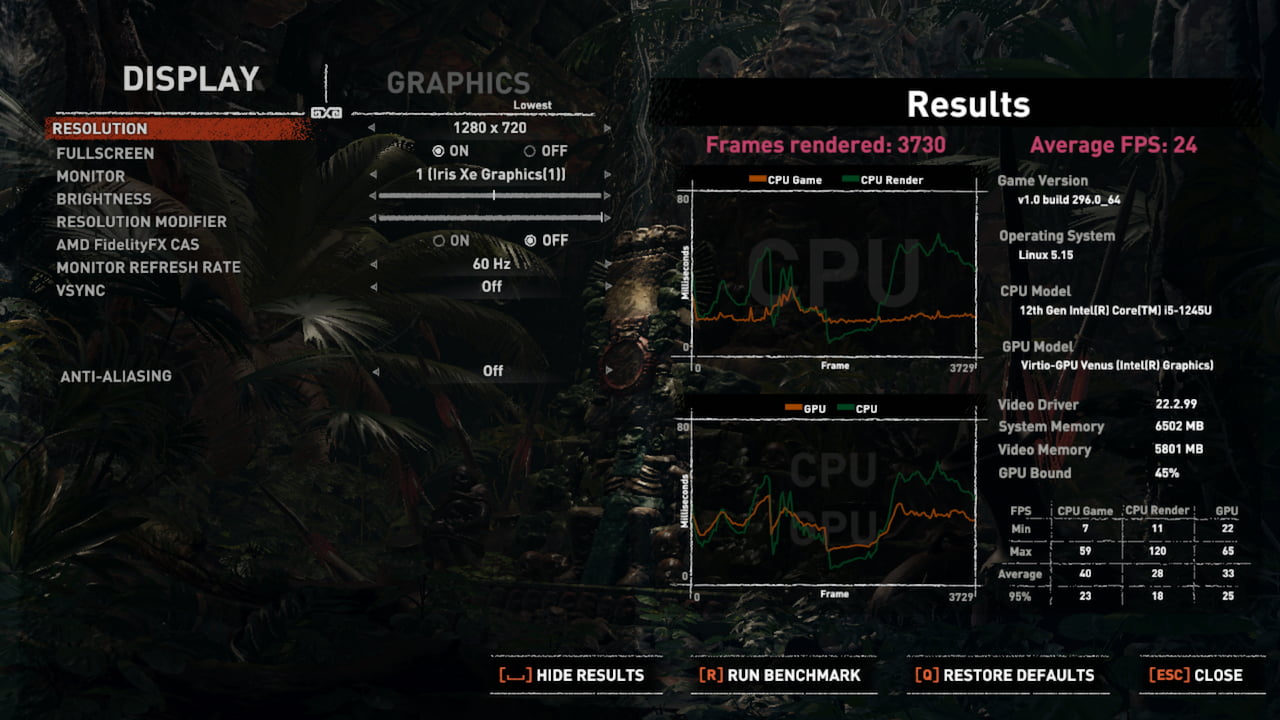
    Steam gaming on Chromebooks doesn't run fast with AAA titles

    Make no mistake, if you’re playing older games that don’t require much in the way of graphics support, you’ll be just fine. Trying to play the latest AAA titles that require the latest GPUs though? That’s not going to be a playable experience from what I’ve seen so far.

    Like I said before: Keep your expectations in check.

    Share. Facebook Twitter Pinterest LinkedIn Tumblr
    Kevin Tofel
    • Website

    After spending 15 years in IT at Fortune 100 companies, Kevin turned a hobby into a career and began covering mobile technology in 2003. He writes daily on the industry and has co-hosted the weekly MobileTechRoundup podcast since 2006. His writing has appeared in print (The New York Times, PC Magazine and PC World) and he has been featured on NBC News in Philadelphia.

    Related Posts

    Starbucks Partner Hours: Manual to Managing Work Schedules

    January 26, 2026

    Anon Vault For Private Cloud Storage

    January 23, 2026

    GitHub Copilot Statistics [2026]

    January 7, 2026

    Comments are closed.

    Best of AI

    Frosting AI Statistics And User Trends 2026

    February 11, 2026

    Chub AI Statistics And User Trends 2026

    February 5, 2026

    Make-A-Video Statistics 2026

    January 30, 2026

    Stable Video Diffusion User Trends And Statistics 2026

    January 29, 2026

    VALL-E Statistics 2026

    January 28, 2026
    Trending Stats

    Chrome Incognito Mode Statistics 2026

    February 10, 2026

    Google Penalty Recovery Statistics 2026

    January 30, 2026

    Search engine operators Statistics 2026

    January 29, 2026

    Most searched keywords on Google

    January 27, 2026

    Ahrefs Search Engine Statistics 2026

    January 19, 2026
    • About
    • Tech Guest Post
    • Contact
    • Privacy Policy
    • Sitemap
    © 2026 About Chrome Books. All rights reserved.

    Type above and press Enter to search. Press Esc to cancel.