


ChromeOS lacks native desktop app support, which stops some users from adopting Chromebooks. The “Install with Linux” feature changes that by letting you run full desktop applications directly on your device.
This built-in ChromeOS tool lets you install Linux apps without typing commands or using the Terminal. You download .deb files and install them with a simple right-click in the Files app.
The process takes seconds and works like installing any Windows program. Your Linux apps appear in the Chromebook launcher alongside other applications.
You can resize them, use split-screen mode, and treat them like native apps. While not every desktop app has a Linux version, thousands do—including Discord, Slack, Visual Studio Code, and GIMP.
This feature expands what you can do on a Chromebook without requiring technical knowledge. If you need desktop software beyond web apps, Install with Linux delivers a straightforward solution.
How to use the most underrated ChromeOS feature on a Chromebook: Install with Linux
You need to enable Linux on your Chromebook before installing apps. Go to Settings, select “Advanced,” then “Developers.” Turn on “Linux development environment” and follow the setup prompts.
This creates a Linux container on your device and adds a “Linux apps” folder to your launcher.
Download .deb files for Linux applications
Find the Linux version of apps you want to use. Look for downloads labeled .deb or Debian on the software’s official website.
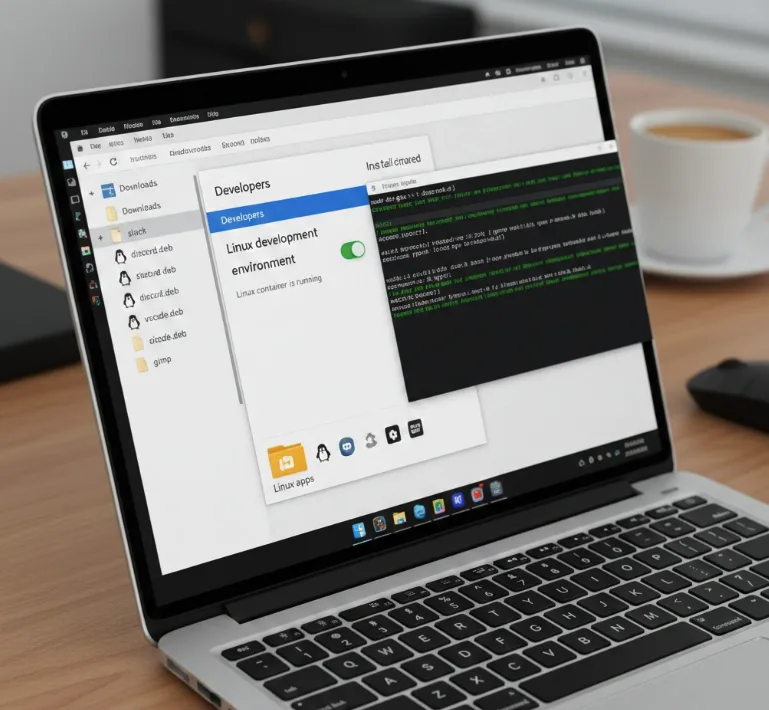
Save these files to your Chromebook’s Downloads folder. Popular apps like Discord, Slack, Visual Studio Code, and GIMP offer .deb downloads.
These files work similarly to .exe files on Windows. They contain everything needed to install the application on your system.
Right-click the downloaded file in Files app
Open the Files app on your Chromebook. Navigate to your Downloads folder where the .deb file is saved.
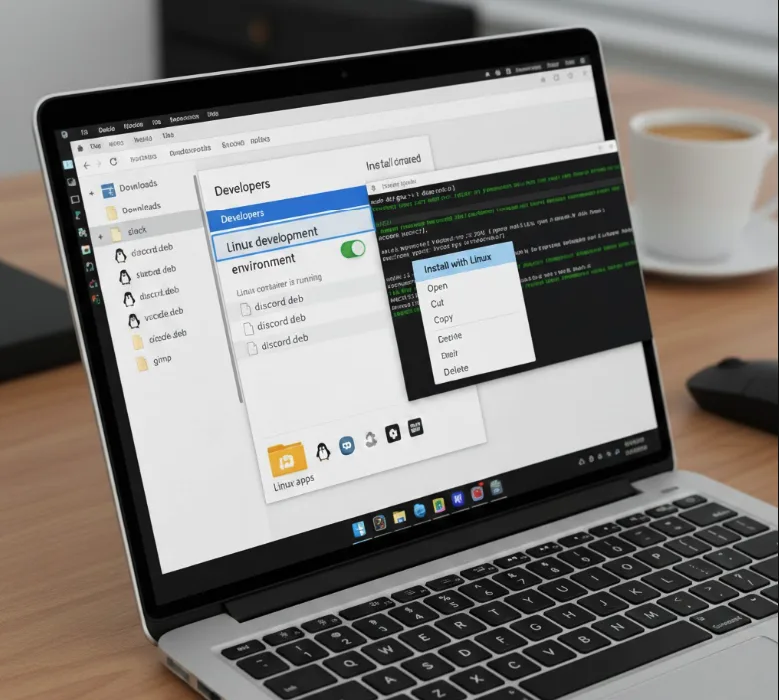
Right-click on the .deb file you want to install. A menu appears with several options.
Select “Install with Linux” from the top of that menu. This starts the automatic installation process.
Let ChromeOS install the application automatically
A dialog box appears showing application details. Review the information if you want, then click the “Install” button.
A notification pops up showing installation progress. Most Linux apps install within five to ten seconds on modern Chromebooks.
Wait for the notification to confirm installation is complete. You don’t need to click anything else during this process.
Launch your Linux app from the Chromebook launcher
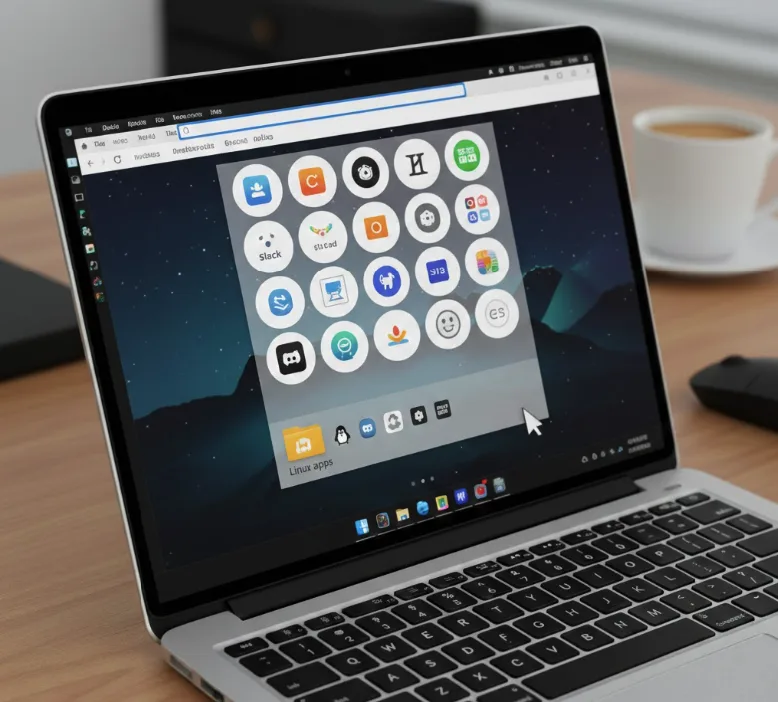
Open your Chromebook launcher by pressing the Search key or clicking the circle icon. Find the “Linux apps” folder.
Your newly installed application appears inside this folder with its own icon. Click the icon to launch the app.
The application opens like any other Chromebook app. You can resize it, use split-screen mode, and pin it to your shelf for quick access.
Linux apps integrate seamlessly with ChromeOS. They support the same window management features as web apps and Android apps on your device.
You can install popular tools like LibreOffice for advanced document editing or explore why you might want to run Linux on a Chromebook for other use cases.
FAQs
Can I install any Linux app on my Chromebook?
You can install apps with .deb files for your Chromebook’s architecture. ARM-based Chromebooks need ARM versions, while Intel/AMD devices need x86 versions. Not all Linux apps support both.
Do I need to know Terminal commands to install Linux apps?
No Terminal knowledge is required. The Install with Linux feature handles everything through the graphical Files app. You simply right-click and select the install option.
Will Linux apps slow down my Chromebook?
Linux apps use system resources like any other application. They run in a container that ChromeOS manages efficiently. Performance depends on your Chromebook’s specifications and the app itself.
Where do installed Linux apps appear on my Chromebook?
All Linux apps appear in a “Linux apps” folder within your Chromebook launcher. You access them the same way you would any Chrome app or Android app.
Can I uninstall Linux apps if I don’t need them?
Yes, you can uninstall Linux apps anytime. Right-click the app icon in your launcher and select “Uninstall.” This removes the application and frees up storage space.
