


Wine 9.0 lets you run Windows applications on your Chromebook through its Linux environment. This compatibility layer translates Windows commands into instructions your Chromebook understands, eliminating the need for dual-booting or virtual machines.
You’ll want to install Wine 9.0 if you need Windows-only software for work, gaming, or specialized tasks that lack Chrome OS alternatives. This expands your Chromebook’s capabilities significantly.
Before starting, verify your Chromebook has an Intel or AMD processor with Linux Apps enabled. ARM64 Chromebooks won’t support this installation method.
How To Wine 9 for Chromebook?
Follow these steps in order to install Wine 9.0 on your Chromebook. Each command builds on the previous one, so don’t skip any steps.
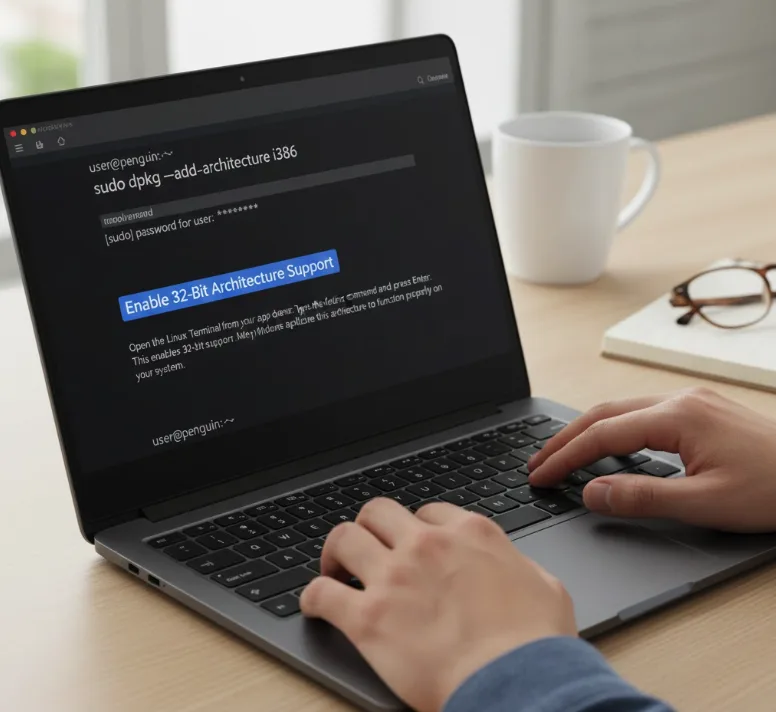
Enable 32-Bit Architecture Support
Open the Linux Terminal from your app drawer. Type the following command and press Enter:
sudo dpkg --add-architecture i386
This enables 32-bit support. Many Windows applications require this architecture to function properly on your system.
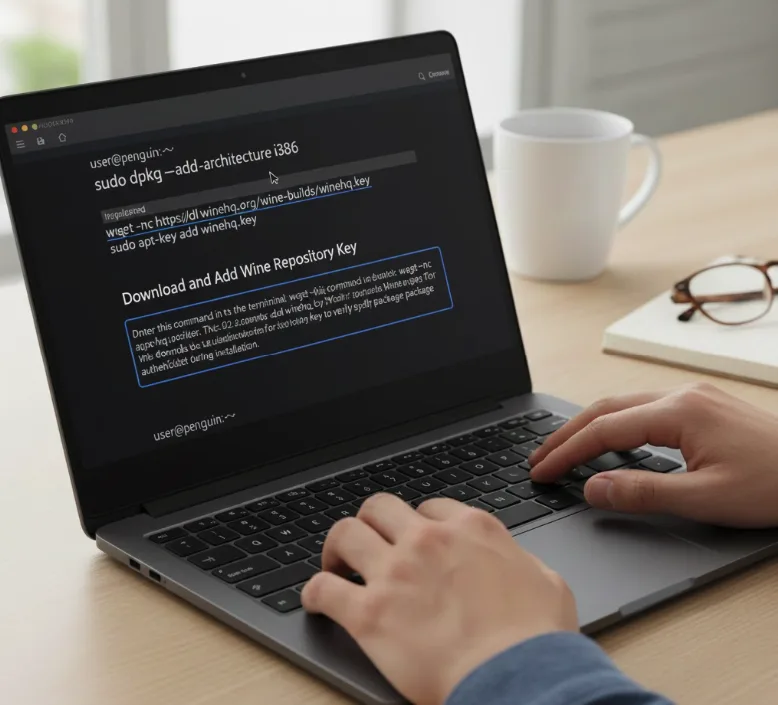
Download and Add Wine Repository Key
Enter this command in the terminal:
wget -nc https://dl.winehq.org/wine-builds/winehq.key && sudo apt-key add winehq.key
This downloads the authentication key for Wine packages. Your system uses this key to verify package authenticity during installation.
Add Wine Repository to Package Sources
Type the following command:
echo "deb https://dl.winehq.org/wine-builds/debian/ bookworm main" | sudo tee /etc/apt/sources.list.d/wine_chrome_os_made_simple.list
This tells your Chromebook where to find Wine packages. Your system now knows the official Wine repository location.
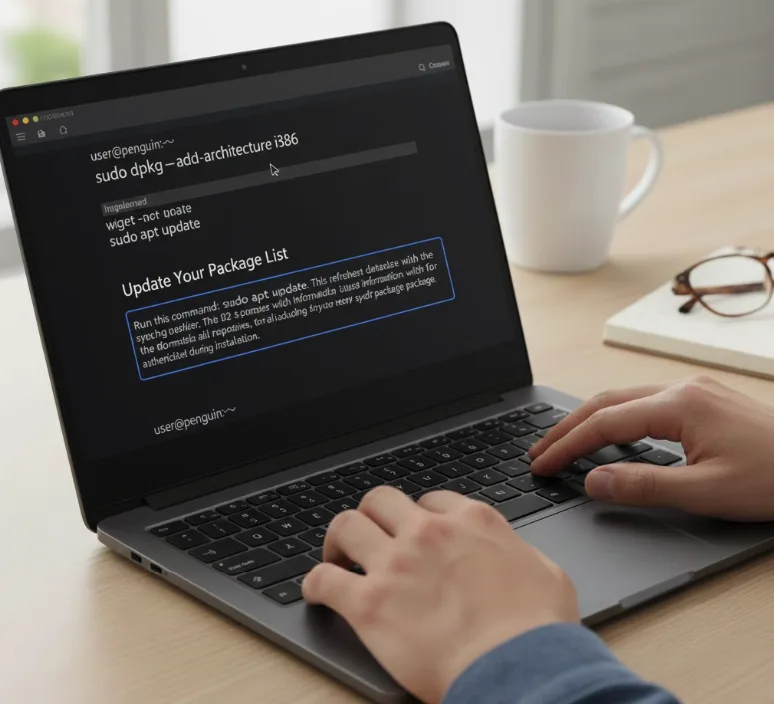
Update Your Package List
Run this command:
sudo apt update
This refreshes your system’s package database with the latest information from all repositories, including the Wine repository you just added.
Install Wine and Required Packages
Enter this command:
sudo apt install --install-recommends winehq-stable nemo winbind
This installs Wine stable version along with Nemo file manager and Winbind for network functionality. The installation takes a few minutes.
Initialize Wine Configuration
Type:
winecfg
This creates necessary Wine directories and configuration files. A Wine configuration window appears. Close it after it finishes loading.
Create Quick Access Link
Enter the final command:
ln -s /home/$USER/.wine/drive_c /home/$USER/wine
This creates a shortcut to your Wine C: drive in your home directory, making Windows applications easier to access.
After completing these steps, download a Windows .exe file you want to run. Right-click the file and select “Open with Wine Windows Program Loader.” Follow the installation prompts as you would on Windows.
Not all Windows applications work perfectly with Wine. Check the Wine AppDB database for compatibility reports before installing specific programs.
FAQs
Does Wine 9.0 work on all Chromebooks?
Wine 9.0 only works on Chromebooks with Intel or AMD processors that support Linux Apps. ARM64-based Chromebooks cannot run this installation method.
Can I run any Windows program with Wine?
No. While Wine supports many Windows applications, some programs may not work or have limited functionality. Check Wine AppDB for compatibility information.
Do I need to pay for Wine?
Wine is completely free and open-source software. You don’t need any license or subscription to install and use it on your Chromebook.
How do I update Wine to newer versions?
Run “sudo apt update” followed by “sudo apt upgrade” in the Linux Terminal. This updates Wine along with other installed packages.
Will Wine slow down my Chromebook?
Wine itself uses minimal resources. Performance depends on the Windows applications you run. Lighter programs typically run smoothly while resource-intensive software may lag.
