


Android apps enhance Chromebook functionality beyond web browsing. Sometimes apps you want do not appear in the Google Play Store.
This might happen because the app does not support your device or the developer restricts distribution. Installing apps outside the Play Store remains possible without using developer mode.
This guide shows how to install apps on Chromebook without Google Play using Linux and Android Debug Bridge. The process requires enabling Linux on your device and downloading APK files from trusted sources.
Before you start, understand the risks involved. Some app packages may come from unsafe sources.
Only install apps from developers you trust. Apps obtained outside the Play Store lack Google’s verification process.
This method helps users access apps unavailable through official channels. Many developers do not optimize their apps for larger screens or Chrome OS.
How To Install Apps on Chromebook Without Google Play?
Enable Linux on Your Chromebook

First, you need to enable Linux on your Chromebook. Open Settings and navigate to the Advanced section.
Find the Developers menu and click on Linux development environment. Select Turn on and follow the prompts.
Allocate sufficient disk space when prompted. Linux creates a secure container that operates independently from Chrome OS.
Download the APK File

Download the app you want to install from a trusted source. APK Mirror scans and approves all uploads for safety.
For apps like Fortnite, get them from their official website. Save the APK file to your Downloads folder.
Prepare the APK File
Open the Files app on your Chromebook. Locate your downloaded APK file in the Downloads folder.
Rename the file if needed but keep the .apk extension. Move the file to the Linux files folder in the left sidebar.
Enable Android Debugging
Navigate to Settings and select the Linux section. Click Develop Android apps and press the confirmation button.
Your Chromebook will restart to apply these changes. After restart, enable ADB debugging when prompted.
A warning message appears on your login screen stating apps from outside Google Play may be present. This notification persists while ADB debugging remains enabled.
Install ADB Tools
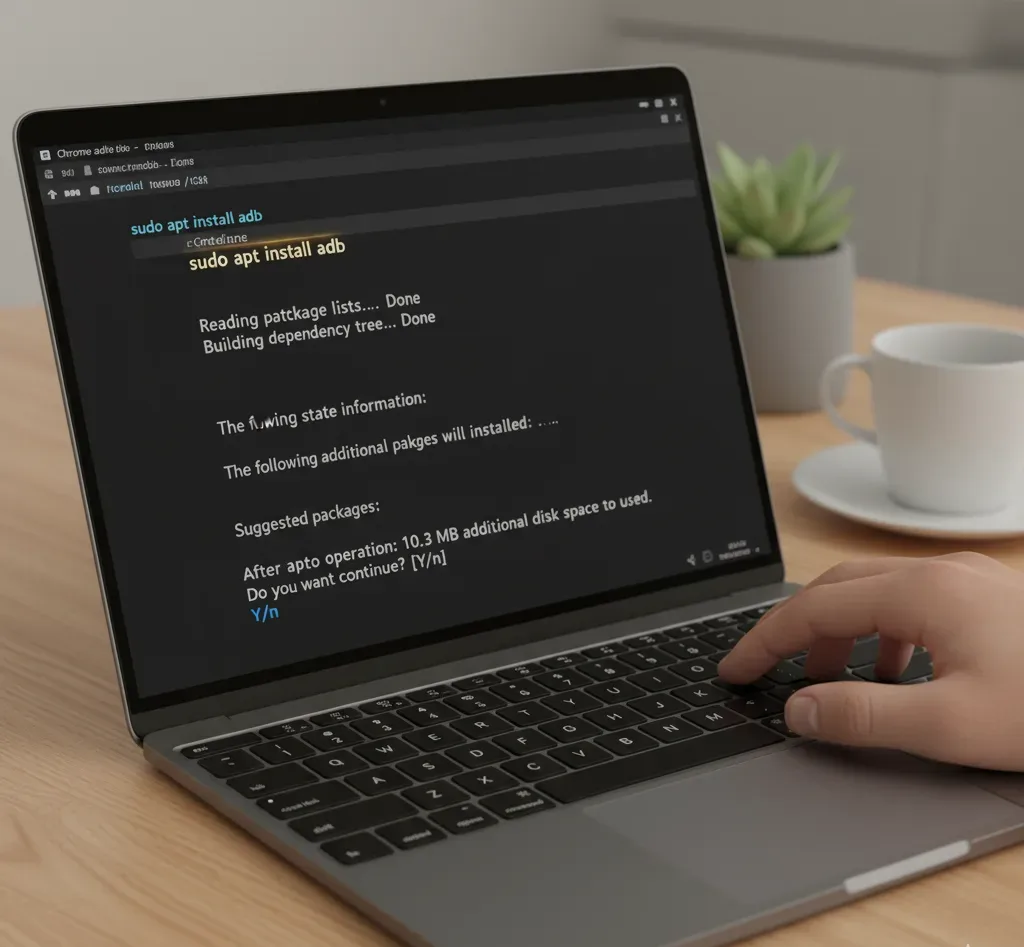
Open the Terminal app from your Chromebook launcher. Type sudo apt install adb and press Enter.
Wait for the installation to complete. If prompted, type Y and press Enter to confirm.
Installing Linux apps requires understanding basic Terminal commands.
Connect to Android Debug Bridge
Type adb connect arc in the Terminal and press Enter. This connects to the Android debugging tool.
A popup asks if you want to allow USB debugging. Click OK to proceed.
Install the APK File
Type adb install [filename].apk in the Terminal, replacing [filename] with your actual app name. Press Enter to begin installation.
If the standard command fails, try adb -s emulator-5554 install [filename].apk instead. Wait for the installation confirmation message.
The app icon now appears in your Chromebook launcher. You can open it like any other app.
Some apps may not work properly due to compatibility issues. Apps requiring Play Store integration will not function correctly.
FAQs
Is installing apps on Chromebook without Google Play safe?
Safety depends on APK source reliability. Download only from trusted websites like APK Mirror. Unknown sources may contain malware that compromises device security. Enable Google Play Protect for additional scanning protection.
Do I need developer mode to install apps on Chromebook without Google Play?
No, this method uses Linux containers instead. Developer mode disables Chrome OS security features and erases all local data. The Linux approach offers better security without compromising system protections.
Will installed apps consume storage space?
Yes, installed apps consume local storage like Play Store apps. APK size plus app data uses available space. Monitor storage in Chrome OS Settings and remove unused apps to free capacity.
Can I install any Android app on my Chromebook?
Not all apps work on Chromebooks. Apps requiring specific hardware or Play Store services may fail. Game apps not optimized for larger screens might have display issues or performance problems.
Do school Chromebooks allow installing apps without Google Play?
Most school-managed Chromebooks restrict Linux installation through administrator policies. These restrictions prevent APK installation to maintain security. Contact your IT administrator for permissions if needed.
