


TikTok has become one of the most popular social media platforms, with millions of users sharing short-form videos daily. If you own a Chromebook, you might wonder how to access TikTok and log in to your account. Chromebooks support TikTok through multiple methods, making it easy to browse content, create videos, and interact with other users.
Whether you prefer using the Google Play Store app or accessing TikTok through a web browser, both options work seamlessly on ChromeOS. Understanding the login process helps you get started quickly and enjoy everything the platform offers on your device.
How To TikTok Login?
You can log in to TikTok on your Chromebook using two different approaches. The first method involves downloading the official app from the Google Play Store. The second option uses the web version through any browser. Both methods provide full access to your account and let you enjoy TikTok’s features.
Download TikTok from Google Play Store
Open the Google Play Store on your Chromebook. You’ll find it in the app launcher or pinned to your shelf.
Type “TikTok” in the search bar and press Enter. Select the official TikTok app from the results.
Click the “Install” button. The download completes within seconds due to the small file size.
Once installation finishes, open your app launcher and click the TikTok icon.

Sign In to Your TikTok Account
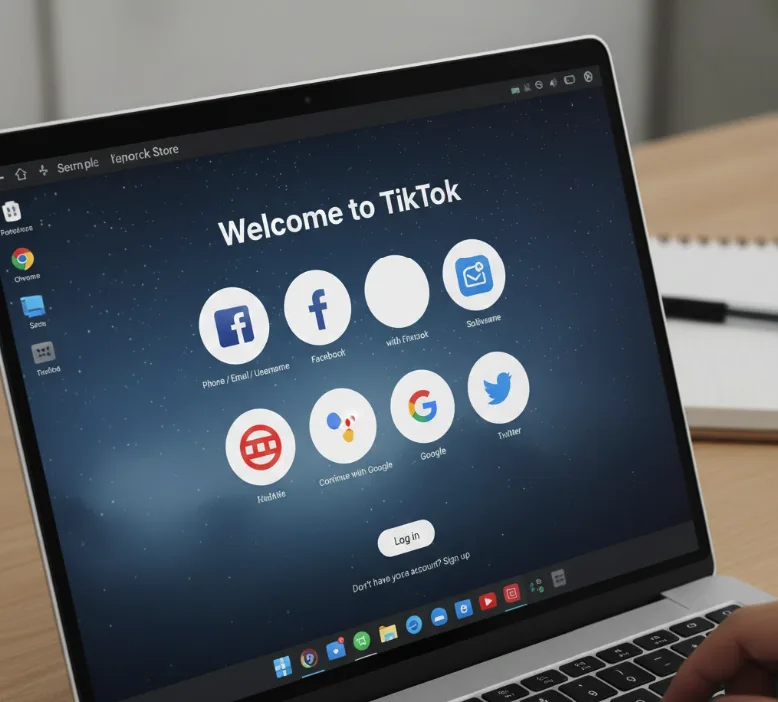
Launch the TikTok app. The welcome screen appears with login options.
Select your preferred sign-in method. You can use your phone number, email, or connect through Google, Facebook, or Apple accounts.
Enter your credentials and tap “Log in.” If you’re a new user, choose “Sign up” instead and follow the account creation steps.
After successful login, you’ll see your personalized feed. Start browsing videos, following creators, or posting your own content.
Access TikTok Through Web Browser
Open any web browser on your Chromebook. Chrome works best for compatibility.
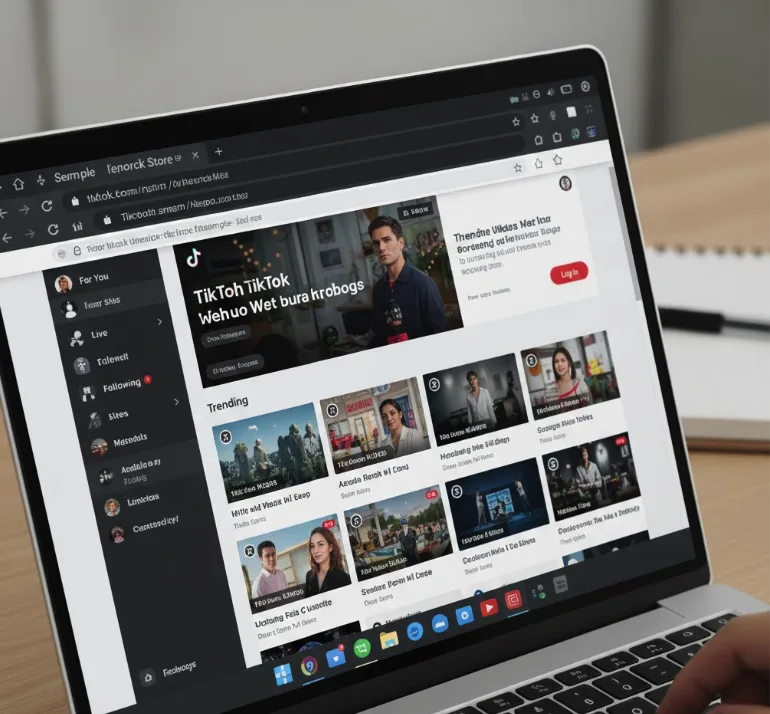
Navigate to the official TikTok website at tiktok.com. The homepage displays trending videos and content.
Click the “Log in” button in the upper right corner. Choose your login method from the available options.
Enter your account information and complete the sign-in process. You now have full access to TikTok’s web features, including watching videos, creating content, and managing your profile.
The browser version provides similar functionality to the app. You can switch between methods based on your preference.
FAQs
Can I use TikTok on any Chromebook?
Most Chromebooks manufactured after 2018 support TikTok through the Google Play Store. Older models may need to use the web version instead.
Do I need a TikTok account to watch videos?
You can browse TikTok content without an account, but creating one unlocks personalized recommendations, following creators, and posting your own videos.
Which login method works better on Chromebook?
Both the app and web versions work well. The app offers better performance and features, while the browser version requires no installation.
Can I create TikTok videos on my Chromebook?
Yes, you can create and edit videos directly on your Chromebook using either the app or web version with available editing tools.
Will TikTok sync across my devices?
Your TikTok account syncs automatically across all devices. Videos you like, accounts you follow, and your profile remain consistent everywhere.
