


Google Chrome extensions are small programs that enhance your browser’s functionality. They can help you block ads, manage passwords, boost productivity, or customize your browsing experience in countless ways.
Adding Chrome extensions is straightforward on desktop computers, including Windows PCs, Macs, and Chromebooks. However, mobile versions of Chrome don’t support extensions natively.
This guide walks you through finding and adding extensions from the Chrome Web Store, managing them effectively, and removing ones you no longer need. Whether you’re looking for productivity tools or security features, you’ll know exactly how to install them after reading this.
How To Add Google Chrome Extensions?
Visit the Chrome Web Store
Open Google Chrome on your computer and navigate to chrome.google.com/webstore. This official store hosts thousands of verified extensions for various purposes.
You can browse categories or search for specific extensions. The Chrome Web Store works on Chromebooks, Windows, Mac, and Linux systems.

Search for Your Extension
Use the search bar at the top of the page to find specific extensions by name. If you’re exploring options, try searching by function like “note taking” or “ad blocker.”
Browse through popular Chrome extensions to discover highly-rated tools. Check user reviews and ratings before installing anything.
Review Extension Details
Click on any extension to view its full page. Read the description, check screenshots, and review what permissions it requires.
Look at the “Privacy practices” section to understand what data the extension collects. This helps you make informed decisions about your privacy.
Pay attention to the number of users and recent reviews. Extensions with millions of users and positive feedback are generally more reliable.
Install the Extension
Click the blue “Add to Chrome” button on the extension’s page. A popup window will appear listing the permissions the extension needs.
Review these permissions carefully. If something seems excessive for what the extension does, consider finding an alternative.

Confirm Installation
Click “Add extension” in the popup to complete installation. The extension icon typically appears next to your address bar.
Some extensions work immediately, while others require initial setup. Check the puzzle piece icon in your toolbar to access all installed extensions.
Pin Important Extensions
Click the puzzle piece icon to see your extension list. Find extensions you use frequently and click the pin icon next to them.
Pinned extensions appear directly in your toolbar for quick access. You can unpin them anytime by clicking the pin icon again.
Manage Your Extensions
Click the puzzle piece icon and select “Manage extensions” at the bottom. This opens a page showing all installed extensions.
Here you can enable or disable extensions using the toggle switch. You can also remove extensions by clicking the “Remove” button.
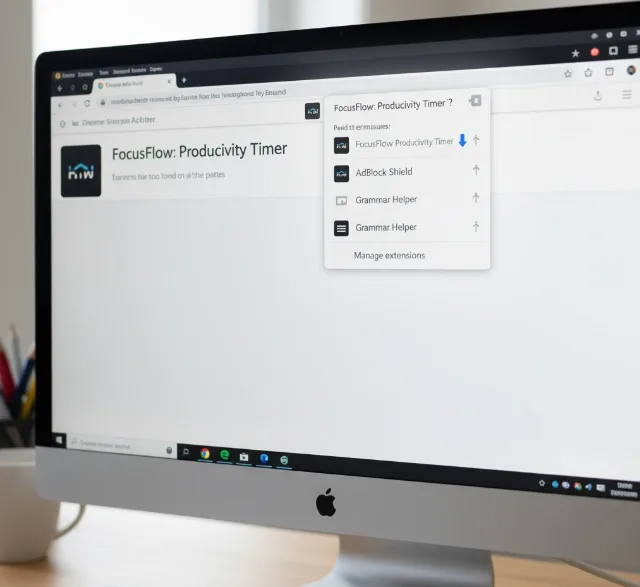
Consider managing your Chrome extensions regularly to keep your browser running smoothly. Too many extensions can slow down performance.
FAQs
Can I add Google Chrome extensions on my phone?
Chrome mobile doesn’t support extensions natively. However, you can use alternative browsers like Kiwi on Android that allow Chrome Web Store extensions.
Are Chrome extensions safe to use?
Most extensions from the Chrome Web Store are safe, but always check reviews and permissions. Avoid extensions with excessive permissions or poor ratings to protect your data.
How do I remove a Chrome extension?
Click the puzzle piece icon, select “Manage extensions,” find the extension you want to remove, and click “Remove.” Confirm by clicking “Remove” again in the popup.
Can I use Chrome extensions on other browsers?
Chromium-based browsers like Microsoft Edge, Brave, and Opera support many Chrome extensions. Visit their respective web stores or enable Chrome Web Store compatibility in settings.
Where can I find the best Chrome extensions?
Browse curated lists of top Chrome extensions for Chromebooks or explore productivity-focused extensions to discover useful tools for your needs.
