


The Inspect Element feature is a powerful tool built into Chrome OS that lets you examine and temporarily modify website code. This developer tool displays the HTML, CSS, and JavaScript that make up any webpage you visit.
Web developers use it to debug issues, designers test layout changes, and curious users explore how websites work. Chromebook users can access this feature just as easily as desktop Chrome users, making it valuable for learning web development, troubleshooting display problems, or understanding website structure.
The tool opens a panel showing the page’s underlying code, which you can edit temporarily to see instant changes without affecting the actual website.
How To Inspect Element in Chromebook?
Chromebooks provide multiple ways to access the Inspect Element tool, giving you flexibility based on your workflow and preferences.
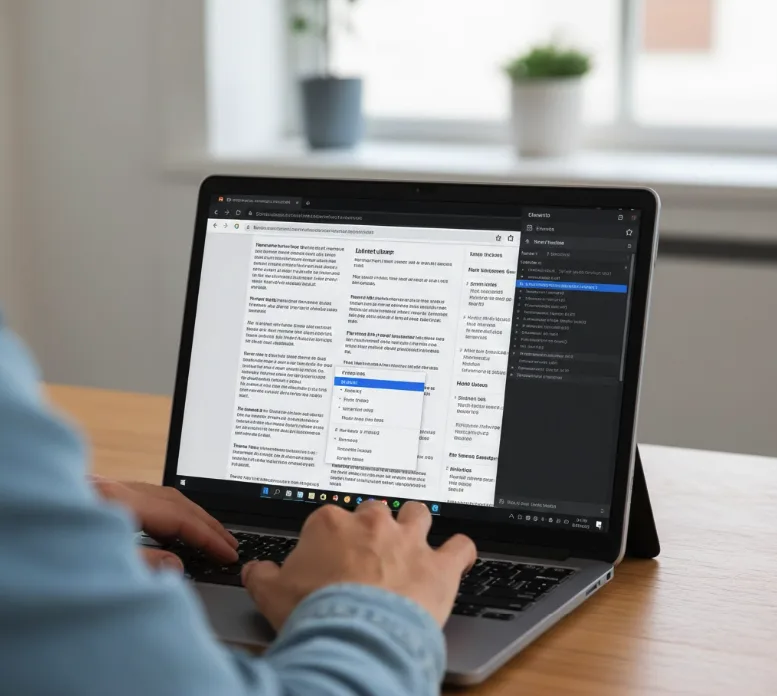
Right-Click the Element You Want to Inspect
Navigate to any webpage in Chrome on your Chromebook. Right-click directly on the element you want to examine, such as text, an image, or a button. Select “Inspect” from the context menu that appears.
The Developer Tools panel opens with the Elements tab active, highlighting the HTML code for the element you clicked. The right side displays associated CSS styling rules.
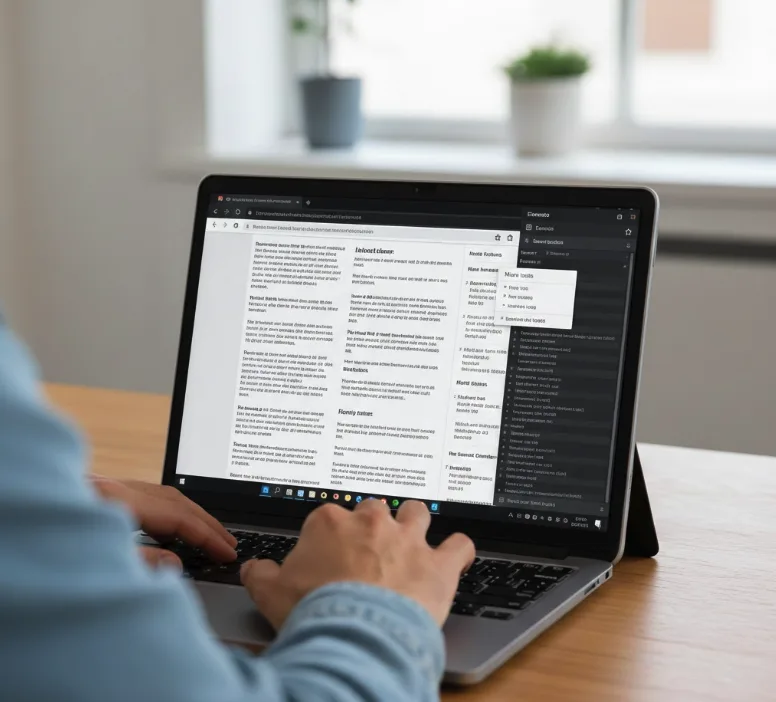
Use the Chrome Menu to Open Developer Tools
Click the three-dot menu icon in the top-right corner of Chrome. Hover over “More tools” in the dropdown list. Click “Developer tools” to open the full panel.
This method opens Developer Tools without selecting a specific element. You can then click the inspect icon (arrow in a square) at the top-left of the panel and hover over page elements to select them.
Access Inspect Element with Keyboard Shortcuts
Press Ctrl + Shift + I to open Developer Tools instantly. This keyboard shortcut works the same on Chromebooks as on other devices.
For quick access to inspect a specific element, press Ctrl + Shift + C to activate the element selector tool. Your cursor changes to a crosshair, letting you click any page element to inspect it immediately.
Navigate the Developer Tools Panel
The Elements tab shows the HTML structure as a collapsible tree. Click arrows next to tags to expand or collapse sections. The Styles panel on the right displays CSS rules applied to the selected element.
Hover your mouse over any HTML line in the Elements tab. The corresponding element highlights on the webpage, showing its dimensions and spacing.
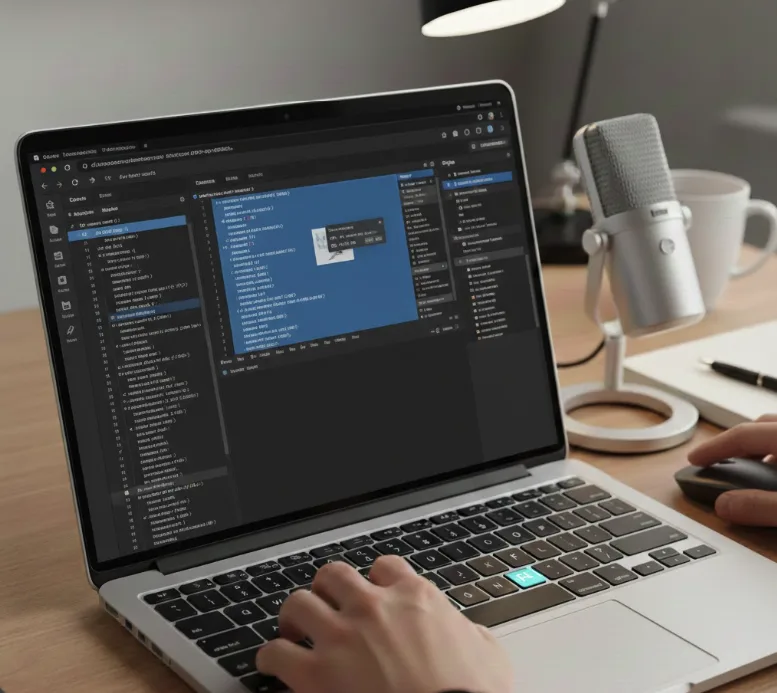
Edit Elements and Styles Temporarily
Double-click any text within HTML tags to edit content temporarily. Click inside the Styles panel to modify CSS values like colors, fonts, or dimensions. Press Enter to apply changes.
Your modifications appear instantly on the page but reset when you refresh. These temporary edits help you test design changes or understand how specific code affects appearance without touching the actual website files.
The console tab lets you run JavaScript commands and view error messages. The Network tab shows all files loaded by the page, useful for checking loading times and troubleshooting resource issues. If you’re interested in coding on a Chromebook, the Developer Tools are essential for understanding how web pages work.
FAQs
Can I permanently change a website using Inspect Element?
No, changes made through Inspect Element only affect your local view and disappear when you refresh the page. The actual website remains unchanged.
Does Inspect Element work on all Chromebook models?
Yes, Inspect Element works on all Chromebooks running Chrome OS. The feature is built into the Chrome browser itself, not dependent on hardware specifications.
Can I use Inspect Element on mobile websites viewed on Chromebook?
Yes, you can inspect mobile website versions by enabling device toolbar in Developer Tools. Click the device icon or press Ctrl + Shift + M.
Will using Inspect Element slow down my Chromebook?
Developer Tools consume some system resources, but the impact is minimal on modern Chromebooks. Close the panel when not needed to free up memory.
Can I inspect elements on password-protected or secure pages?
Yes, you can inspect elements on any page you can view, including password-protected sites. However, you cannot access encrypted data or bypass security measures.
