


Some websites and streaming services refuse to work on Chromebooks even though they run the Chrome browser. The problem stems from how these sites read your user-agent string, which identifies your browser and operating system.
When a website detects Chrome OS in your user-agent, it may block access or limit functionality. This happens frequently with streaming video platforms and older web applications that were designed only for Windows or Mac systems.
You can solve this by spoofing your user-agent to make websites think you’re using a different browser or operating system. The process takes just a few minutes and requires a simple browser extension.
How to spoof your Chromebook user-agent for sites that don’t support Chrome OS
The fastest way to change your Chromebook’s user-agent is through a browser extension. You’ll install the extension, select a different browser or platform, and the website will treat your Chromebook as that device.
Install the User-Agent Switcher extension
Open the Chrome Web Store and search for “User-Agent Switcher for Google Chrome.” Click the Add to Chrome button to install it.
The extension icon appears in your browser toolbar once installation completes. You’ll use this icon to access all user-agent options.
Select your preferred user-agent
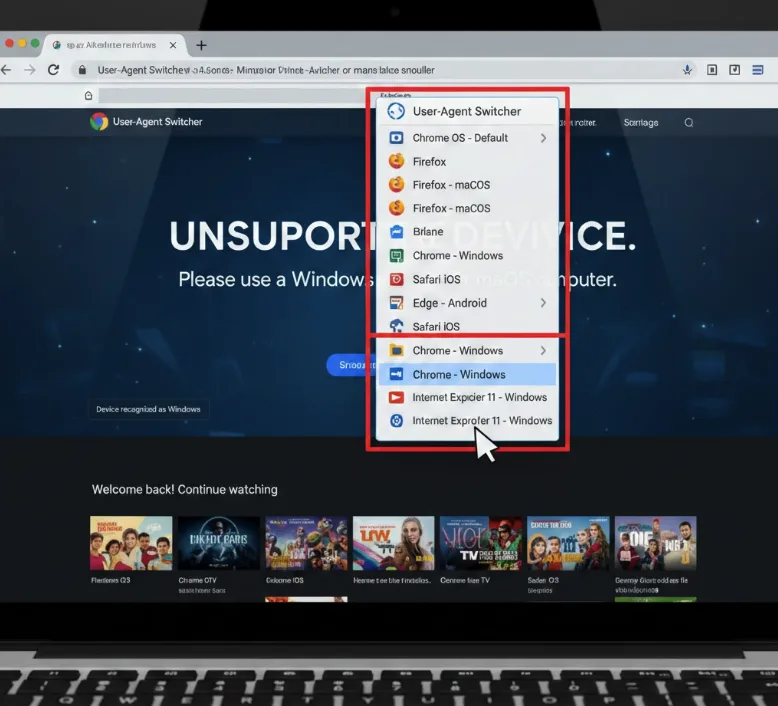
Click the extension icon in your toolbar to open the menu. A list of browsers and operating systems appears.
Choose the browser and platform combination you need. Options include Firefox on Mac, Chrome on Windows, Safari on iOS, and many others.
Verify the change worked
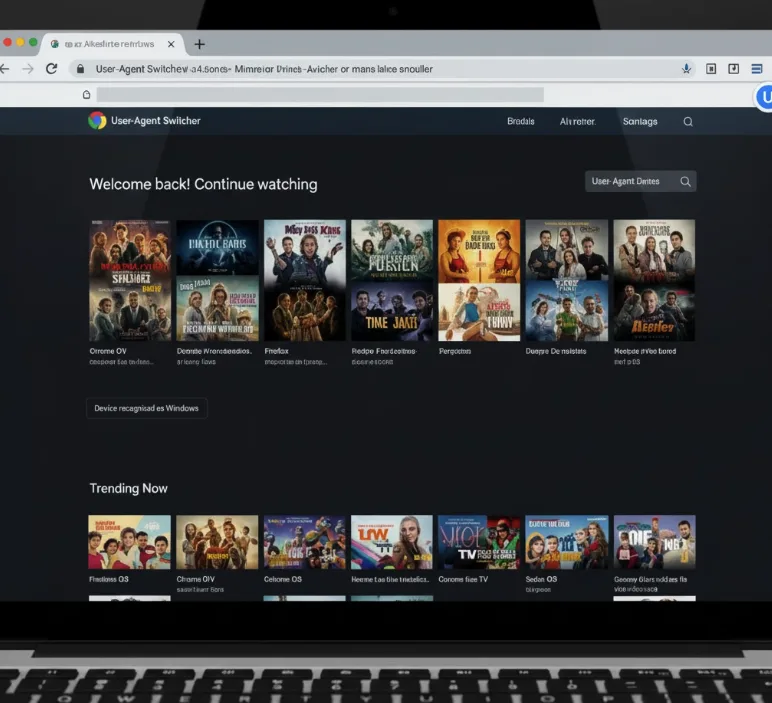
Reload the website that wasn’t working before. The site should now function properly since it reads your spoofed user-agent instead of detecting Chrome OS.
You can check your current user-agent anytime by searching “what is my user agent” in Google. This confirms which browser and system the website sees.
Switch back to default settings
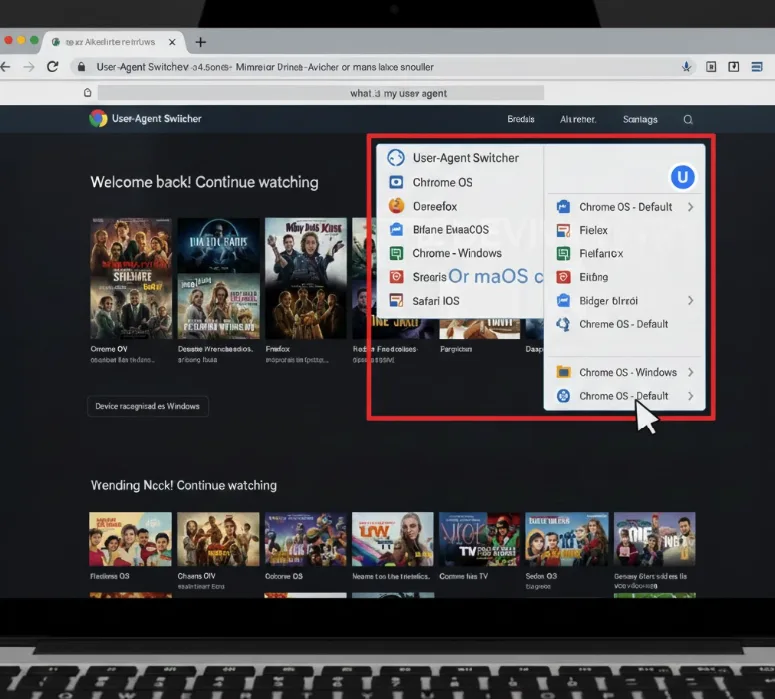
Click the extension icon again when you want to restore your normal Chromebook user-agent. Select “Chrome” or the reset option to return to default.
The extension remembers your custom settings, so you can quickly switch between different user-agents as needed.
Create custom user-agent strings
Advanced users can define custom user-agent strings for specific websites. Click the extension settings to access the custom string option.
Enter your desired user-agent text and save it. This works well for testing purposes or sites with unusual requirements.
The User-Agent Switcher extension offers dozens of preset options including older browser versions like Internet Explorer. You can make your Chromebook appear as an iPad, Android tablet, or any major desktop browser. Some websites still can’t distinguish between Chrome on different operating systems, so spoofing becomes necessary when services like streaming platforms block Chrome OS specifically.
FAQs
Will spoofing my user-agent harm my Chromebook?
No, changing your user-agent is completely safe. You’re only modifying how websites identify your browser, not altering any system files or settings.
Do I need to change my user-agent for every website?
You only need to spoof your user-agent for sites that block or restrict Chrome OS. Most websites work fine with your default Chromebook user-agent.
Can websites detect that I’m spoofing my user-agent?
Sophisticated websites can detect user-agent spoofing through other methods, but most sites rely solely on the user-agent string for identification.
Will this work for Netflix and other streaming services?
User-agent spoofing can help with some streaming services that block Chrome OS. However, services with additional verification methods may still restrict access.
Does the extension slow down my Chromebook?
The User-Agent Switcher extension has minimal impact on performance. It only changes a text string sent to websites, requiring no processing power.
