


The Chromebook taskbar, officially called the shelf, sits at the bottom of your screen by default. Most users never think to change it, but ChromeOS allows you to move the Chromebook taskbar on side positions. You can place it on the left or right edge instead of keeping it at the bottom.
This customization takes seconds but can transform how you interact with your device. Whether you want better screen real estate, easier app access, or just a fresh visual layout, relocating your taskbar offers flexibility. The process works on all Chromebook models regardless of manufacturer.
How To Move Chromebook Taskbar On Side?
Repositioning the taskbar on your Chromebook requires just a few clicks. The process is reversible, so you can experiment without commitment.
Access Your Desktop
Close or minimize all open windows until you can see your Chromebook wallpaper clearly. The shelf must be visible for this adjustment to work.
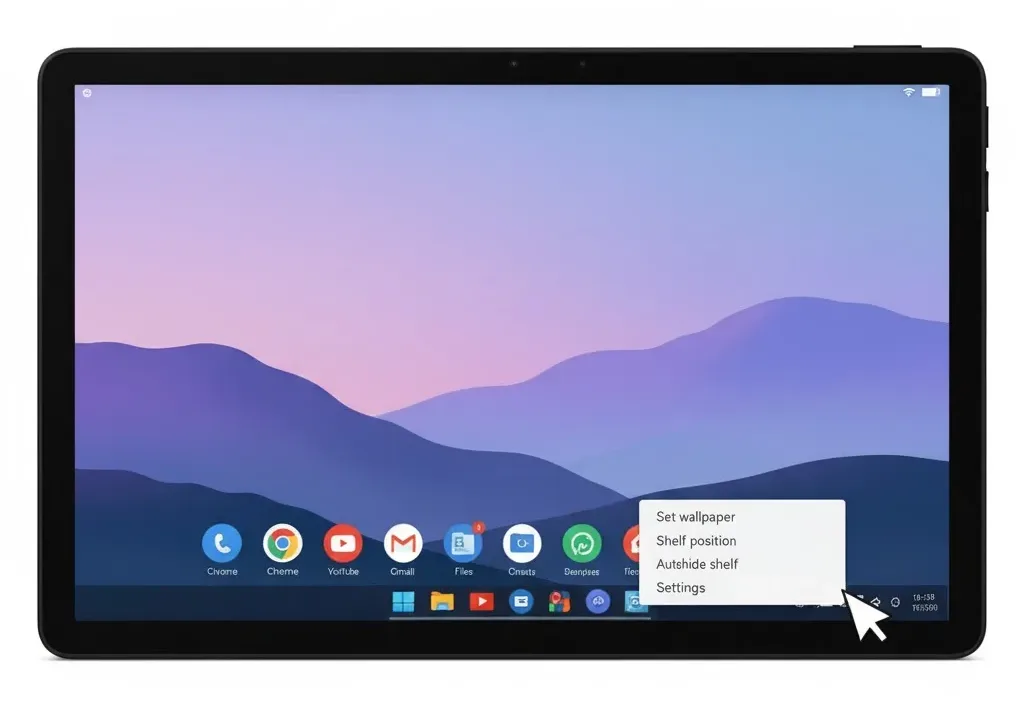
Open The Shelf Position Menu
Right-click directly on an empty area of the shelf or on the wallpaper itself. A context menu will appear with several options.
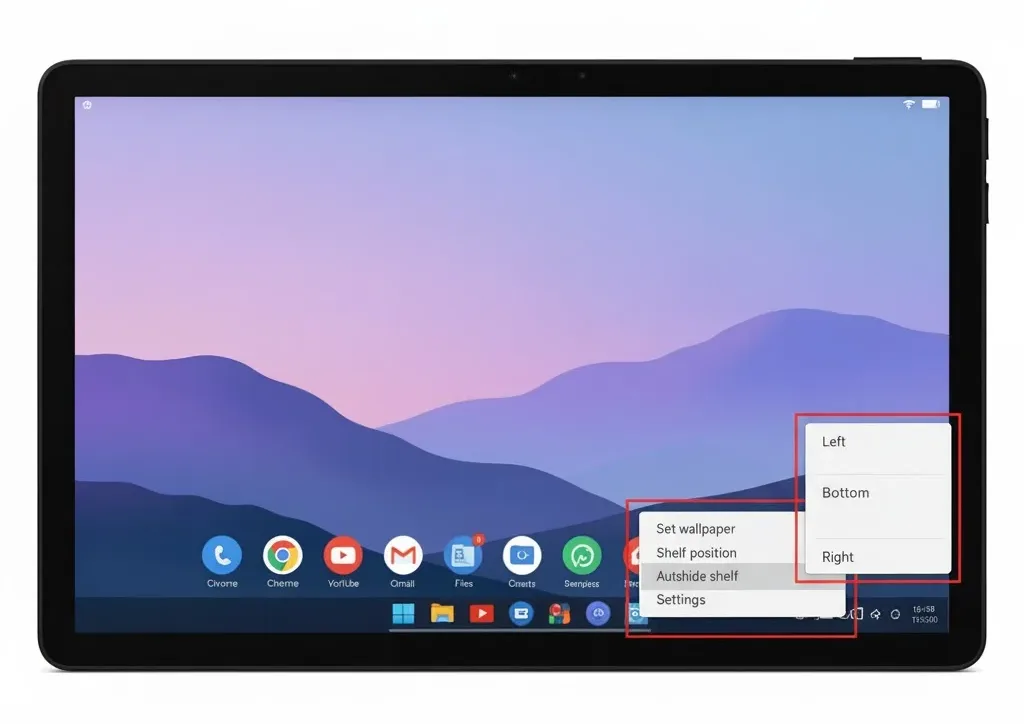
Select Shelf Position
Hover your cursor over the “Shelf position” option in the menu. A secondary menu will expand showing three choices: Left, Bottom, or Right.
Choose Your Preferred Side
Click either “Left” or “Right” to move Chromebook taskbar to side. The shelf will instantly relocate to your selected edge. The transition happens immediately without requiring a restart.
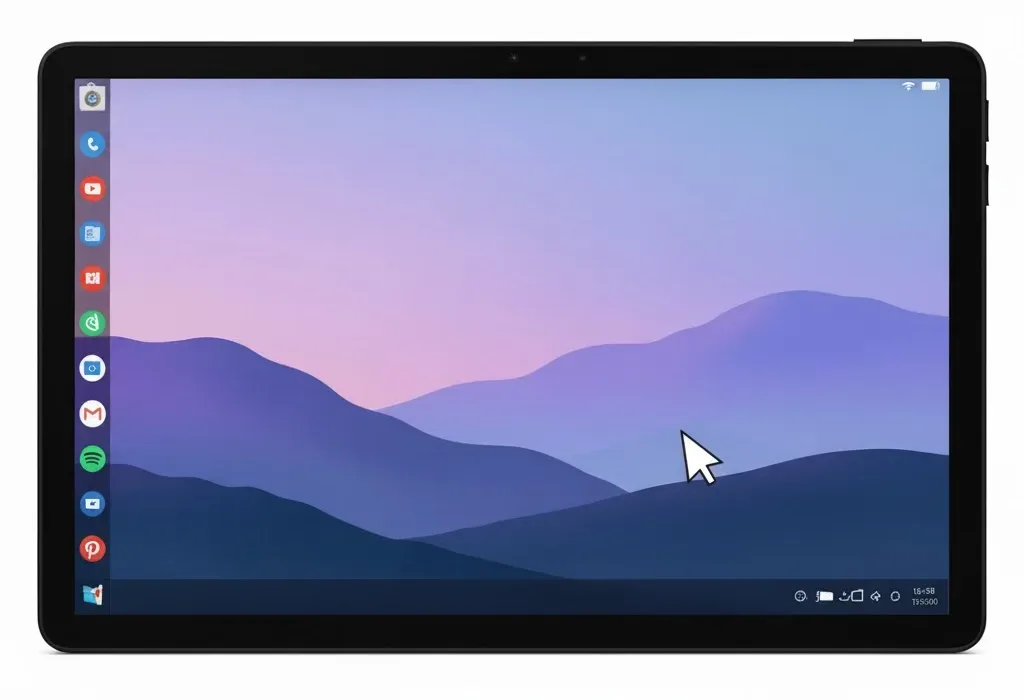
Adjust If Needed
If the new position feels uncomfortable, simply repeat the steps to try the other side or return to the bottom placement. You can switch between positions as often as you like.
The side placement works with all shelf features, including pinned apps and system icons. When you split your Chromebook screen for multitasking, the side shelf adapts to accommodate both windows.
Some users find the left position more intuitive since it mirrors the vertical app launchers in other operating systems. The right side can feel natural for right-handed users who navigate primarily with their right hand. Both options free up horizontal space on your display.
FAQs
Can I move the Chromebook taskbar to the top?
No, ChromeOS only supports bottom, left, and right shelf positions. The top edge is reserved for browser tabs and system notifications in ChromeOS design.
Does moving the taskbar affect performance?
Moving the Chromebook taskbar on side has no impact on performance. The shelf position is purely cosmetic and does not consume additional system resources.
Will a side taskbar work with touchscreen Chromebooks?
Yes, the side taskbar functions identically on touchscreen models. You can tap icons just as easily as clicking them with a trackpad or mouse.
Can I resize the width of a side taskbar?
No, the shelf width is fixed by ChromeOS. Whether positioned at the bottom or side, the taskbar maintains consistent dimensions determined by the operating system.
Does the side taskbar hide automatically?
The auto-hide feature works with any shelf position. Right-click the shelf and enable “Autohide shelf” to make it disappear until you move your cursor to that edge.
