


Chrome OS 72 introduces external storage support for Android apps on Chromebooks with SD card slots. You can finally download movies from Google Play Movies, music from Spotify, and other media content directly to your SD card. This feature frees up internal storage and lets you carry large media libraries on removable storage.
However, you’ll need to enable storage permissions for each Android app before the download option appears. The process isn’t immediately obvious, but once configured, downloading media to your SD card works just like on Android phones.
Chrome OS 72? Here’s how to download Android movies and music to an SD card
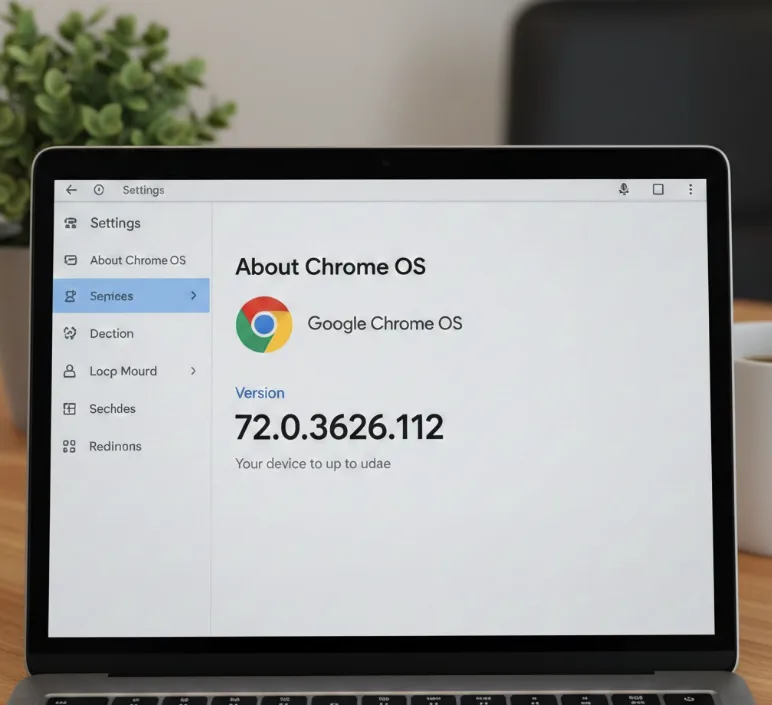
Check your Chrome OS version
Open Chrome OS Settings and verify you’re running version 72 or later. Navigate to “About Chrome OS” in the left sidebar to see your current version number.
Insert your SD card
Place your SD card into your Chromebook’s card slot. If your device lacks a built-in slot, connect a USB-C hub with SD card support.
Open Android Settings
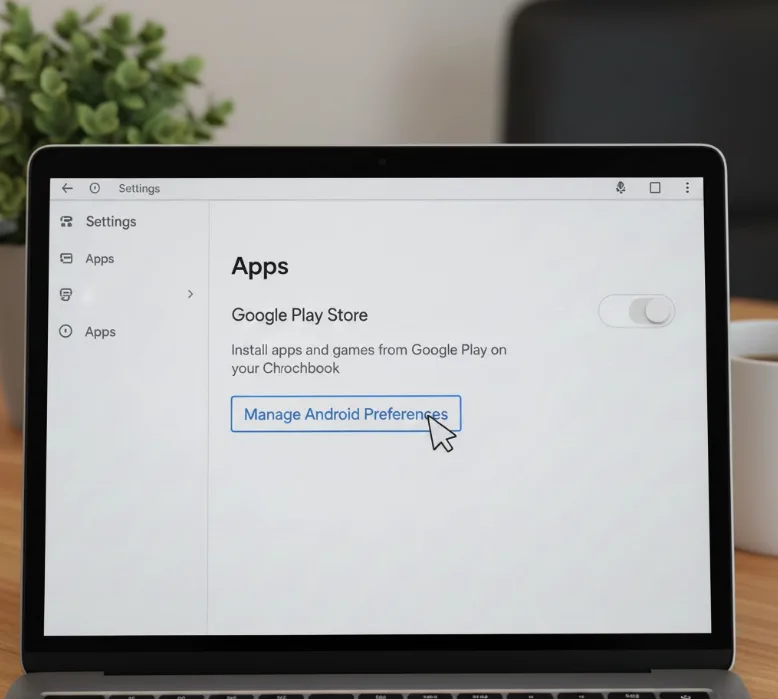
Go to Chrome OS Settings and locate the Google Play Store section. Select “Manage Android Preferences” to access Android Settings.
Navigate to app permissions
Select “Apps & Notifications” from the Android Settings menu. Choose the app you want to use for downloads, such as Google Play Movies or Spotify.
Enable storage permission
Tap “Permissions” and locate the Storage option. Toggle the Storage permission to allow the app access to external storage.
Restart the app
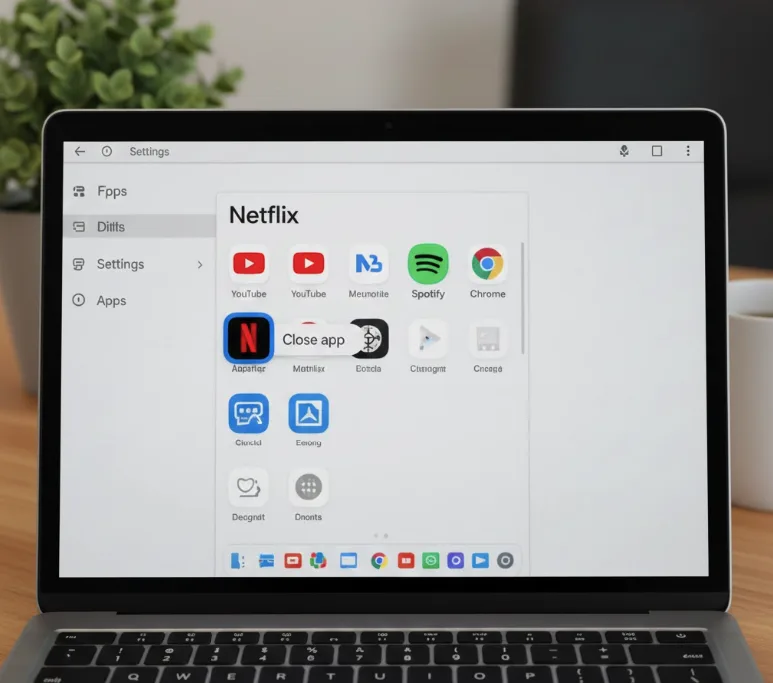
Close the Android app completely and reopen it. Some apps like Netflix may require a full Chromebook reboot before the external storage option appears.
Change download location
Open your app’s settings and look for storage or download options. You’ll now see both Internal Storage and External Storage choices available.
Download your content
Select External Storage as your download location. Start downloading movies, music, or other media directly to your SD card.
This feature only works with Android apps using direct /storage and MediaStore APIs. Google Play Movies and Spotify support external storage downloads. Netflix requires a reboot after enabling permissions to recognize the SD card option.
You’ll need to enable storage permissions individually for each app. Preinstalled Android apps don’t request permissions during setup, which explains why the external storage option doesn’t appear immediately.
FAQs
Does Chrome OS 72 support SD card downloads for all Android apps?
No. Only Android apps using direct /storage and MediaStore APIs support external storage downloads on Chrome OS 72.
Why can’t I see the SD card option in my Android app?
You need to enable Storage permissions for the app in Android Settings under Apps & Notifications before external storage appears.
Do I need to enable permissions for every Android app?
Yes. You must grant Storage permission individually to each Android app you want to use with your SD card.
Will downloaded content work if I remove the SD card?
No. Android apps need access to the SD card where content is stored. Removing the card makes downloaded content unavailable.
Does Netflix support SD card downloads on Chrome OS 72?
Yes. Netflix requires a full Chromebook reboot after enabling Storage permissions before the external storage option becomes available.
