


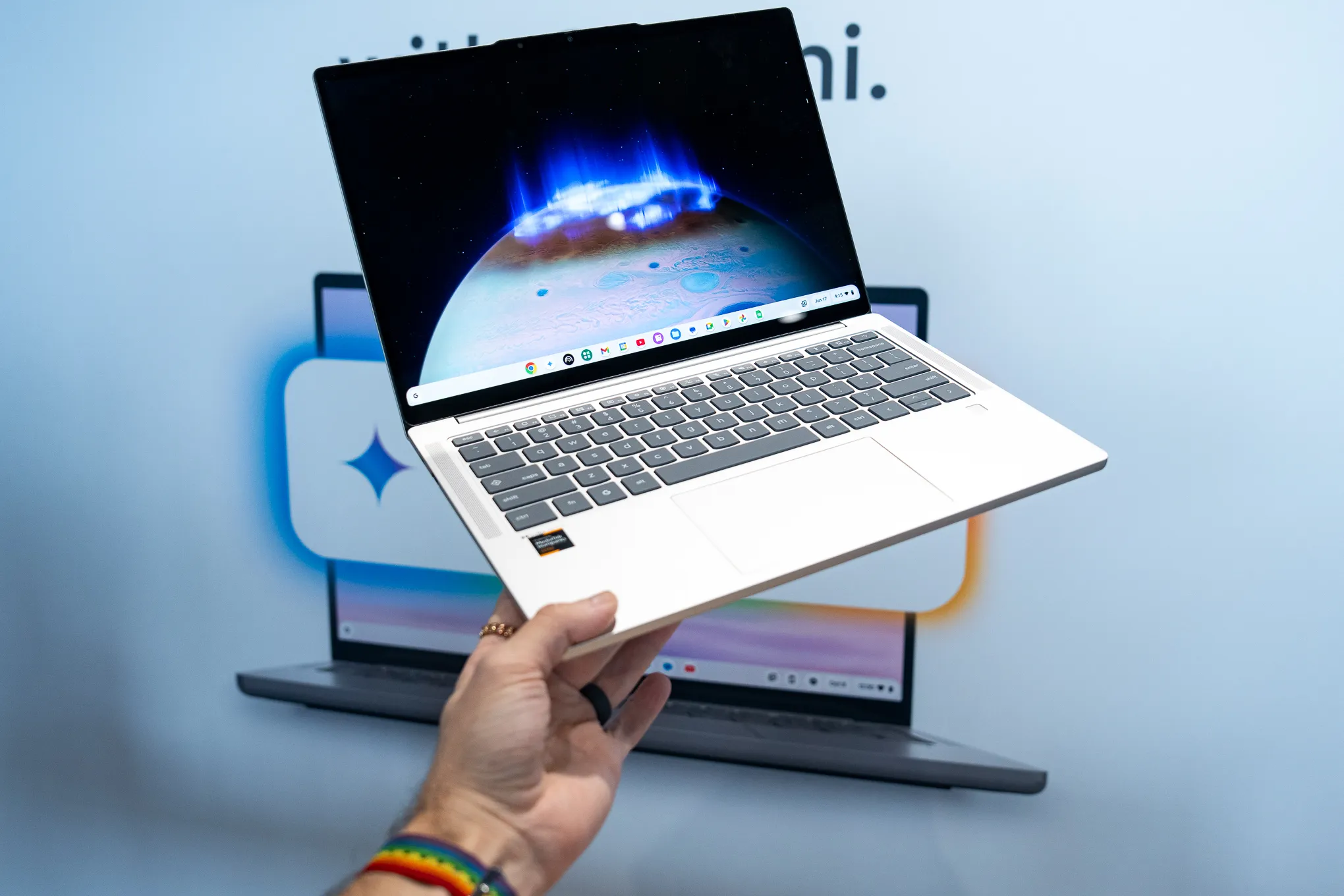
Chromebook Plus laptops include Google Gemini and a set of built-in AI tools. The point is to help you finish your work and make new things without ever leaving the app you are in. You do not need to open extra tabs. You do not need to jump between windows. Everything sits inside the system, ready when you want it.
Chromebook Plus AI Features Gemini on the Desktop
Gemini lives inside ChromeOS itself. You can open it from the taskbar at any time of day. It can help you plan your week, pick up a new topic, or write some code.
Drag a file into the chat window and drop it right in. Ask Gemini to give you a short version of any long piece of content. The tool sits one click away from whatever you happen to be doing.
Help Me Write and Help Me Read
These two tools cover most text jobs you might have. Help Me Write opens with a right-click on any block of text. You can ask it to rewrite the line, rephrase the wording, or change the tone of an email or document. The tone choice is up to you each time.
Help Me Read works in much the same way but on web pages and PDFs. It gives you a quick summary of what the page says in seconds.
After that, you can ask follow-up questions about the same content. You stay on the same page the whole time, with no need to copy and paste anything.
The Quick Insert Menu
One tap of a button opens the Quick Insert menu. From here, you can do a few things in a row. You can make a custom image on the spot.
You can add a piece of text where your cursor sits. You can also drop in a GIF without leaving the app you are in. The menu pops up where you need it, so your work does not get cut off.
Chromebook Plus AI Features Gemini in Google Photos
Magic Editor is a tool that only Chromebook Plus owners get. Open the Google Photos app and pick out a picture you want to edit.
With your mouse or your trackpad, you can tap an object in the photo, draw a circle around it, change its size, or wipe it out of the image for good. The work happens inside the same app you already use for your pictures, so there is nothing extra to learn.
AI Wallpapers and Video Call Backgrounds
The AI can also make pictures just for you. Ask it to build a desktop wallpaper based on what you like. The same goes for video call backgrounds.
Both Zoom and Google Meet work with these custom AI-made backgrounds. Each one is personal and made to your own taste.
Quick View of Chromebook Plus AI Features Gemini
| Tool | What It Does |
| Gemini Assistant | Plans tasks, helps with code, sums up text, takes file drops |
| Help Me Write | Rewrites text and shifts the tone |
| Help Me Read | Sums up web pages and PDFs, answers follow-up questions |
| Quick Insert | Adds custom images, text, and GIFs |
| Magic Editor | Edits parts of pictures in Google Photos |
| AI Wallpapers | Makes desktop wallpapers and video call backgrounds |
Free Gemini Advanced Trial for New Buyers
People who buy a new Chromebook Plus get a free 12-month trial of the Google One AI Premium plan. The plan comes with three parts rolled in together. You get Gemini Advanced, which is the higher-end version of the AI.
You get Workspace tie-ins for apps like Docs and Gmail. You also get 2TB of cloud storage for your files and photos. The trial runs for a full year at no extra cost to you.
Why Chromebook Plus AI Features Gemini Are Worth a Look
All of the tools above come pre-loaded on the device from day one. You do not have to install anything. You do not have to pay extra to start using them.
The AI help sits right inside the apps you already open every day, which means less time spent learning new menus.
