


My camera died four minutes before a client call last month. Not glitched. Not frozen. Just a black rectangle where my face should’ve been, and Google Meet cheerfully insisting everything was fine.
If you’ve landed here in a similar panic, you’re not alone. Pew Research found that video calls remain a fixture of American work life years after the pandemic forced everyone onto Zoom, and Chromebooks have quietly become one of the most common devices people use to join them.
Schools issue them. Remote teams buy them because they’re cheap and fast to provision. Which means when the camera fails, it’s rarely a one-off. It’s a recurring headache for a specific class of hardware.
Here’s what actually causes it, in the order I’d check them.
Start With the Physical Switch (Yes, Really)
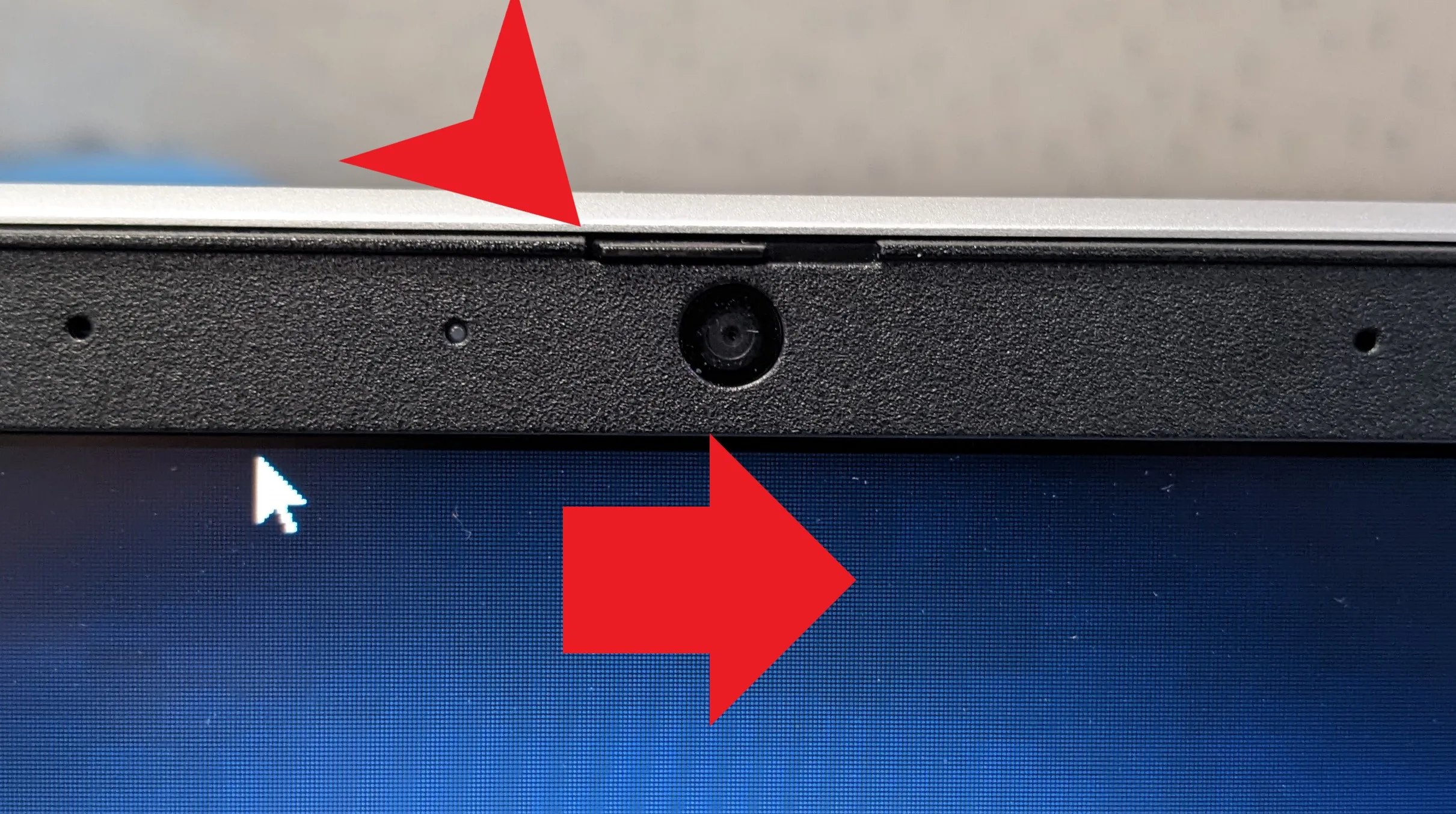
A surprising number of Chromebook models, especially ones aimed at schools and businesses, ship with a physical camera shutter or privacy switch.
It’s usually a small slider near the webcam lens or a function key combo (often Search + something, or a dedicated key with a camera-slash icon).
I’ve seen this exact issue on three different devices belonging to three different people, all convinced their hardware was broken. It wasn’t. Someone, at some point, had flipped the switch during a cleaning session or a kid had been messing with the laptop.
Check this first. It costs nothing and it’s embarrassingly often the answer.
Check Chrome’s Camera Permissions
If the physical switch isn’t the issue, the next stop is Chrome’s own permission settings, because this is where most software-level failures actually live.
- Open Chrome and go to `chrome://settings/content/camera`
- Confirm your Chromebook’s camera is selected as the default device (not “None detected”)
- Check whether the site you’re using (Meet, Zoom, Teams) is listed under “Not allowed to use your camera”
- If it is, remove it from that list and refresh the tab
This step alone fixed it for me. Turns out I’d accidentally blocked camera access on Meet weeks earlier while clearing browser permissions during a cleanup, and never noticed until I actually needed the camera.
Worth noting: ChromeOS treats camera access per-site, not globally, so a permission block on one video platform won’t necessarily show up on another. If Meet works but Zoom’s web app doesn’t, this is almost always why.
Restart the Camera Process, Not Just the Browser
Restarting a tab rarely fixes a stuck camera process on ChromeOS. What actually works, more often than not, is a full sign-out and sign-back-in, which forces the underlying hardware service to reinitialize.
Quicker alternative: open a new tab, go to `chrome://settings`, scroll down, and hit Powerwash only as a last resort (this wipes local data, so don’t jump here first).
Before that, try simply closing every tab that has camera access open, waiting ten seconds, then reopening one. ChromeOS sometimes holds a camera lock from a crashed tab that never released properly.
When It’s a ChromeOS Update Problem?
Camera drivers on ChromeOS are tied tightly to OS version, more so than on Windows. If your Chromebook auto-updated recently and the camera stopped working right after, that’s not a coincidence.
How-To Geek’s troubleshooting breakdown points to exactly this pattern: a version bump changes how the kernel talks to the webcam module, and older hardware occasionally gets left behind for a release or two.
Go to `chrome://version` and note your build number. Then check Settings > About ChromeOS > Check for updates. Sometimes the fix is a second update that patches the regression. Sometimes you’re stuck waiting a release cycle.
The Connection Layer Matters More Than People Think
Here’s something that gets skipped in most camera troubleshooting guides: a working camera means nothing if your connection can’t sustain the stream once it’s live.
I’ve had calls where the camera was perfectly functional, permissions granted, drivers current, and the video still froze every ninety seconds because the Wi-Fi kept dropping to a weaker band. ChromeOS handles this differently than Windows does.
It’ll often keep the camera “on” from the OS’s perspective while the actual frame data stalls, which makes it look like a camera fault when it’s really a bandwidth problem.
This is the same principle that matters anywhere you’re relying on a live feed rather than static content. Streaming a video call, watching a live sports broadcast, or sitting at a live dealer table on an offshore casino site all depend on the same thing: a stable upload and download connection that doesn’t choke the second three other devices join the network.
If you’re the kind of person who tests these platforms on a Chromebook specifically, connection drops show up fast, and not every site handles a shaky connection gracefully.
Before troubleshooting further on the gambling side of things, it’s worth taking the time to compare the top sites that are actually built to run smoothly on lighter ChromeOS hardware rather than assuming every platform performs the same.
Back to cameras specifically: if your video call keeps stuttering despite a “working” webcam, run a speed test mid-call.
Anything under roughly 1.5 Mbps upload will visibly degrade video quality on most platforms, camera hardware notwithstanding.
If Nothing Else Works: Isolate Hardware vs Software
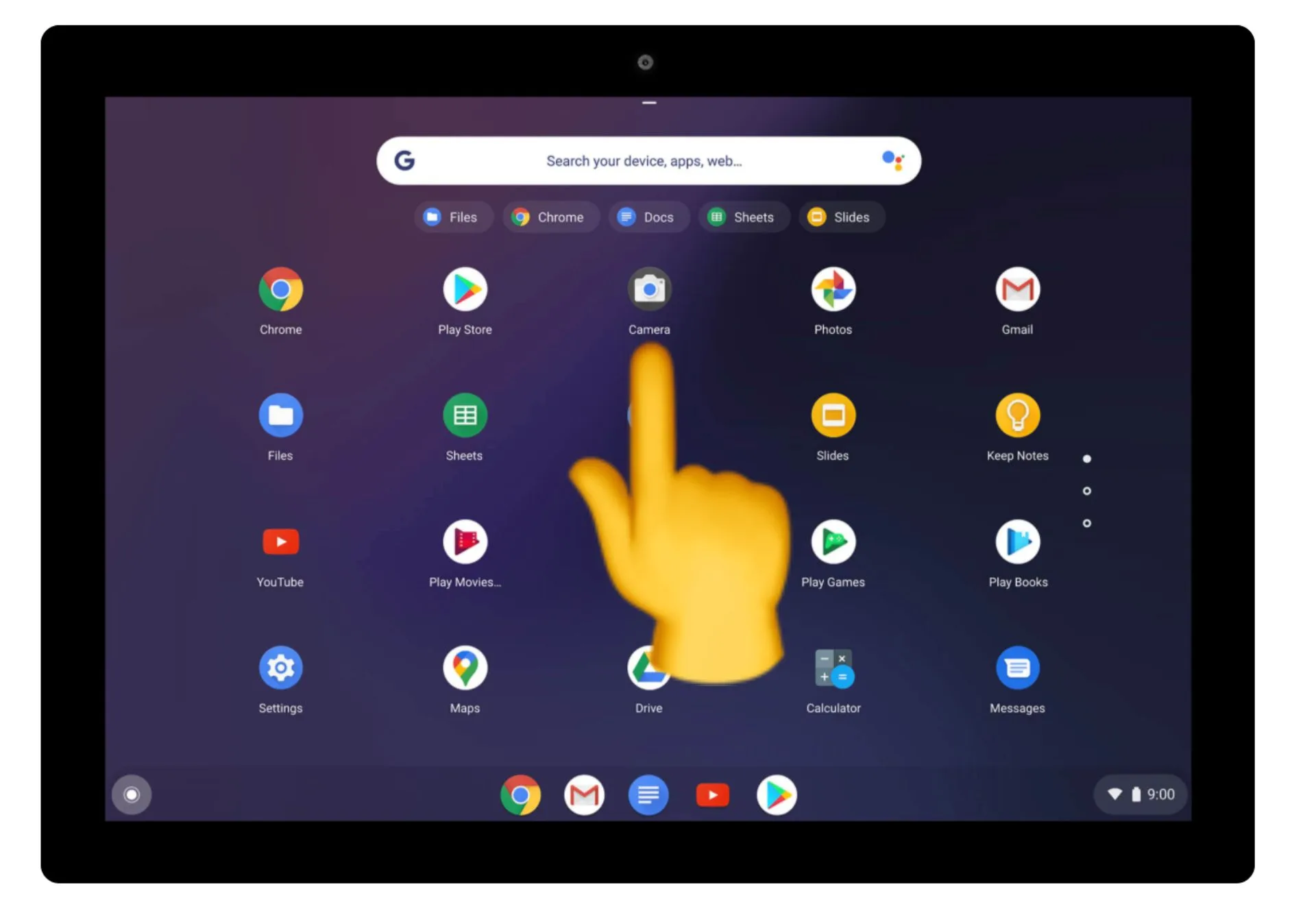
Open the Camera app directly (search “Camera” in your app drawer). If the feed works there but fails inside Chrome or a specific web app, the problem is software-side, likely permissions or a site-specific bug. If the Camera app itself shows nothing, you’re looking at a hardware fault.
For Samsung Galaxy Chromebook owners specifically, Samsung’s own support documentation walks through a hardware reset sequence that differs slightly from generic ChromeOS troubleshooting, worth checking if you’re on that model and software fixes haven’t moved the needle.
At that point you’re into warranty or repair territory rather than a settings fix. It happens less often than people assume.
In my experience, maybe one in ten camera complaints turns out to be an actual hardware failure rather than a permission or driver issue.
A Quick Systems Check Before Your Next Call
Two minutes before any call that matters: open the Camera app to confirm the feed is live, check `chrome://settings/content/camera` for the site you’re about to use, and glance at your Wi-Fi signal strength icon. That covers roughly 90% of what goes wrong.
It’s not glamorous advice. It’s also the exact routine that’s saved me from three separate last-minute scrambles this year alone.
If you found this useful, our breakdown of what your connection actually needs for smooth live-streamed entertainment on ChromeOS goes deeper into the bandwidth side of this exact problem, and it’s worth a read if cameras aren’t your only streaming headache.
Chromebooks are built to be lightweight by design, which is exactly why small permission or driver issues can look like bigger hardware failures than they are. Work through the checklist in order, and you’ll usually find the fix is smaller than the panic it caused.
