


Chromebook users who work with Linux can now personalize their Terminal experience through customization options introduced in Chrome OS 84. These settings let you adjust appearance, keyboard shortcuts, and behavior preferences to match your workflow.
Understanding how to customize the Linux Terminal on a Chromebook helps improve productivity and creates a more comfortable working environment. Whether you prefer different color schemes, custom fonts, or specialized keyboard shortcuts, these options transform the standard Terminal into a tool tailored to your needs.
The customization feature exists within Chrome OS settings, though Google changed its location from initial development plans. Instead of appearing as a menu within the Terminal app itself, you access these options through the Terminal icon in your Chrome OS dock.
How to customize the Linux Terminal on a Chromebook
The Terminal customization process requires accessing settings through the dock icon rather than within the application itself. This approach differs from typical app settings but provides comprehensive control over your Terminal environment.
Access Terminal Settings
Right-click the Terminal icon in your Chrome OS dock. Select “Settings” from the menu that appears. This opens the configuration panel with three main categories.
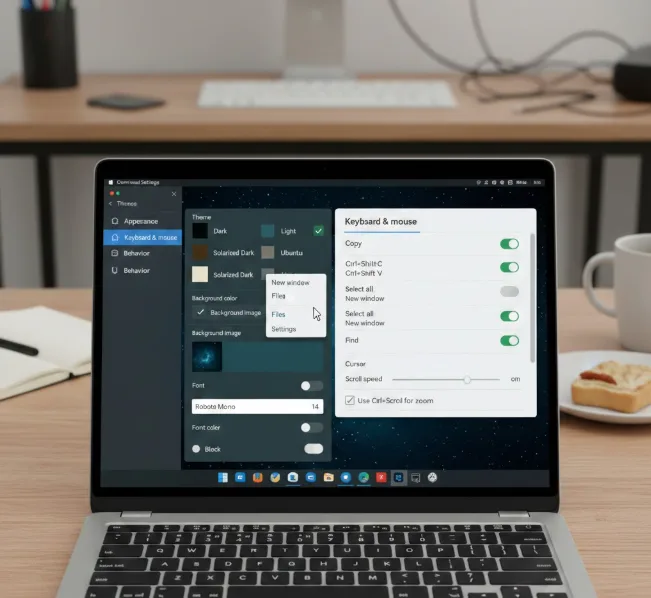
Customize Appearance Options
Navigate to the Appearance submenu. Choose from pre-configured themes or create your own color scheme by adjusting the background color. Select a background image if you prefer visual customization.
Change the font type and color to improve readability. Modify the cursor style to match your preferences.
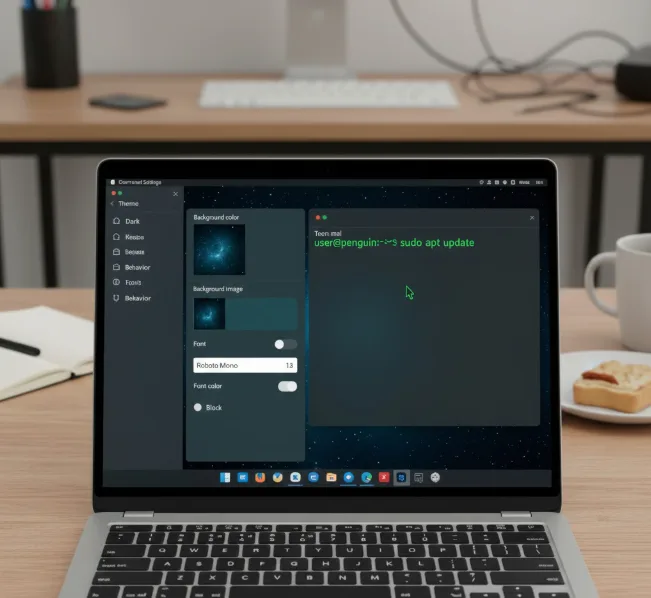
Configure Keyboard and Mouse Settings
Open the Keyboard & mouse submenu. Review the available keyboard shortcuts designed for Terminal productivity. Toggle individual shortcuts on or off based on your workflow needs.
These shortcuts help speed up common Terminal operations when enabled. If you’re new to Terminal commands, check out this guide on getting started with the Linux command line for essential operations.
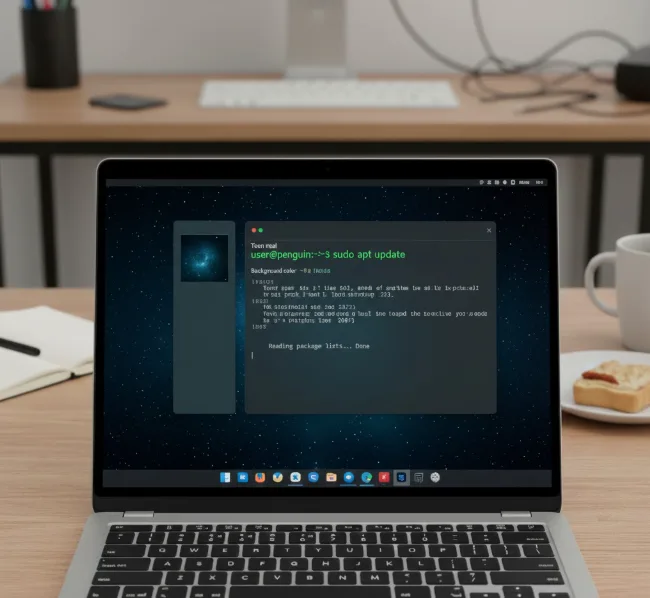
Adjust Behavior Preferences
Access the Behavior submenu for overall Terminal app settings. Set notification preferences to control how Terminal alerts appear. Configure the window closing behavior for when you exit the command line.
Choose settings that align with how you typically use the Terminal application.
The customization options remain saved across sessions, so you only need to configure them once. You can return to these settings anytime to make adjustments as your preferences change. Once you have Terminal configured, you might want to explore how to install Linux apps on your Chromebook to expand your capabilities.
For users who regularly work with Linux, these customization features combine well with other productivity optimization tips for Chromebooks. Many developers and content creators rely on Terminal for daily tasks, and personalizing the interface makes extended work sessions more comfortable.
FAQs
Where are Terminal settings on a Chromebook?
Right-click the Terminal icon in your Chrome OS dock and select “Settings” from the menu. This opens customization options for appearance, keyboard shortcuts, and behavior.
Can you change Terminal colors on Chrome OS?
Yes, you can modify Terminal colors through the Appearance settings. Choose pre-configured themes or manually adjust background and font colors to your preference.
What Chrome OS version has Terminal customization?
Terminal customization features became available starting with Chrome OS 84. Ensure your Chromebook runs this version or newer to access these options.
How do you add keyboard shortcuts to Terminal?
Open Terminal Settings from the dock icon, navigate to Keyboard & mouse, and toggle specific shortcuts on or off. Each shortcut must be enabled individually.
Can you use images as Terminal backgrounds?
Yes, the Appearance settings allow you to set background images. However, this may reduce readability depending on the image you choose for your Terminal.
