


Chromebooks include a built-in screen capture tool that lets you take screenshots and record video directly from your display. This feature arrived with Chrome OS 89 and provides a simple way to capture images or create recordings without installing third-party software.
You might want to capture your Chromebook screen to save important information, create tutorials, document technical issues, or share what you’re seeing with others. The tool offers flexibility with options to capture your full screen, specific windows, or selected portions of your display.
The screen recording function adds another layer of usefulness. You can record demonstrations, save video content, or create instructional materials. Both features work through the same interface, making them easy to access and use.
How to capture or video record a Chromebook screen
Access the Screen Capture tool
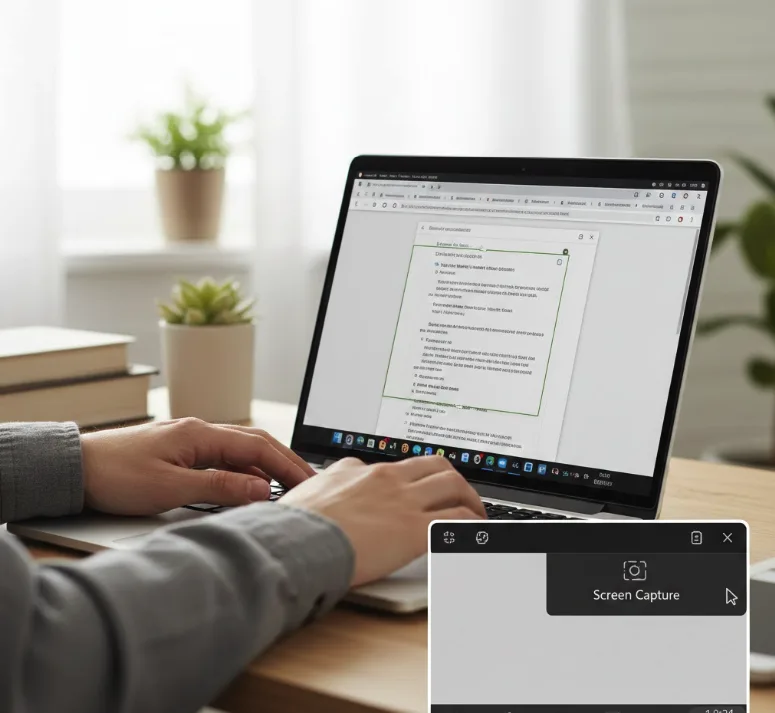
You can launch the screen capture tool in two ways. Press Ctrl + Shift + Show Windows (the key with overlapping rectangles) to open it using your keyboard. Understanding what the Show Windows key does on your Chromebook helps you use this shortcut efficiently.
Alternatively, click the icons on the right side of your system tray at the bottom of your screen. Look for the Screen Capture button in the Quick Settings panel and click it.
Choose your capture type
The toolbar displays two icons on the left side. Click the camera icon to take a still screenshot of your display.
Select the videocamera icon to record video instead. This choice determines whether you’ll capture a static image or a moving recording.
Select your capture area
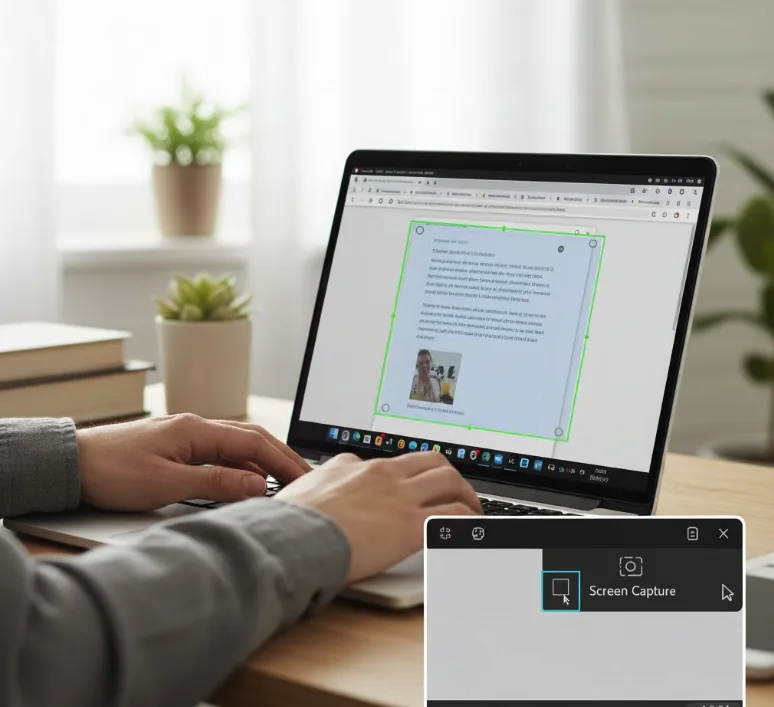
Three options let you define what to capture. The first icon captures your entire screen when you click anywhere on the display.
The second icon lets you select a specific portion. A capture region appears that you can resize or drag to any location. Click inside the region when you’re satisfied with your selection. This is especially useful when you want to freeze your Chromebook screen to trace specific areas.
The third icon captures a specific window. Click on any open application window to select it. Chrome OS will capture the entire window even if parts are hidden behind other windows.
Configure audio settings (for video only)
Click the Settings icon (gear symbol) on the right side of the toolbar. You’ll find a microphone option that lets you record your voice along with the video.
Toggle this setting on to include audio from your Chromebook’s microphone. The tool doesn’t capture system audio directly—only what the microphone picks up.
Start your capture
For screenshots, click your selected area after choosing your capture type and region. The image saves immediately as a PNG file.
For video recordings, click your selected area to start a 3-2-1 countdown. A red recording icon appears in your system tray while recording. Click this icon when you’re ready to stop, and your video saves as a WEBM file.
Screenshots save as PNG files in your Downloads folder. You can convert these to JPG format using image editing tools if you need smaller file sizes. To access your files, open the Downloads folder on your Chromebook through the Files app.
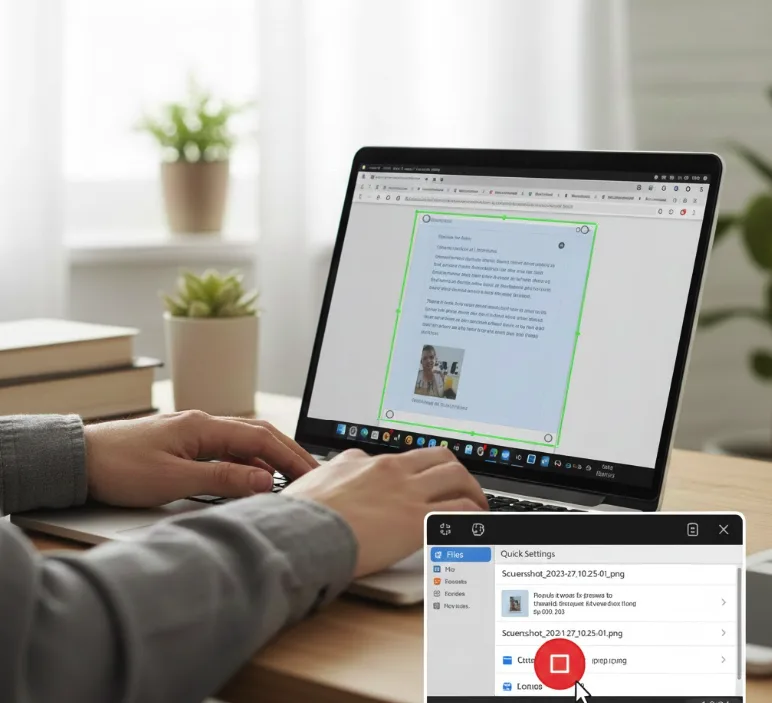
Video recordings save as WEBM files, which newer browsers support. Check your playback software’s compatibility if you plan to share these recordings. For more advanced recording features with transcription capabilities, you might want to explore how to cast your screen on a Chromebook using the Screencast app.
FAQs
Can I record audio from videos playing on my Chromebook?
No, the screen capture tool only records audio through your microphone. It doesn’t capture system audio from playing videos or music directly.
Where do my screen captures and recordings save?
All screenshots and video recordings save automatically to your Downloads folder. You can access them through the Files app on your Chromebook.
What file formats does the screen capture tool use?
Screenshots save as PNG image files. Video recordings save as WEBM video files, which most modern browsers and media players support.
Can I capture a window that’s partially hidden behind another window?
Yes, Chrome OS captures the complete window even if other windows cover parts of it. Select the window option and click your target application.
Do I need to install any apps to use screen capture?
No, the screen capture tool is built into Chrome OS. You can access it directly from Quick Settings or using Chromebook keyboard shortcuts.
