


Chromebooks store downloaded files in a default Downloads folder. You can change this location to Google Drive or any other folder on your device.
This feature helps you organize files better and access them across devices when using cloud storage. Many users prefer saving screenshots, documents, and other downloads directly to Google Drive for automatic backup.
The process involves accessing your Chrome browser settings rather than Chrome OS settings. Google moved this option to maintain consistency across all Chrome platforms.
Understanding how to change the Downloads folder to Google Drive or another location on a Chromebook gives you better control over file management and storage.
How to change the Downloads folder to Google Drive or another location on a Chromebook?
Google moved the download location settings from Chrome OS to the Chrome browser. This change happened around 2021 to create a uniform experience across all devices running Chrome.
You’ll find these settings work the same way whether you use the Stable, Beta, or Dev channels.
Open Chrome browser settings
Launch the Chrome browser on your Chromebook. Click the three-dot menu button in the top right corner of your browser window.
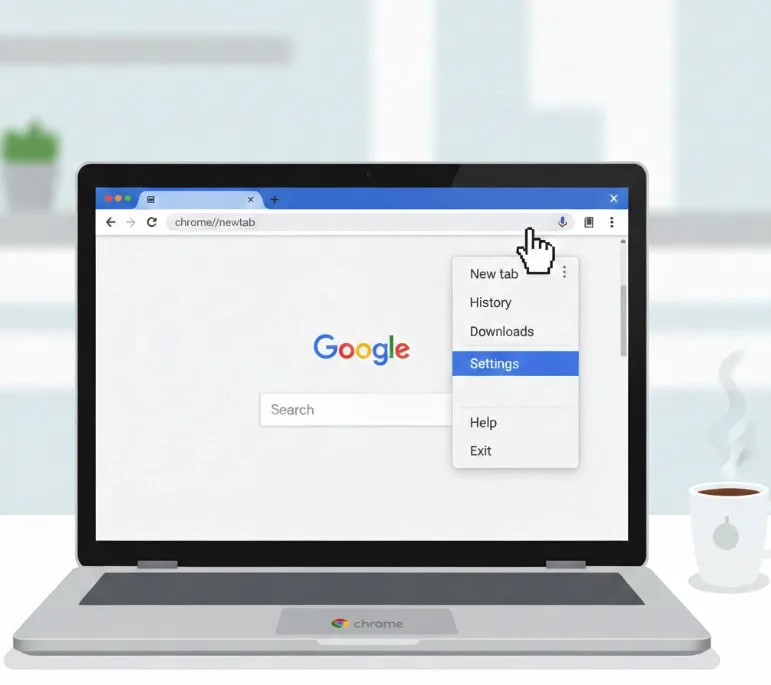
Select Settings from the dropdown menu that appears. You can also type chrome://settings directly into your address bar to access settings faster.
Navigate to Downloads section
Look for the left sidebar in Settings. Scroll down until you see the Advanced section and click to expand it.
Find the Downloads option in the expanded menu. Click on it to view your current download settings and location.
Change the download location
You’ll see your current download folder path displayed. Click the Change button next to the location path.
A file browser window opens where you can select a new destination. Navigate to Google Drive if you want cloud storage, or choose any local folder on your Chromebook.
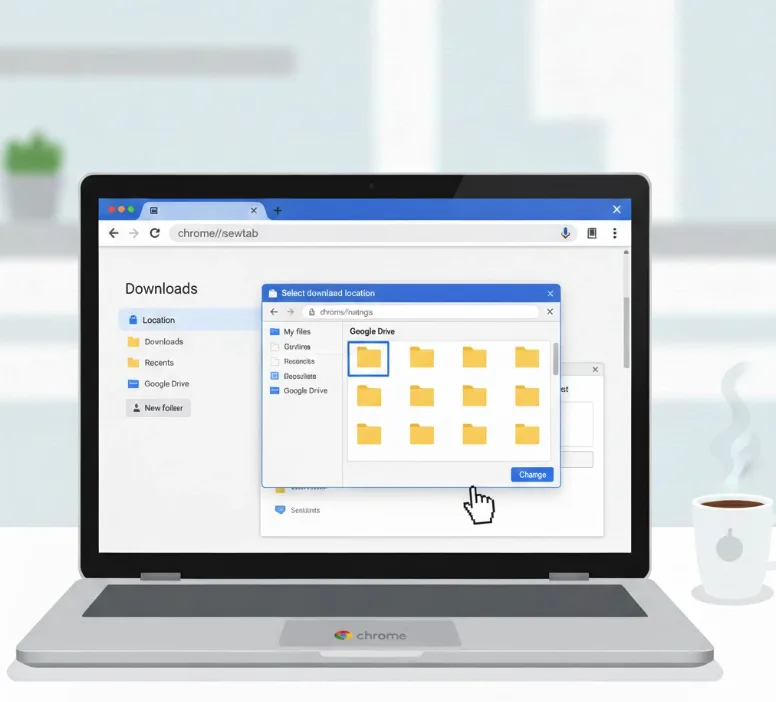
Create or select your destination folder
You can create a new folder directly from this browser window. Click the New Folder option if you want a dedicated location for downloads.
Select an existing folder if you already have one set up. For Google Drive, navigate to your Drive account in the file browser and choose your preferred folder.
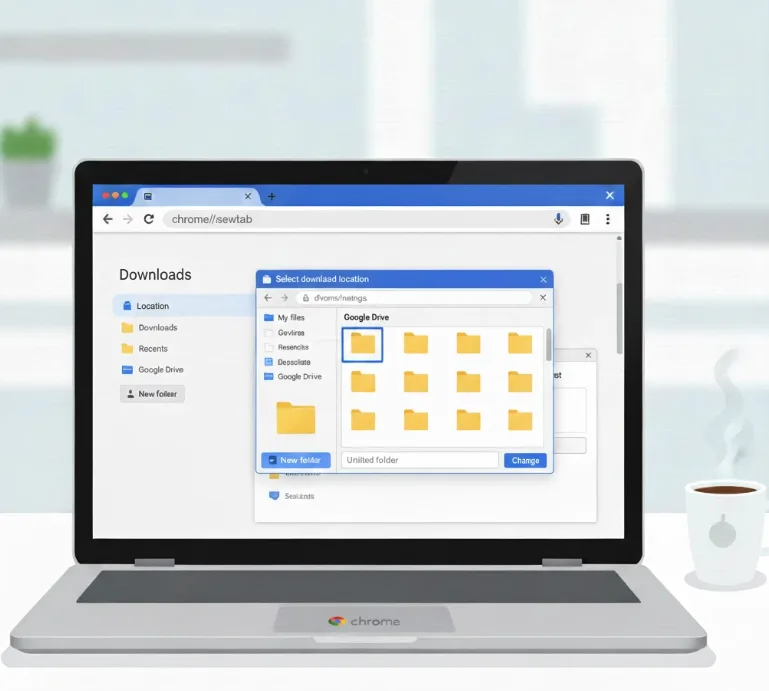
Confirm your selection
Once you select your folder, click the Select button. Your new download location is now active.
All future downloads will save to this location automatically. This includes files from websites, screenshots from the Screen Capture tool, and any other downloads.
The change applies immediately without requiring a restart. Your previous downloads remain in their original location unless you move them manually.
If you need help locating your files after changing locations, you can use the Files app to find and manage your downloads.
FAQs
Can I change the Downloads folder to Google Drive on a Chromebook?
Yes, you can set Google Drive as your default download location through Chrome browser settings. Navigate to Downloads settings and select your Google Drive folder when prompted. Learn more about backing up Chromebook files to Google Drive.
Where is the download location setting on Chrome OS?
The download location setting moved from Chrome OS settings to Chrome browser settings. Access it through chrome://settings or the three-dot menu in your Chrome browser.
Will changing the Downloads folder affect existing files?
No, changing your download location only affects future downloads. Files already saved in your previous Downloads folder remain there unless you manually move them to the new location.
Can I use different folders for different types of downloads?
Chrome OS uses one default download location for all files. You cannot automatically sort different file types into separate folders, but you can manually organize downloads after saving them.
Does the Downloads folder change sync across devices?
No, the download location setting is device-specific. If you use multiple Chromebooks, you need to configure the download location separately on each device for your preferred setup.
