


Google’s Cursive app brings enhanced stylus functionality to Chromebooks, designed specifically for devices with digital pen support. This Progressive Web App allows you to take handwritten notes, sketch diagrams, and organize your work into digital notebooks.
The app works best on 2-in-1 Chromebooks with USI (Universal Stylus Initiative) support. However, a touch mode feature lets you use it with your finger on any touchscreen Chromebook.
Cursive offers practical features like handwriting recognition for easy deletion, grouping tools, and space insertion. You can export notes as PDFs and access them offline once installed.
Whether you’re a student taking class notes, a professional sketching ideas during meetings, or someone who prefers handwriting to typing, Cursive provides a straightforward digital writing solution that’s always available on your Chromebook.
How to install and use Google’s new Cursive app for Chromebooks
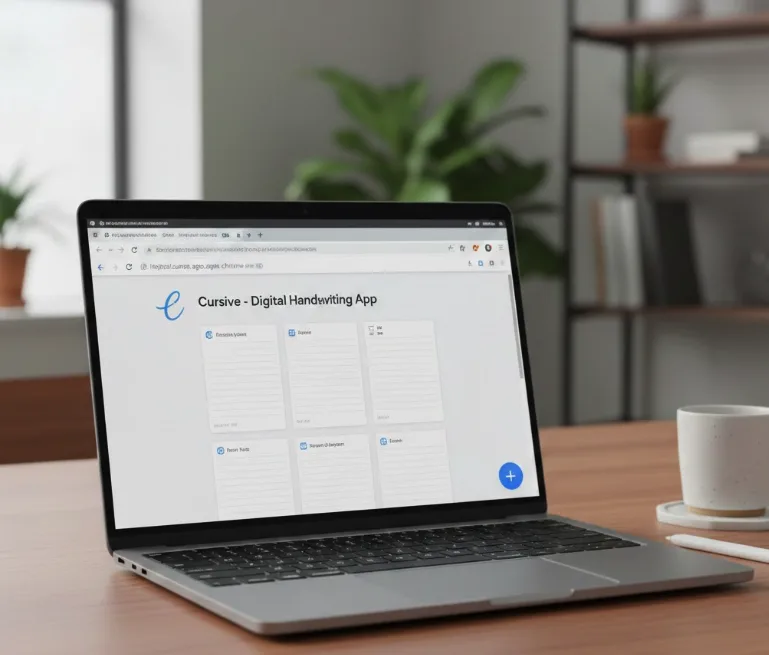
Navigate to the Cursive web app
Open your Chrome browser and visit https://cursive.apps.chrome. The page loads the Progressive Web App interface directly in your browser.
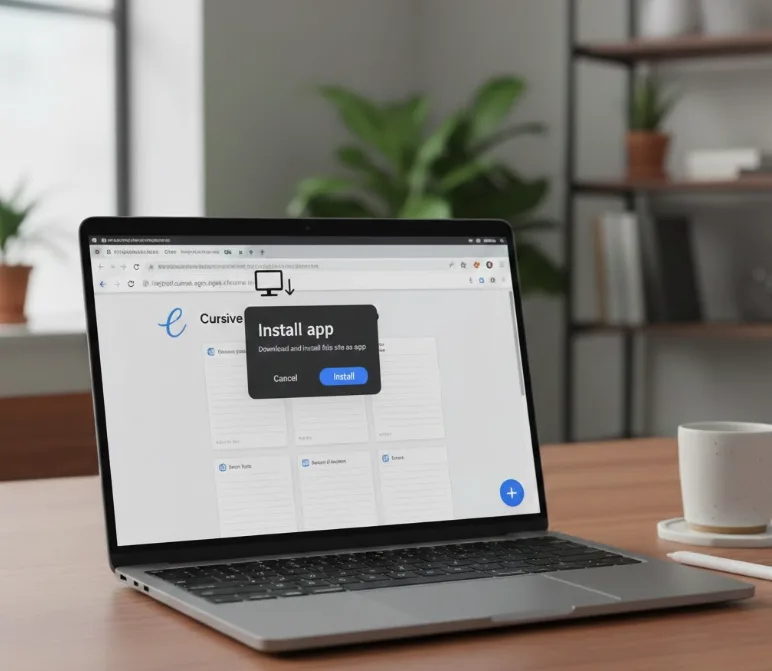
Install the app to your Chromebook
Click the app install icon on the right side of your browser’s address bar. This downloads and installs Cursive as a standalone application on your device.
You can also pin the app to your system tray for quick access.
Complete the welcome tour
When you first launch Cursive, a welcome screen appears with a Quick Tour option. This tutorial explains the app’s core features and gestures.
The tour covers essential functions like scribble-to-delete, content grouping, and space insertion between lines.
Start writing with your stylus
Select a pen color and thickness from the top menu. Begin writing or drawing directly on the blank canvas with your digital pen.
If you don’t have a stylus, switch to touch mode and use your finger instead.
Use advanced editing features
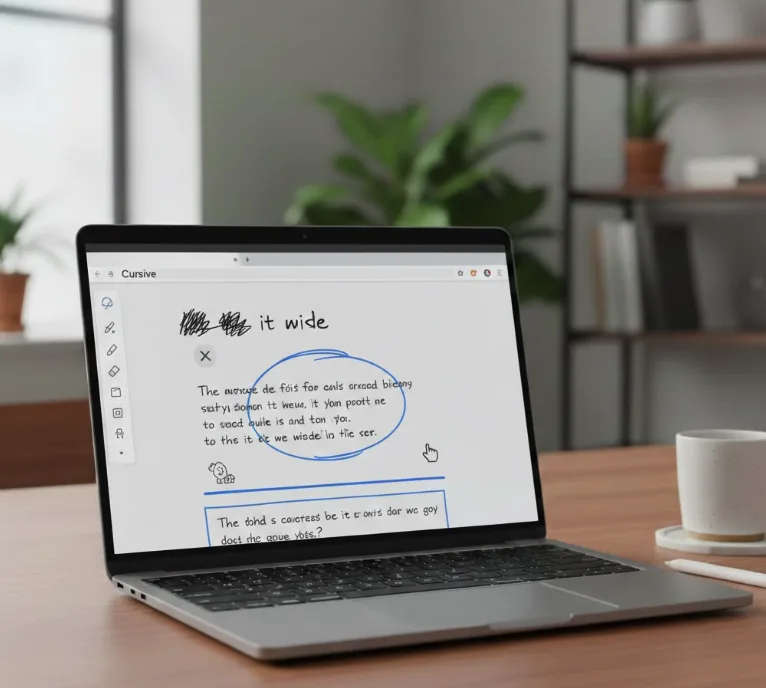
Scribble over any written words and tap the scribbled area to delete them instantly. Circle content to group it, then drag the group anywhere on your canvas.
Draw a horizontal line between handwritten sections and drag it down to insert additional space. Use the select tool to copy, cut, and paste content as needed.
Organize notes into notebooks
Click the Home button to view all your notes. Create multiple notebooks to organize different projects, classes, or topics.
Each note can be renamed and moved between notebooks for better organization.
Export your work
Save your handwritten notes by clicking the export option. Cursive currently supports PDF format for all exports.
Your notes sync automatically and remain accessible offline after installation.
FAQs
Can I use Cursive without a stylus?
Yes, Cursive includes a touch mode that lets you write and draw using your finger on any touchscreen Chromebook, though a stylus provides better precision.
Does Cursive work offline?
Yes, once installed as a Progressive Web App, Cursive works completely offline. You can create and edit notes without an internet connection.
What file formats does Cursive support for export?
Cursive currently supports PDF format only for exporting notes. There are no additional format options available at this time for saving your work.
Can I organize my notes into different categories?
Yes, Cursive allows you to create multiple notebooks to organize your notes by topic, project, or any other category that suits your workflow.
How do I delete handwritten content in Cursive?
Scribble over the content you want to remove with your stylus or finger, then tap the scribbled area. The app recognizes this gesture and deletes it.
