

Close Menu
    Facebook X (Twitter) Instagram
    • About
    • Privacy Policy
    • Write For Us
    • Newsletter
    • Contact
    Instagram
    About ChromebooksAbout Chromebooks
    • Linux
    • News
      • Stats
      • Reviews
    • AI
    • How to
      • DevOps
      • IP Address
    • Apps
    • Business
    • Q&A
      • Opinion
    • Gaming
      • Google Games
    • Blog
    • Podcast
    • Contact
    About ChromebooksAbout Chromebooks
    News

    Chrome OS 98 adds management of multiple Chromebook Linux containers

    Kevin TofelBy Kevin TofelNovember 30, 2021Updated:September 23, 2025No Comments2 Mins Read

    Earlier this month I reported that Chrome OS was adding multiple container management to Chromebook. The last Dev Channel update has finally brought the first iteration of that feature and I do have it working. At the moment, however, I’ve only been able to add a second Linux container for Debian. Regardless, here’s how Chrome OS 98 adds management of multiple Chromebook Linux containers.

    For starters, I had to enable the following experimental flag in Chrome OS 98: chrome://flags#crostini-multi-container and restart my browser. After that, I saw the new “manage extra containers” option in my Linux settings:
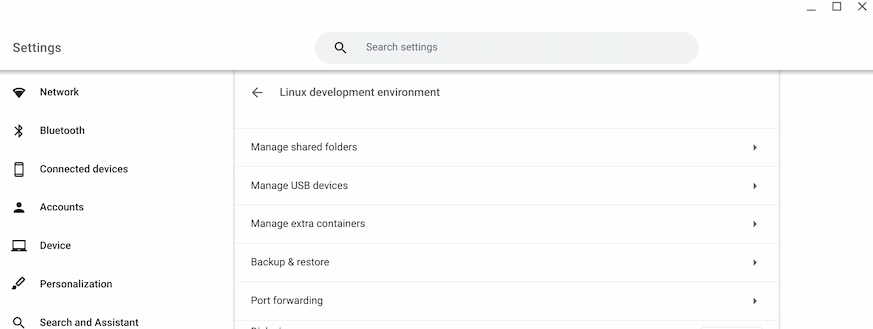
    Chrome OS 98 multiple Chromebook Linux containers management

    Choosing this option brought me to the following screen, which initially had a single container, as expected. Here I could change the color of each one. I clicked the Create button, added a second Debian container, and left it the default color. The three-dot option offers ways to stop or delete a container.
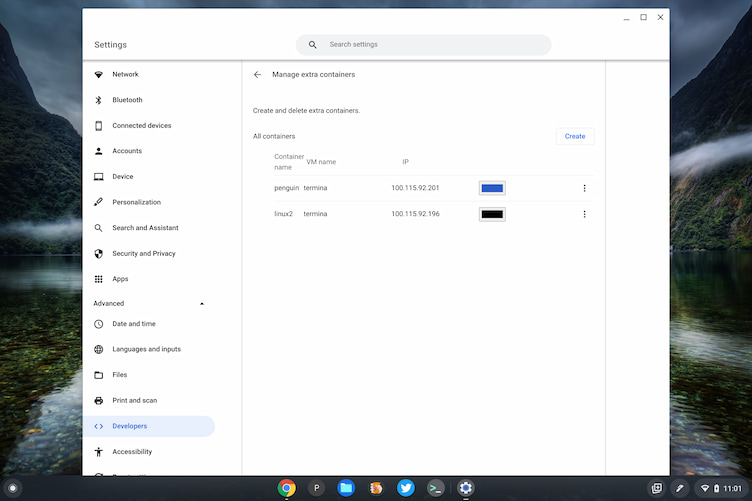
    Chrome OS 98 multiple Chromebook Linux containers installed

    I then tried to create a new container with a different Linux distribution. There are options to configure an image server address, but I wasn’t able to get those working. However, I did tinker around in a crosh terminal to get an Arch Linux image, which appears installed. Unfortunately, it won’t yet start.
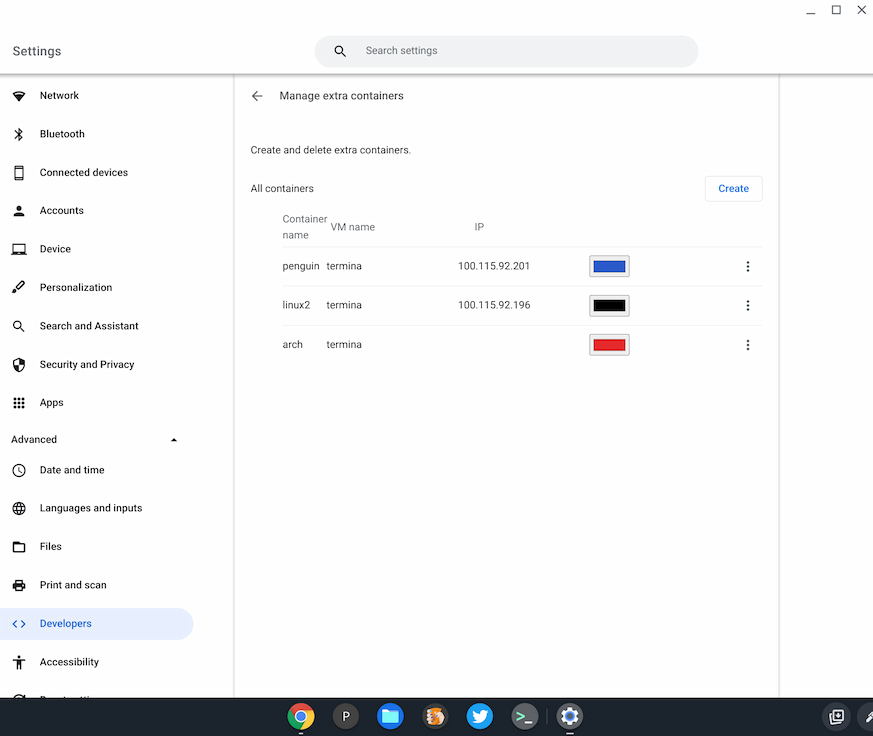
    Chrome OS 98 three Chromebook Linux containers

    Regardless, by right-clicking my Terminal app, you can see that it can be started with any working installed Linux images. That gives you some sense of how to interact with each individual Linux instance on a Chromebook.
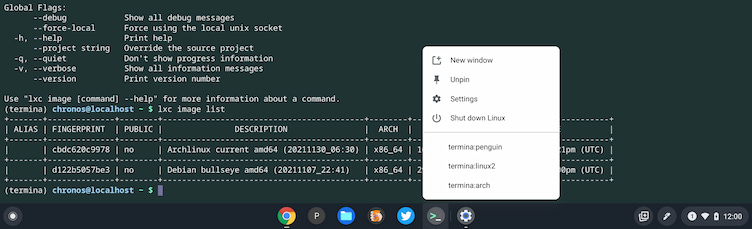
    Chrome OS 98 three Linux containers on a Chromebook with Terminals

    It could be that I’m not Linux-y enough to get some other distro working with the new container management feature. So I’ll keep plugging away. And I’m open to suggestions from readers that are smarter than me!

    For now, I like what I see. While most Chromebook users won’t want or need multiple Linux containers, it can be handy for folks who want to use different flavors of Linux to get work done.

    Kevin Tofel
    • Website

    After spending 15 years in IT at Fortune 100 companies, Kevin turned a hobby into a career and began covering mobile technology in 2003. He writes daily on the industry and has co-hosted the weekly MobileTechRoundup podcast since 2006. His writing has appeared in print (The New York Times, PC Magazine and PC World) and he has been featured on NBC News in Philadelphia.

    Best of AI

    Chub AI Explained

    May 6, 2026

    Stable Diffusion AI: Free Text To Image AI Generator

    May 5, 2026

    Imagen AI: The Best Photo Editing AI In 2026

    April 21, 2026

    Alphafold AI from Google Deepmind 2026

    April 21, 2026

    Agentic AI Pindrop Anonybit: The Future of Secure Identity Verification

    April 17, 2026
    Trending Stats

    Education Sector Chromebook Adoption Statistics 2026

    May 4, 2026

    ChromeOS Data Usage Patterns And Statistics 2026

    May 2, 2026

    Auto Update Expiration (AUE) In Chromebooks Statistics 2026

    May 2, 2026

    Chromebook Vs IPad Adoption In Schools Statistics 2026

    May 1, 2026

    ChromeOS Accessibility Feature Usage Statistics 2026

    April 28, 2026
    • About
    • Tech Guest Post
    • Contact
    • Privacy Policy
    • Sitemap
    © 2026 About Chrome Books. All rights reserved.

    Type above and press Enter to search. Press Esc to cancel.