


AI can write an article, email, essay, or social media post in seconds. The problem is that the first draft often needs more work before you can publish or submit it.
AI-generated content can contain repetitive sentences, vague explanations, factual mistakes, and wording that does not sound like you. The good news is that a Chromebook gives you everything you need to clean it up without installing heavy desktop software.
Most of the editing can happen directly in Chrome. You can use Google Docs, browser-based AI tools, Chrome extensions, and ChromeOS features to move from an AI draft to a finished piece.
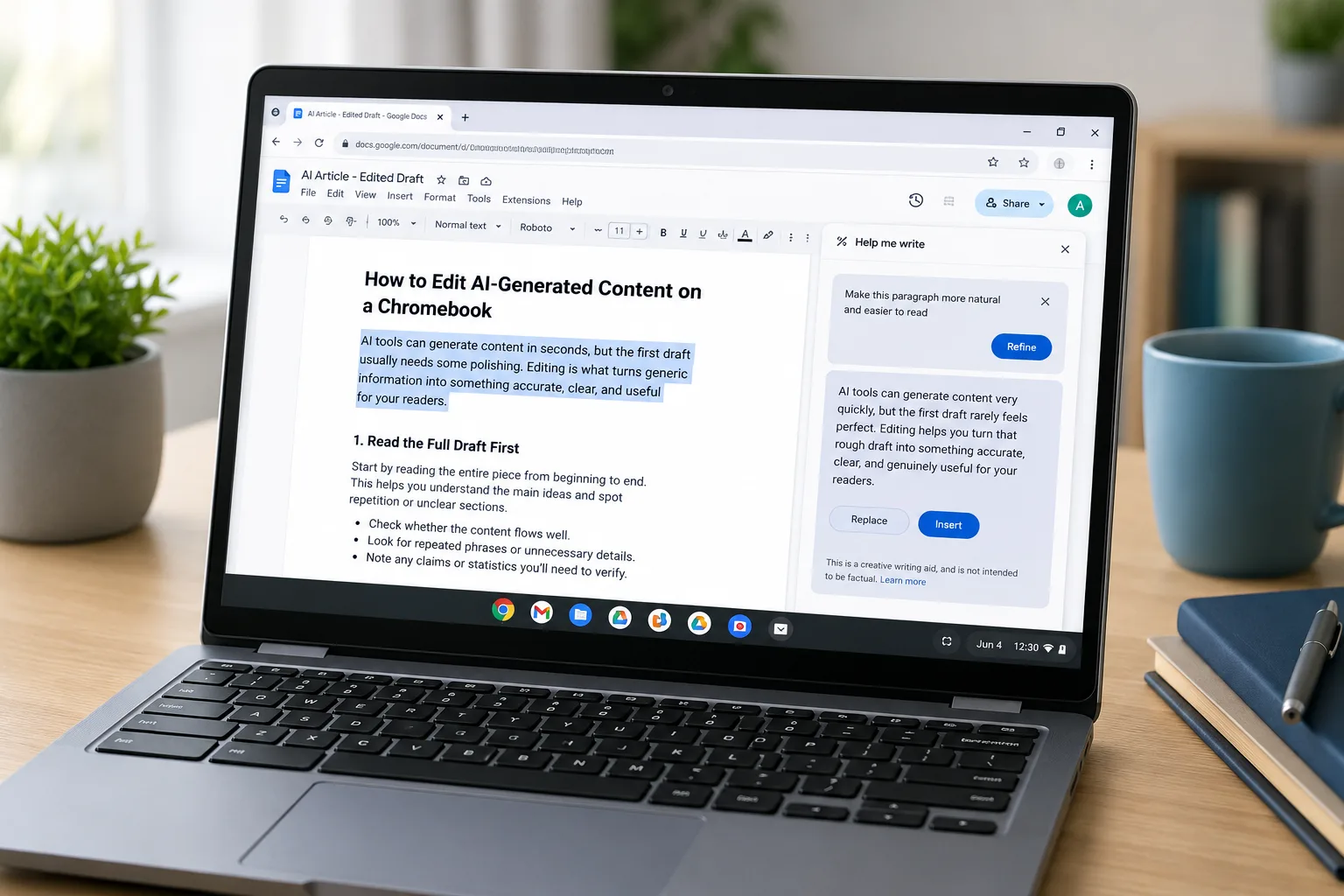
Start With a Full Read-Through
Do not start editing the first sentence as soon as the AI finishes writing. Read the entire draft once before making changes so you can see how the ideas work together.
AI writing can look good when you read one paragraph at a time. After reading the whole article, however, you may notice that the same idea appears several times or that one section does not add anything useful.
Open the document on your Chromebook and read it from beginning to end. Google Docs works well for this because you can edit, comment, and organize the document directly in Chrome.
Pay attention to sentences that sound too general. AI often uses phrases that technically make sense but do not give the reader any useful information.
For example, “technology has changed the way we work” does not tell the reader much. A stronger version could explain exactly what changed and how Chromebook users can benefit from it.
Also look for unnecessary introductions and conclusions. If the AI repeats the same point at the beginning and end of every section, remove the repetition rather than keeping it simply because the paragraph is grammatically correct.
Rewrite AI Sentences in Your Own Style
Once you understand the structure, start rewriting sentences that do not sound natural. This is one of the most important parts of editing AI-generated content.
AI tools often produce sentences with similar structures throughout an article. Changing sentence length and word choice can make the content feel less repetitive and easier to read.
If the draft still sounds noticeably machine-written, an AI Humanizer can help suggest alternative wording before you make your own final edits. However, you should still review every suggested change and make sure it preserves the original meaning.
Do not replace every AI sentence just for the sake of changing it. Keep useful information when it works, but rewrite sections that feel too formal, vague, or different from the way you normally communicate.
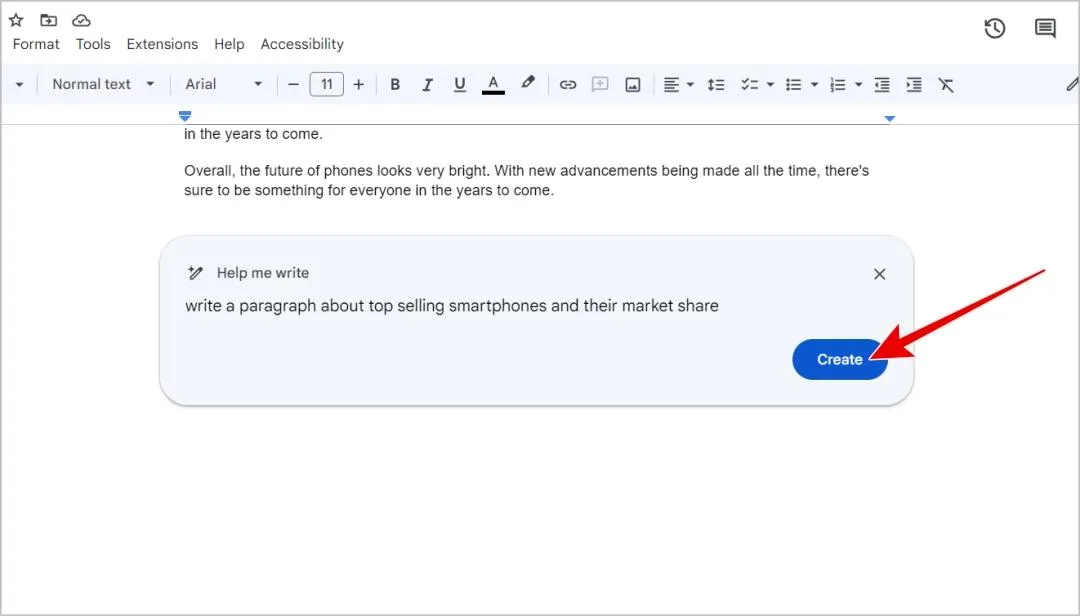
Your Chromebook can help here because ChromeOS already includes several AI-assisted writing options on supported devices. Chromebook Plus users, for example, have access to features such as Help Me Write, which can rewrite text and change its tone from within the ChromeOS environment.
You can also use browser-based writing assistants while working in Google Docs or another web editor. The important part is to treat these tools as editing assistants rather than accepting every suggestion automatically.
A useful approach is to ask for a specific change instead of simply asking AI to “make this better.” Try requests such as “make this shorter,” “explain this for beginners,” or “remove repeated information.”
Check the Facts Before Publishing
AI-generated content should never be published without checking important facts. An AI system can produce an incorrect number or outdated detail while presenting it with complete confidence.
Start with statistics, dates, product specifications, company information, and technical instructions. These are the details most likely to cause problems if they are inaccurate.
Use original sources whenever possible. For Chromebook-related content, that could mean checking Google’s official documentation, ChromeOS information, manufacturer specifications, or the original research behind a statistic.
A Chromebook is actually useful for this part of the process. Keep your draft open in one Chrome tab and your sources in additional tabs while you work.
You can copy a claim into Google’s search bar and compare the results with the original source. If several websites repeat the same information, that still does not guarantee that the original claim is correct.
Create a short checklist before publishing:
- Are the numbers accurate?
- Are dates still current?
- Are product specifications correct?
- Do links lead to the right pages?
- Are technical instructions still valid?
- Can important claims be supported by a reliable source?
This process is especially important for articles about ChromeOS because features can change through software updates. Checking current information before publishing helps prevent outdated instructions.
Use Chromebook Tools to Fix Grammar and Formatting
After checking the information, move on to grammar and formatting. This stage is easier because you are no longer deciding what the article should say.
Read each paragraph and look for spelling mistakes, missing words, unnecessary commas, and sentences that are difficult to follow. Browser-based writing tools can identify many of these problems automatically.
You can use Google Docs’ built-in editing tools or a Chrome extension such as Grammarly. If you want another way to check the grammar correctness of a sentence, browser-based writing tools can provide additional suggestions while you work.
Do not accept every automated suggestion without checking it first. A grammar tool may change a sentence that was intentionally written in a particular way or suggest wording that sounds unnatural.
Formatting matters just as much as grammar. Break large blocks of text into shorter paragraphs and use headings when the topic changes.
For a typical Chromebook article, a simple structure works well:
- Short introduction
- Clear H2 headings
- Three or more short paragraphs per section
- Bullet lists for steps or features
- Tables when comparing information
- A short conclusion
This approach also makes an article easier to read on a Chromebook, phone, or tablet.
Add Examples That AI Missed
AI can explain a topic, but it does not always know which examples will be most useful to your readers. Adding practical examples is one of the easiest ways to improve an AI-generated draft.
Suppose the original text says that editing content on a Chromebook is “easy.” That statement is not particularly helpful by itself.
Instead, explain what the reader should actually do. For example, tell them to open Google Docs, paste the AI draft into a new document, review the structure, verify important claims, and then edit each section.
You can also add Chromebook-specific details that make the article more useful. Mention Chrome tabs, Google Docs, Chrome extensions, Chromebook Plus features, or other tools that readers can actually use.
If the original draft contains awkward wording, you can also paste a sentence into an online paraphrase tool and compare the alternatives. This can be useful when you want to keep the same idea but find a clearer way to express it.
The goal is not to add technical details just because they sound impressive. Every example should answer a question the reader is likely to have.
Think about the reader’s next step after finishing each section. If you can give them something practical to try, the article becomes much more useful than a generic explanation.
Give the Article a Final Human Review
The last step is to stop using editing tools and read the article yourself. Automated tools can find spelling mistakes and improve individual sentences, but they cannot decide whether the complete article is genuinely useful to your audience.
Read the finished version from the beginning without making changes. Notice where you lose interest, where an explanation feels too long, and where the article seems to repeat itself.
You should also check the opening paragraph. It should quickly explain what the reader will learn rather than spending several paragraphs introducing the general topic.
A good final review can follow this simple workflow:
- Read the complete article.
- Remove repeated ideas.
- Replace vague sentences with specific information.
- Verify facts and statistics.
- Add Chromebook-specific examples.
- Check grammar and spelling.
- Review headings and paragraph breaks.
- Read the final version aloud.
Reading aloud is particularly useful for AI-generated text. If a sentence looks fine on the screen but sounds awkward when spoken, rewrite it.
Finally, ask whether the article actually helps someone solve a problem. If the answer is yes, the editing process has done its job.
AI Can Write the Draft, But You Should Edit It
A Chromebook is well suited to editing AI-generated content because most of the tools involved are browser-based. You can write in Google Docs, research information in Chrome, use AI assistance when needed, and check grammar without installing traditional desktop software.
The important part is not how quickly AI produces the first draft. The important part is what you do with that draft afterward.
Remove repetition, check the facts, add useful examples, and rewrite sentences that do not sound natural. These steps turn a generic AI response into content that is clearer and more useful for real readers.
For Chromebook users, the workflow is straightforward: generate, review, verify, edit, and publish. With a little human judgment, the Chromebook can handle the entire process from the first AI-generated paragraph to the final version.
