


If you use a Chromebook and wonder how to type an em dash, this manual is for you. Here, we will explain the steps clearly to help you add this useful punctuation to your writing quickly.
What Does an Em Dash Do in Writing?
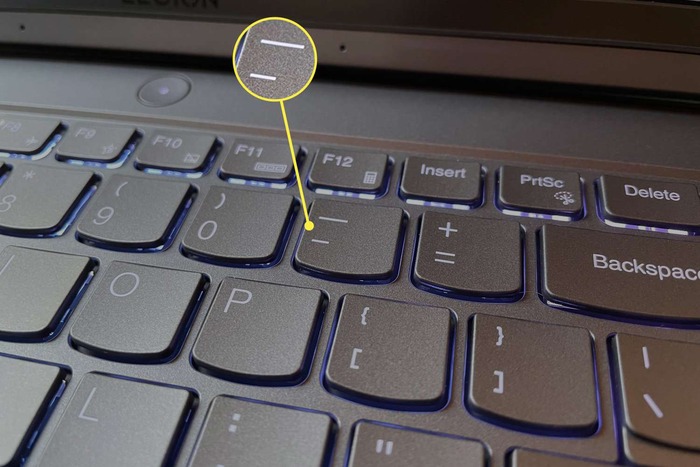
An em dash is a punctuation mark that shows a pause or break in a sentence.
It can work like commas or parentheses, but often gives stronger emphasis or a dramatic effect. Writers use it to highlight important points or to interrupt thoughts smoothly.
In simple terms, an em dash adds style and clarity to sentences by marking pauses or separating ideas with more impact than usual punctuation.
Quick Shortcut for Typing an Em Dash on Chromebook
Typing an em dash on a Chromebook is easy with the right key combo. Use this shortcut to insert it instantly:
| Shortcut Keys | Action |
| Shift + Ctrl + Minus (-) | Inserts an em dash (—) |
Pressing Shift + Ctrl + – together will produce an em dash on your Chromebook keyboard.
This shortcut helps you add emphasis, introduce sudden changes in thought, or highlight important details with just a few keys.
This method is fast and works well in most apps where you write text on your Chromebook.
Other Ways to Insert an Em Dash
If the shortcut doesn’t work for you, don’t worry. There is another way to add an em dash using the Unicode system built into your Chromebook.
Here’s how:
| Step | What to Do |
| 1 | Press Ctrl + Shift + U |
| 2 | Type 2014 (Unicode for em dash) |
| 3 | Press Enter |
This sequence will convert the code into an em dash symbol. It’s another reliable method if keyboard shortcuts are unavailable or if you want to type it manually.
Why Use Em Dashes in Your Writing?
Em dashes are not just fancy punctuation; they serve a clear purpose. You can:
- Show a break or interruption in a sentence.
- Highlight important information.
- Create suspense or drama in writing.
Using em dashes instead of commas or parentheses can make your sentences stand out and feel more natural. They give your writing a polished and professional touch.
Tips for Practicing Em Dash Usage
To get comfortable using em dashes, try including them in your writing with these simple ideas:
- Replace commas or parentheses around extra information with em dashes.
- Use an em dash between two parts of a sentence to emphasize a point.
- Insert an em dash to signal a sudden change or pause in your thoughts.
Practicing these steps will help you use em dashes naturally and improve the flow of your writing.
Summary: How to Type an Em Dash on Chromebook
| Method | Keys or Steps | Result |
| Keyboard Shortcut | Shift + Ctrl + Minus (-) | Em dash (—) |
| Unicode Input Method | Ctrl + Shift + U → 2014 → Enter | Em dash (—) |
Both ways are easy and effective. Choose the one that suits you best and start adding em dashes to your text right away.
Final Words on Using Em Dashes with Chromebook
Now you know how to type an em dash on Chromebook with a simple shortcut or Unicode input.
Em dashes are great for making your writing clearer and more engaging. Practice using them regularly, and soon they will become a natural part of your typing routine.
By mastering this small skill, you can add professionalism and clarity to any text you write on your Chromebook.
Feel free to try these steps today and enhance your writing with em dashes easily!
