


Creating a backup of your Chrome bookmarks is crucial to safeguarding your saved websites and links.
The process is simple: you can preserve or transfer them to another device or browser.
This article will explain how to back up your Chrome bookmarks easily. Let’s dig in.
Reasons to Backup Chrome Bookmarks
There are a few crucial reasons why you might want to back up your Chrome bookmarks:
- Prevent Data Loss: Accidents can happen, and your browser could malfunction. Backing up your bookmarks ensures you won’t lose your essential saved sites.
- Move Bookmarks to a New Browser: If you switch browsers or set up a new device, backing up your bookmarks makes the process easier.
Exporting your bookmarks is a quick and uncomplicated task. By the end of this guide, you’ll know precisely how to save and transfer your Chrome bookmarks.
Easy Steps to Export Chrome Bookmarks
Step 1: Open Chrome
Start by opening your Chrome browser on your computer or device.
Step 2: Access Chrome’s Menu
Look at the top-right corner of your screen and click the three dots (menu icon). This will open a dropdown list.
Step 3: Go to the Bookmark Manager
From the dropdown, hover over “Bookmarks” and click “Bookmark Manager” from the sub-menu that appears.
Step 4: Open the Bookmark Management Menu
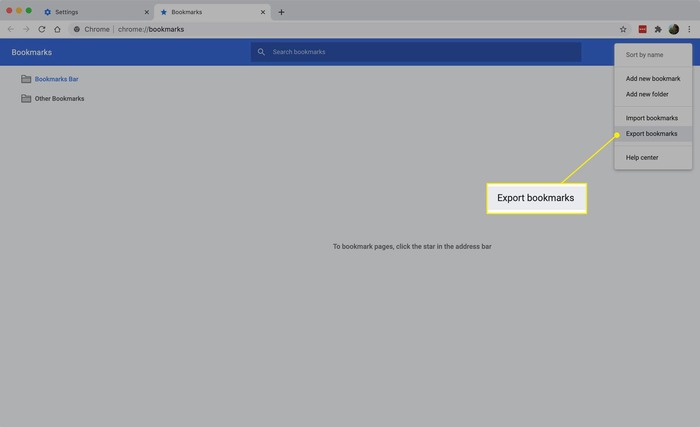
You’ll notice another menu icon once you’re in the Bookmark Manager. Click on it to open the bookmark management options.
Step 5: Export Your Bookmarks
In the menu that appears, select the “Export Bookmarks” option to begin saving your bookmarks.
Step 6: Choose a Location to Save
A window will pop up, allowing you to choose where to save the bookmark file. You can also rename the file if you prefer. Select the location where you’d like the file saved and click “Save.”
That’s all! You’ve now successfully backed up your Chrome bookmarks.
How to Restore Bookmarks in Chrome
The process is as straightforward if you ever need to recover your bookmarks. Follow these easy steps:
Step 1: Select the Import Bookmarks Option
Click the three-dot menu in the upper-right corner of Chrome. Hover over “Bookmarks,” then click “Import Bookmarks and Settings.”
Step 2: Adjust Import Settings
A window will appear, allowing you to choose the settings you want to import. Make sure to select the “Bookmarks HTML File” option. You can also tick other boxes based on your needs.
Step 3: Pick the File to Import
Once you’ve selected the HTML option, you’ll be asked to choose the file you saved earlier. Find the bookmark file on your computer and click on it.
Then, click the “Import” button, and Chrome will automatically restore your bookmarks.
Where Are Chrome Bookmarks Stored?
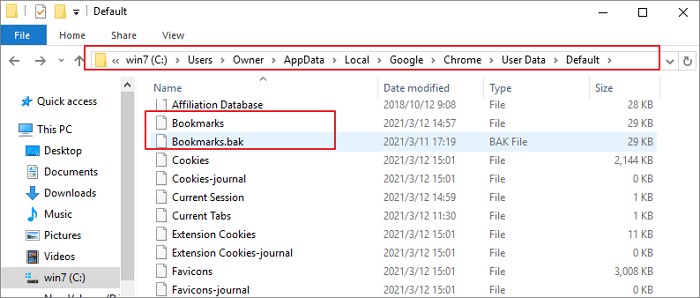
Chrome saves your bookmark data and backup files in a particular directory. You can find them on your system by following the path below:
- For Windows: C:\Users\[Your Name]\AppData\Local\Google\Chrome\User Data\Default
- For Mac: /Users/[Your Name]/Library/Application Support/Google/Chrome/Default
It’s essential to close Chrome before attempting to edit or remove the bookmark file.
Syncing Bookmarks Across Devices
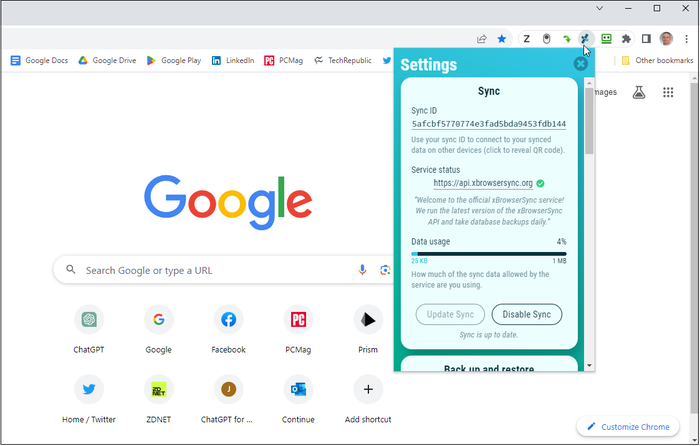
Chrome provides an easy syncing feature if you’d like to access your bookmarks on multiple devices.
By enabling syncing, you can access your bookmarks from any device where you’re signed into your Google account.
Is Syncing Bookmarks Important in Chrome?
Although syncing is not mandatory, using several devices is highly beneficial.
Turning on the sync option will automatically make your bookmarks available across all devices, such as your home computer, work laptop, or smartphone, without needing to export or import them each time.
Conclusion
Backing up your Chrome bookmarks is a straightforward method to keep your valuable links safe.
With these simple steps, you can export your bookmarks to a file and restore them when needed.
You can also use Chrome’s syncing feature to keep your bookmarks available across multiple devices for an effortless browsing experience.
We hope this guide has clarified how to back up your Chrome bookmarks. Do you regularly back up your bookmarks or rely on syncing them across devices?
Feel free to share your thoughts!
