


Changing the keyboard language on your Chromebook enhances your typing experience when working in multiple languages. Chrome OS provides flexible language settings that let you customize both system and input languages.
Whether you need to type in Spanish, French, Chinese, or any other language, your Chromebook adapts quickly. You can modify the device language, add multiple input methods, and switch between them using simple shortcuts.
Learning how to change keyboard language on Chromebook helps you work efficiently across different languages without needing external tools or complicated setup procedures.
How to Change Keyboard Language on Chromebook?
Chrome OS offers multiple ways to manage language settings for both system display and keyboard input.
Access Language Settings
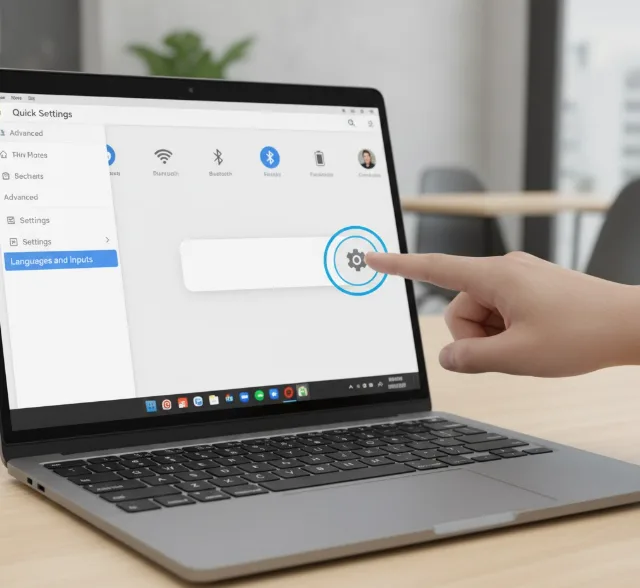
Click the status area in the bottom-right corner to open the Quick Settings panel. Tap the settings icon to access the full menu.
In the Settings sidebar, click “Advanced” and select “Languages and inputs.”
Change Your Device Language
Click “Languages” in the right pane. Find “Device language” and click “Change” next to it.
Select your preferred language from the list and click “Confirm and restart.” Your Chromebook will restart with the new system language.
Add Input Methods for Typing
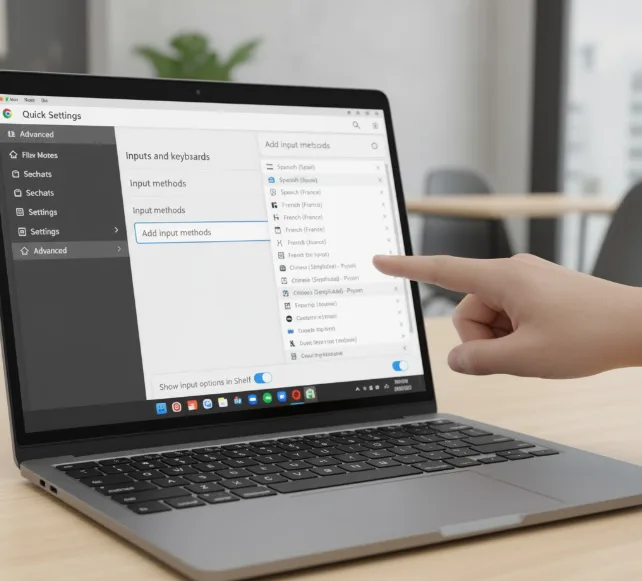
Go to “Languages and inputs” and click “Inputs and keyboards.” Under “Input methods,” click “Add input methods” to include additional languages.
Select the languages you want from the menu. Remove unwanted languages by clicking the “X” next to them.
Enable Quick Language Switching
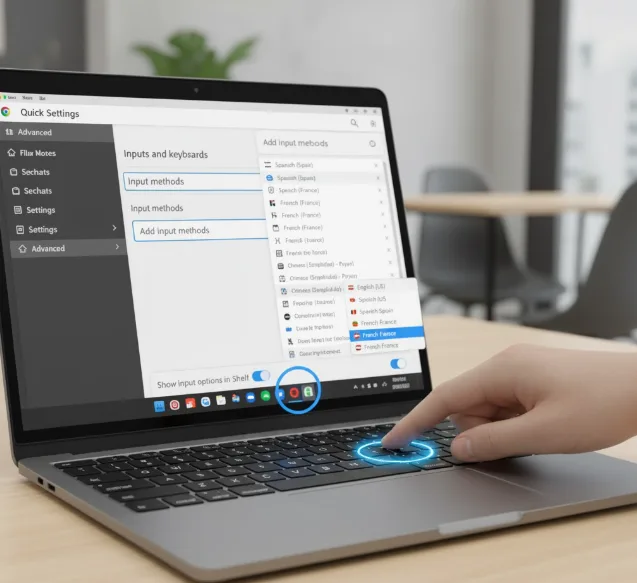
Toggle on “Show input options in Shelf” to display a language switcher in your taskbar. Click this button to switch between input methods quickly.
Use Keyboard Shortcuts
Press “Ctrl + Space” to switch to your next input language. This keyboard shortcut works when multiple languages are configured.
Press “Ctrl + Shift + Space” to cycle through all input methods. The current selection appears in the bottom-right corner.
Set Website Display Language
In the “Languages” section, reorder your preferred languages by clicking the three-dot menu. Drag languages to set priority for website content display.
Update Google Account Language
Visit myaccount.google.com/language in Chrome to adjust your Google account language. Click the pencil icon to change your preference.
After configuring these settings, you can switch between languages effortlessly while working on documents, browsing websites, or sending emails.
For additional help, check our guides on typing special characters or troubleshooting keyboard issues.
FAQs
Can I use multiple languages simultaneously on Chromebook?
Yes, you can add multiple input methods and switch between them instantly using Ctrl + Space. The language switcher in the Shelf shows your current selection.
Will changing the device language affect my files?
No, changing how to change keyboard language on Chromebook only affects system menus and interface elements. Your documents, files, and content remain unchanged regardless of language settings.
How do I switch input languages without using keyboard shortcuts?
Click the language icon in the bottom-right corner of your screen. A menu appears showing all available input methods. Select the language you want to use.
Can I set different languages for typing and system display?
Yes, your device language and input methods are separate settings. You can keep English as your system language while adding Spanish, French, or other keyboard layouts.
Why does my Chromebook keyboard type the wrong characters?
Your input method may be set to the wrong language layout. Check the language icon in the Shelf and switch to the correct keyboard layout for your region.
