


Chromebooks with touchscreen capabilities offer a more intuitive way to navigate and interact with your device. The touchscreen feature allows you to tap, swipe, and scroll directly on the screen, making tasks faster and more convenient.
However, the touchscreen can sometimes become disabled accidentally through a keyboard shortcut or system glitch. When this happens, you might wonder how to enable touch screen on Chromebook and restore this useful functionality.
Understanding how to control this feature helps you troubleshoot issues and customize your device according to your preferences. Whether your touchscreen stopped working suddenly or you disabled it intentionally, knowing the activation method is essential.
How To Enable Touch Screen On Chromebook?
The touchscreen on your Chromebook can be toggled on or off using a simple keyboard shortcut. This feature exists because some users prefer to disable touch input when using their device in certain situations.
Press the Keyboard Shortcut
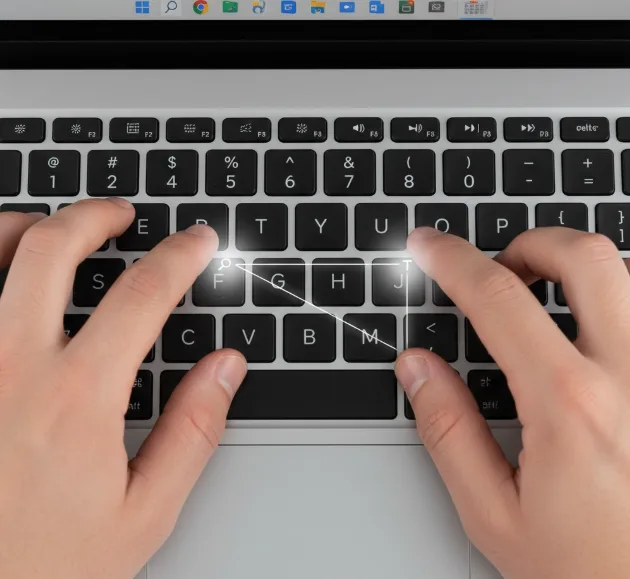
To enable touch screen on Chromebook, press Search + Shift + T simultaneously. The Search key is located where the Caps Lock key would be on a traditional keyboard.
This keyboard combination acts as a toggle. Pressing it once disables the touchscreen, and pressing it again re-enables it.
Enable Debug Shortcuts if Needed
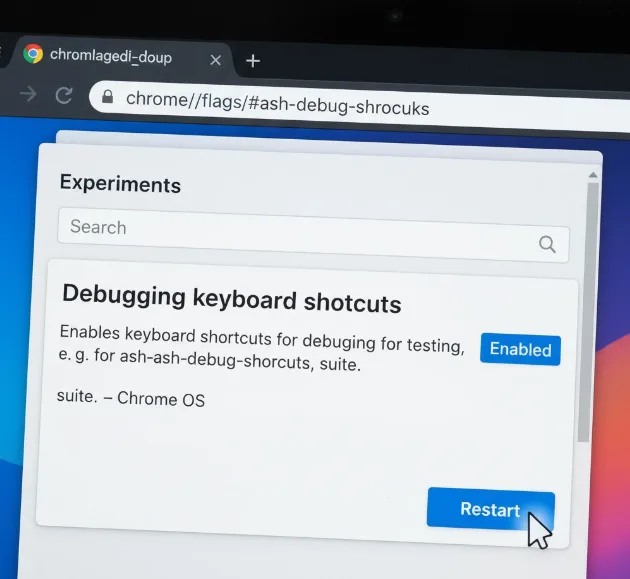
If the keyboard shortcut doesn’t work, you may need to activate Chrome flags first. Type chrome://flags/#ash-debug-shortcuts into your address bar and press Enter.
Find the “Debugging keyboard shortcuts” option and set it to “Enabled.” Click the “Restart” button that appears at the bottom of the screen.
After your Chromebook restarts, the Search + Shift + T shortcut should work properly to enable touch screen on Chromebook.
Verify Touchscreen Functionality
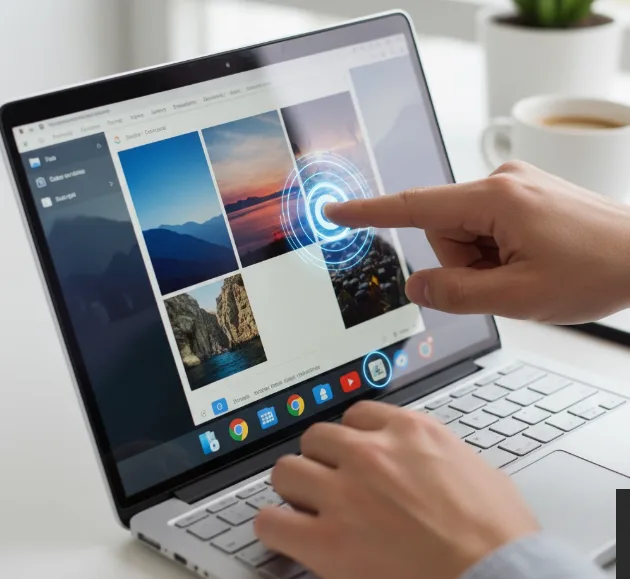
Once you’ve pressed the keyboard shortcut, test your touchscreen by tapping different areas of the screen. Try opening apps, scrolling through pages, and using gestures.
If your touchscreen still doesn’t respond, the issue might not be related to the enabled/disabled setting. You can explore information about Chromebook touchscreen troubleshooting for additional solutions.
Additional Considerations
Some Chromebook models come with touchscreens while others don’t. Check your device specifications to confirm your Chromebook has touchscreen hardware.
If you’ve recently performed a Chromebook update, settings might have changed. Verify that your system is running the latest version of Chrome OS for optimal performance.
FAQs
Can all Chromebooks use touchscreen features?
No, only Chromebook models with touchscreen hardware support touch input. Check your device specifications or try touching the screen to determine if your model has this capability.
Why did my Chromebook touchscreen suddenly stop working?
The touchscreen may have been accidentally disabled using the keyboard shortcut, or there could be software glitches, dirty screen surfaces, or hardware malfunctions affecting functionality.
Does disabling the touchscreen save battery life?
Disabling the touchscreen may provide minimal battery savings, but the impact is generally negligible. Most users won’t notice a significant difference in battery performance.
Will a factory reset enable my Chromebook touchscreen?
A factory reset may resolve software-related touchscreen issues but won’t enable a touchscreen that was manually disabled. You still need to use the keyboard shortcut afterward.
Can I permanently disable my Chromebook touchscreen?
You can disable it using the keyboard shortcut, but there’s no permanent setting. The touchscreen will remain disabled until you toggle it back on or restart your device.
