


Chromebooks run on Chrome OS, a Linux-based operating system that cannot execute Windows EXE files directly. EXE files are designed exclusively for Windows, so opening them on a Chromebook requires workarounds like compatibility layers or virtualization software.
You might want to run EXE files to access Windows-only software for work, play games unavailable on Chrome OS, or use specific professional applications. The good news is that several reliable methods exist to make this happen without switching devices.
This guide walks you through the most practical approaches to get Windows programs running on your Chromebook.
How To Open EXE Files On Chromebook?
The most accessible free method uses WINE, a compatibility layer that translates Windows commands into something Chrome OS understands. This process requires enabling Linux on your Chromebook first.
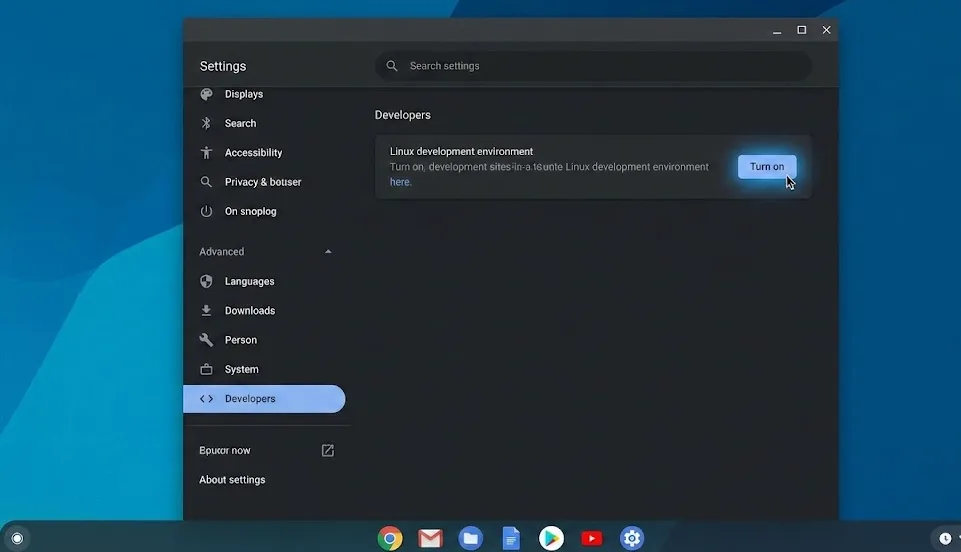
Step 1: Enable Linux Development Environment
Open Settings from your Chromebook’s system tray.
Click Advanced, then select Developers.
Find “Linux development environment” and click Turn on.
Follow the prompts to complete the Debian Linux installation. This takes a few minutes depending on your internet speed.
Step 2: Install WINE Through Terminal
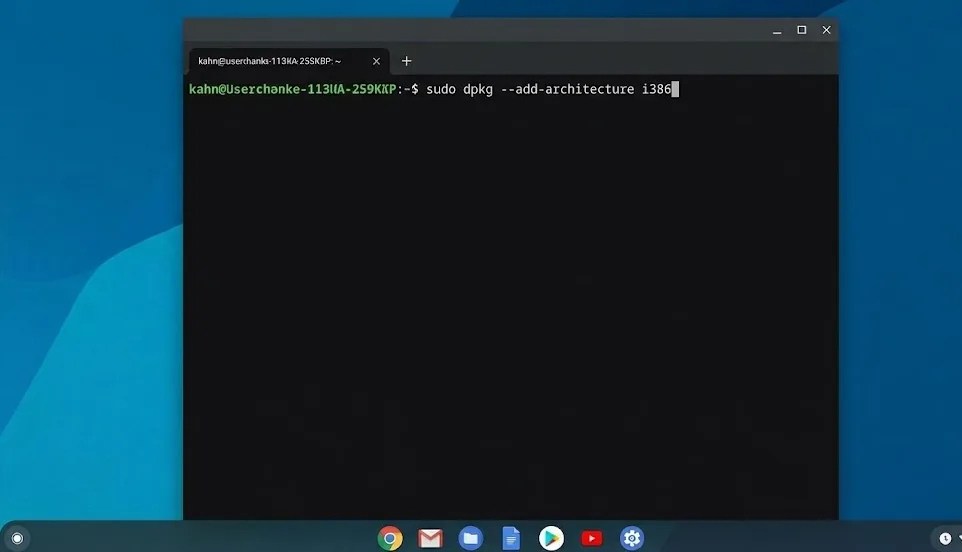
Open the Terminal app from your launcher.
Add 32-bit architecture support by typing: sudo dpkg --add-architecture i386
Press Enter and wait for completion.
Step 3: Add WINE Repository
Download the repository key with this command: sudo mkdir -pm755 /etc/apt/keyrings && sudo wget -O /etc/apt/keyrings/winehq-archive.key https://dl.winehq.org/wine-builds/winehq.key
Add the repository source for your system.
Step 4: Update and Install WINE
Run sudo apt update to refresh package lists.
Install WINE with sudo apt install --install-recommends winehq-stable
Type Y when prompted and wait for installation to finish.
Step 5: Run Your EXE File
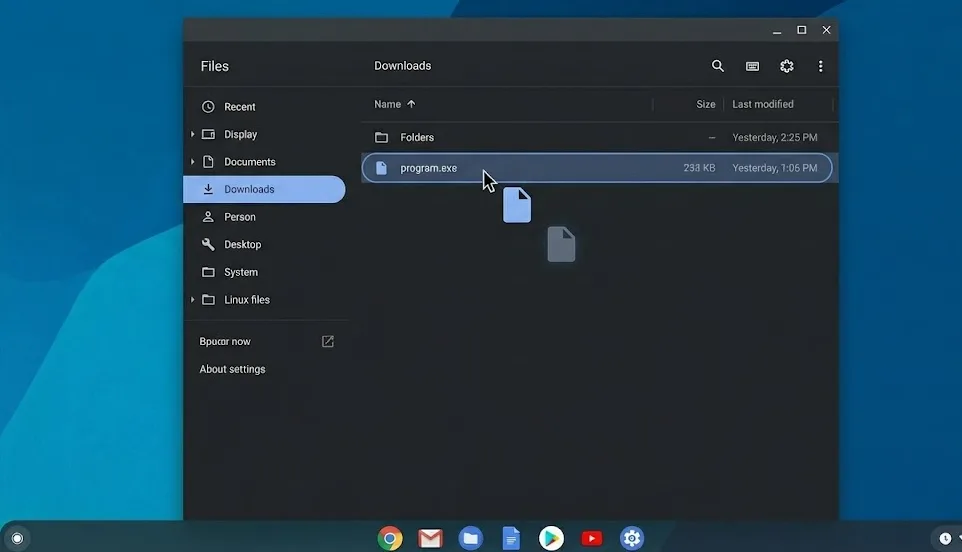
Move your EXE file to the Linux files folder in your Chromebook’s Files app.
In Terminal, navigate to the file location.
Type wine filename.exe replacing “filename” with your actual file name.
WINE works well for many applications, though some complex software may have compatibility issues. For guaranteed compatibility with all Windows programs, consider Parallels Desktop, which creates a full Windows virtual machine on supported Chromebooks.
If you need remote access instead, Chrome Remote Desktop lets you connect to a Windows PC and run any application through your browser.
FAQs
Can Chromebooks run EXE files natively?
No. Chrome OS uses Linux architecture and cannot execute Windows EXE files without compatibility software like WINE or virtualization tools such as Parallels Desktop.
Is WINE free to use on Chromebook?
Yes. WINE is completely free and open-source software. You only need to enable Linux development environment on your Chromebook to install it.
Will all Windows programs work with WINE?
Not all programs work perfectly. WINE supports roughly 70-80% of Windows applications. Complex software or recent games may require Parallels Desktop for full compatibility.
Can I run EXE files on a school Chromebook?
Usually no. School Chromebooks have administrative restrictions that block Linux installation. Chrome Remote Desktop connecting to a personal Windows PC offers an alternative.
Does running EXE files slow down my Chromebook?
Running Windows applications through WINE or virtualization uses additional system resources. Chromebooks with at least 8GB RAM handle this better than entry-level models.
