


Unzipping files on a Chromebook refers to extracting compressed files from a ZIP archive using the built-in Files app. This process lets you access documents, images, or other content that have been compressed for easier sharing or storage.
You might need this when downloading compressed files from email attachments, cloud storage, or websites. ZIP files save space and bundle multiple items together for convenient transfer.
ChromeOS handles ZIP files natively without requiring third-party software. The Files app provides straightforward tools for both creating and extracting compressed archives.
Understanding this process helps you manage downloaded content efficiently and access important files quickly on your Chromebook.
How To Unzip Files On Chromebook?
ChromeOS makes extracting ZIP files simple through the Files app’s built-in functionality.
Locate Your ZIP File
Open the Files app from your app launcher. Navigate to the folder containing your ZIP archive, typically Downloads or your Google Drive.
The ZIP file appears with a zipper icon and .zip extension in the filename.

Open the ZIP Archive
Double-click the ZIP file to mount it as a virtual folder. The archive opens in a new window showing all contained files and folders.
You can browse the contents without extracting anything yet.
Select Files to Extract
Choose which files you want to extract from the archive. Click individual files or use Ctrl+click for multiple selections.
Press Ctrl+A to select everything inside the archive. You can also hold Shift and click to select a range of files.

Copy the Selected Files
Right-click your selected files and choose Copy from the menu. This prepares the files for extraction to your desired location.
The files remain in the archive until you paste them elsewhere.
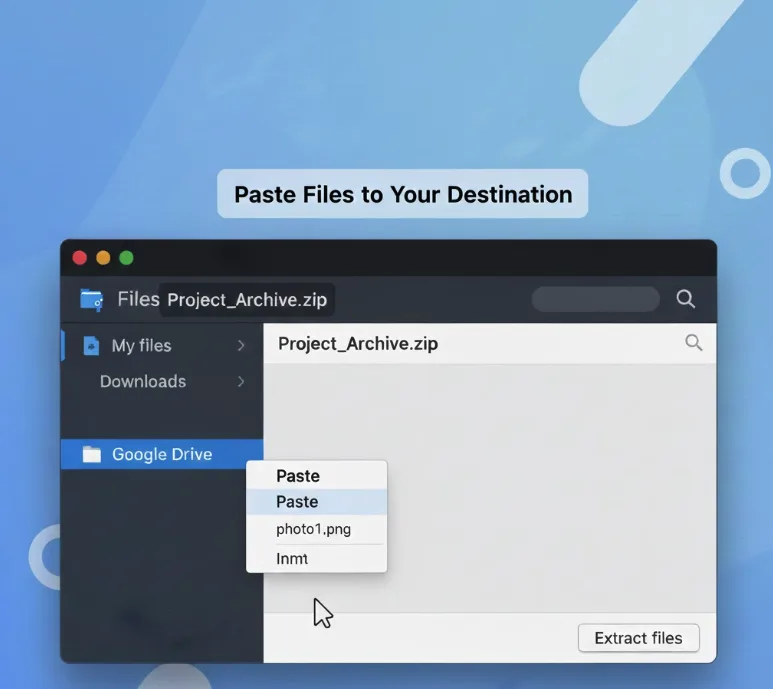
Paste Files to Your Destination
Navigate to the folder where you want the extracted files. Right-click in the empty space and select Paste.
The files copy from the archive to your chosen location and become fully editable. You can now modify these files without restrictions.
Close the ZIP Archive
Click the Eject button next to the archive name in the Files app’s left sidebar. This unmounts the ZIP file from your system.
The original ZIP archive remains intact in its original location.
You can open files directly from a ZIP archive to view them, but any changes won’t save back to the compressed version. Extract files first if you need to edit them. For organizing large file collections on your Chromebook, you might also want to learn about managing your Downloads folder.
FAQs
Can I unzip password-protected files on a Chromebook?
No, ChromeOS Files app doesn’t support password-protected ZIP files. You’ll need to use online extraction tools or Linux apps through the Terminal.
Do I need to extract all files from a ZIP archive?
No, you can extract only the specific files you need. Select individual items and copy them to your destination folder.
Where do extracted files go by default?
Files go wherever you paste them. There’s no automatic extraction location, giving you complete control over file placement and organization.
Can I create ZIP files on a Chromebook?
Yes, select files in the Files app, right-click, and choose Zip selection. The archive appears in the same folder as your selected files.
Will unzipping delete the original ZIP file?
No, the extraction process copies files from the archive. Your original ZIP file remains unchanged and can be deleted separately if needed.
