


WhatsApp Web is a browser-based version of WhatsApp that lets you access your messaging account on a computer. You sync your phone with a web browser by scanning a QR code, which mirrors all conversations on your desktop screen.
This feature helps you type faster on a full keyboard and manage chats on a larger display. You can send messages, share files, and stay connected without constantly switching between your phone and computer.
Understanding how to use WhatsApp Web on your browser makes communication more efficient, especially during work hours when typing on a computer feels more natural than using a phone.
How To Use WhatsApp Web?
Open the WhatsApp Web Page
Launch your preferred web browser on your computer. Type web.whatsapp.com in the address bar and press Enter. A QR code appears on the screen, which you need to scan with your phone to establish a connection.
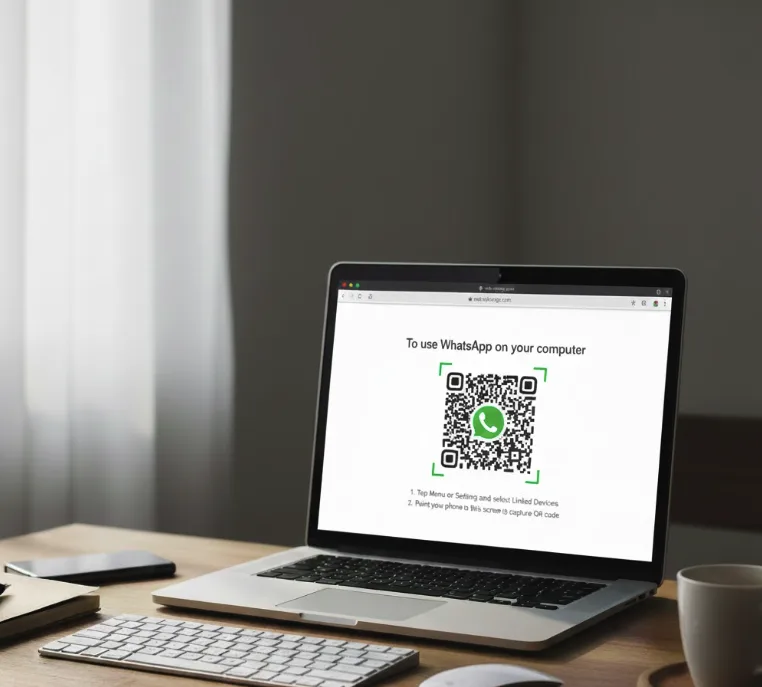
Access the Linking Feature on Your Phone
Open WhatsApp on your mobile device. Tap the three-dot menu icon in the top corner on Android or navigate to Settings on iPhone. Select “Linked Devices” from the menu options.
Scan the QR Code
Tap “Link a Device” on your phone. Your device may prompt you to verify your identity using a fingerprint or PIN for security. Point your phone’s camera at the QR code displayed on your computer screen. The scanning process takes just a few seconds.
Wait for Synchronization
After scanning, your chats begin syncing between your phone and browser. The process usually completes within moments, depending on your internet speed and the number of messages. All conversations, contacts, and media files appear on the browser interface.
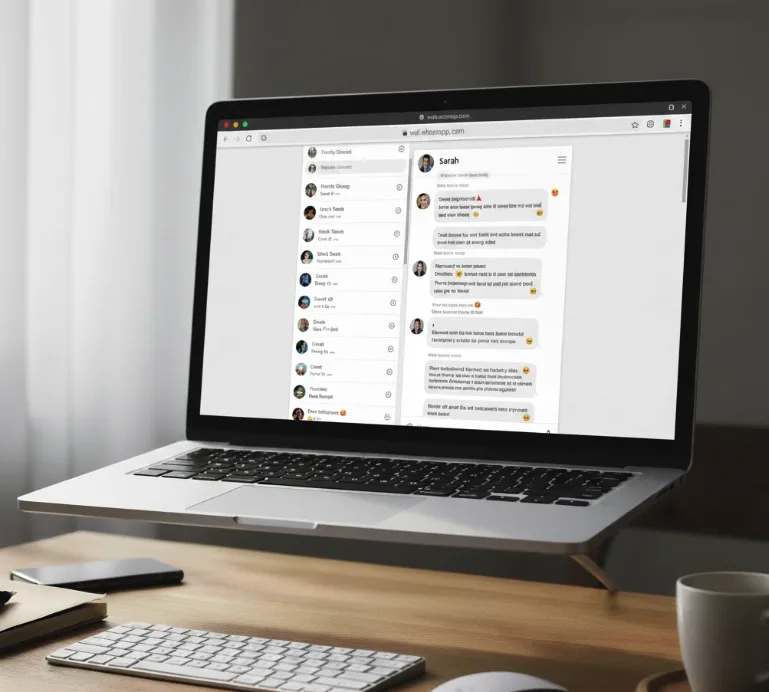
Start Using WhatsApp Web
Click any contact or group to open a conversation. Type messages using your keyboard and press Enter to send. Use the paperclip icon to attach photos, videos, or documents. Click the emoji icon to add emojis, GIFs, or stickers to your messages. The microphone icon lets you record and send voice notes.
Manage Your Settings
Click the three-dot menu in the top-right corner of the WhatsApp Web interface. You can adjust notification preferences, switch between light and dark themes, or view your profile information. When finished, select “Log Out” from the menu to disconnect your session.
WhatsApp Web stays active even when your phone screen is off, as long as your device maintains an internet connection. The browser version updates in real-time, so messages appear instantly on both your phone and computer.
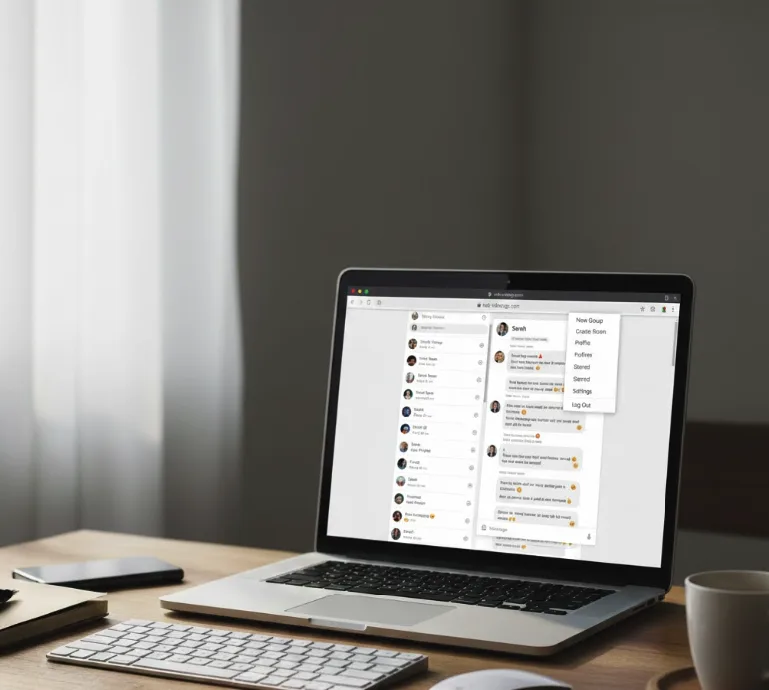
Remember to log out when using a shared or public computer to protect your privacy. WhatsApp automatically disconnects your session after two weeks of inactivity for security purposes.
FAQs
Can I use WhatsApp Web without my phone nearby?
Yes, WhatsApp Web works without your phone nearby after initial setup. The multi-device feature keeps your account active on the browser even when your phone is offline or turned off.
Does WhatsApp Web work on all browsers?
WhatsApp Web works on Chrome, Firefox, Safari, Edge, and Opera. Make sure you use an updated browser version for the best performance and access to all features available on the platform.
How do I log out of WhatsApp Web?
Click the three-dot menu in the top-right corner of WhatsApp Web. Select “Log Out” from the dropdown menu. You can also disconnect devices from your phone by going to “Linked Devices” in settings.
Can I use WhatsApp Web on multiple computers?
Yes, you can link WhatsApp to multiple computers simultaneously. Go to “Linked Devices” on your phone and scan a QR code for each computer. You can manage all connected devices from your phone’s settings.
Is WhatsApp Web secure to use?
WhatsApp Web uses end-to-end encryption like the mobile app. Your messages remain private and secure. Always use trusted computers and log out after each session on shared devices to maintain security.
