


Google is working to update customized Chromebook keyboard shortcuts, complete with new icons and application interface. Using the in-progress code I generated some of the new icons that will be added to ChromeOS and they bring a more modern look to certain system functions.
This is how the new icons are designed, along with their representative function for customized Chromebook keyboard shortcuts.
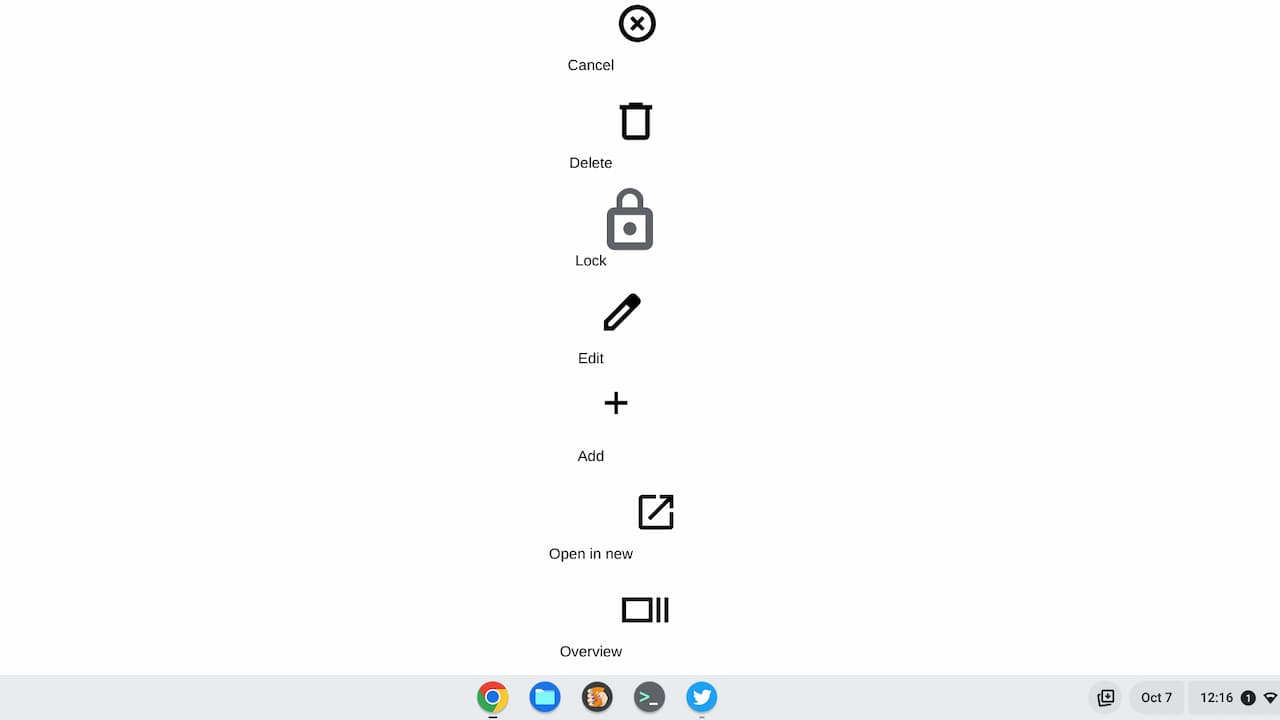
There’s also mention of a dedicated Print icon although the code to display the icon isn’t yet present. It’s also possible these icons will change prior to implementation.
A code comment currently reads “Replace these temporary icons with the actual ones.” However, I can’t tell if that’s already happened: These could be temporary or they may have already been replaced with code for the planned icons.
Since the code refers to the Chromebook Shortcut Customization App first reported back in 2021, I anticipate that these icons will eventually appear in your Chromebook Settings.
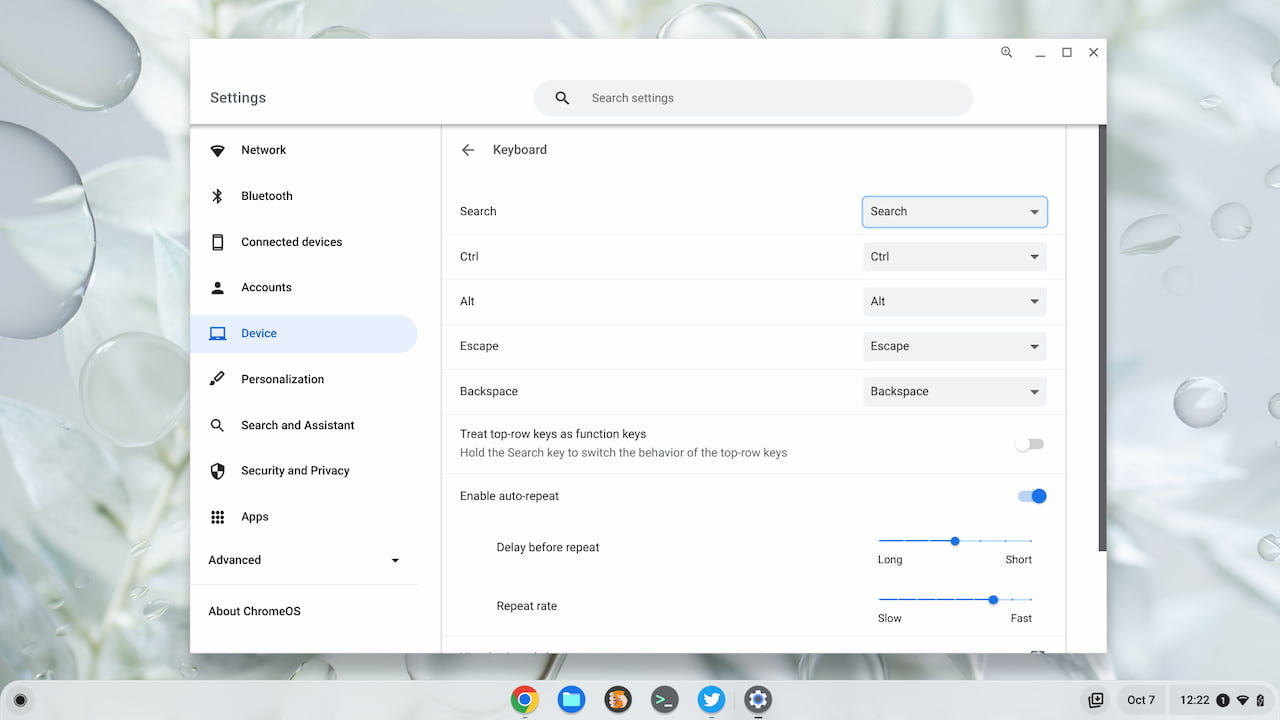
Navigate to Settings -> Device -> Keyboard and you’ll see the default Chromebook keyboard shortcuts. However, you can modify some of these; I anticipate the list of which shortcuts you can customize will be growing. And this interface will be changing too.
The more I use ChromeOS, the more I’m getting away from using the trackpad to navigate around quickly. I think it has something to do with my coding education because if you know the right keyboard shortcuts, you can zip around text or windows. In fact, that’s why I recently shared a quick way to maximize and minimize windows or apps using Chromebook keyboard shortcuts. I have a video demonstration in that post to show you how quick the approach is.
I figure the more my hands are on the keyboard, the more I can type. More time on the trackpad reduces text entry, so I’m learning to love Chromebook keyboard shortcuts. I’m looking forward to seeing how these new ones are implemented.
Update: Dinsan over at Chrome Story has a short video look at the new Chromebook keyboard shortcuts app. Here’s a peek at what’s coming:
