


Chromebooks have evolved beyond simple web browsing devices. You can now code directly on a Chromebook using Crostini, Chrome OS’s Linux container feature. This capability transforms devices like the Pixel Slate into legitimate development machines without requiring Developer Mode or external hardware.
Crostini runs a Debian Linux distribution in a secure container alongside Chrome and Android apps. This means you get a full Linux command line environment and GUI app support without compromising Chrome OS security. The setup proves valuable for students, hobbyist developers, and professionals who need a portable coding solution.
Understanding how to code on a Chromebook with Crostini opens access to professional development tools. You’ll run popular IDEs, install programming languages, and manage version control systems. The process requires no cloud subscriptions or additional devices, making it a cost-effective option for many developers.
How to code on a chromebook crostini pixel slate?
Setting up a coding environment on your Chromebook through Crostini takes just a few steps. The process gives you access to Linux development tools while maintaining Chrome OS stability.
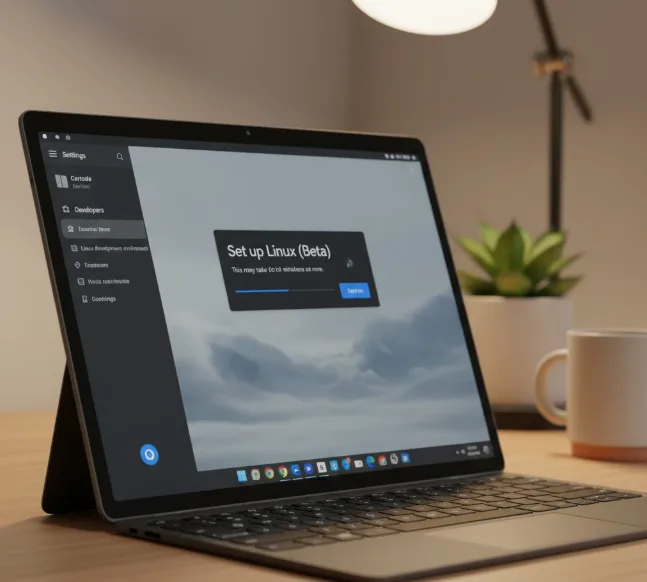
Enable Linux (Beta) on your Chromebook
Open your Chromebook Settings and find the “Developers” section in the left sidebar. Click “Linux development environment” and select “Turn on.” Chrome OS downloads and installs the Linux container automatically. This takes about 10 minutes depending on your connection speed.
After installation completes, a Terminal window appears. You now have access to the Linux command line.
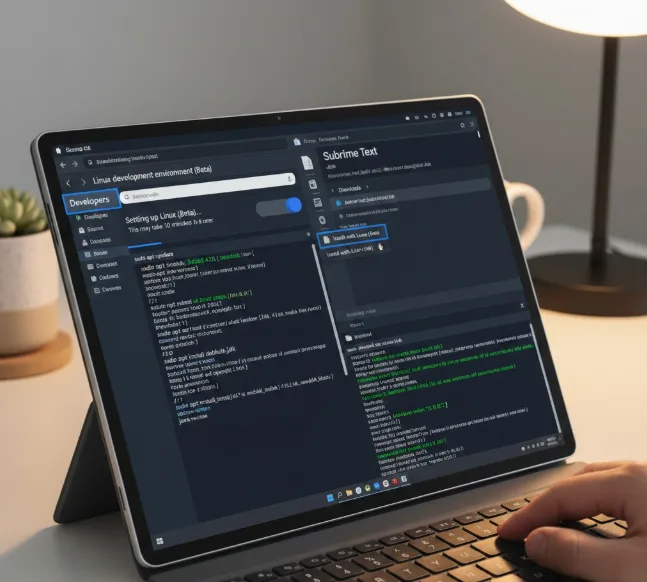
Install your development tools
You can install most Linux development software using standard commands. For IntelliJ IDEA or Sublime Text, download the Debian package from the official website using Chrome. Navigate to your Downloads folder in the Files app, right-click the .deb file, and select “Install with Linux (Beta).”
Alternatively, use the Terminal to install packages directly. Type sudo apt install package-name to install any available software from Debian repositories. Many developers find this method faster for installing Linux apps on their Chromebook.
Set up Java Development Kit
Java development requires the JDK installed in your Linux environment. Open Terminal and run sudo apt update followed by sudo apt install default-jdk. This installs OpenJDK, the open source Java development kit.
Verify the installation by typing java -version in Terminal. You should see version information confirming successful installation.
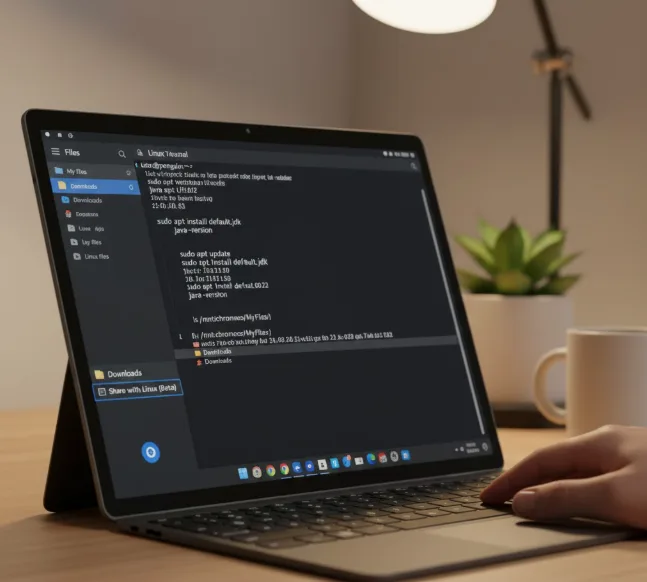
Configure file sharing between Chrome OS and Linux
Access your Chrome OS files from Linux by sharing folders. Open the Files app, right-click your Downloads folder, and select “Share with Linux.” This mounts the folder in your Linux environment.
You can now save files in Chrome OS and access them directly from Linux applications. Your Downloads folder appears at /mnt/chromeos/MyFiles/Downloads in the Linux file system.
Launch your development environment
Most installed Linux applications create shortcuts in your Chrome OS app launcher. Click the launcher icon and find your IDE in the Linux apps folder. Programs like IntelliJ IDEA and Sublime Text appear here after installation.
Some packages don’t create shortcuts automatically. For these, open Terminal and type the program name to launch it. For example, type jgrasp to start the jGRASP IDE from the command line.
Python comes pre-installed in Crostini, so you can start coding immediately. Type python3 in Terminal to access the Python interpreter.
The setup process takes minimal time and provides a complete development environment. You get access to Git for version control, multiple programming languages, and professional-grade IDEs. File sharing between Chrome OS and Linux makes workflow management straightforward. For those interested in coding in a college computer science program, this setup handles most academic requirements effectively.
FAQs
Can I code on a Chromebook without Developer Mode?
Yes, Crostini allows coding without Developer Mode. It runs Linux in a secure container within Chrome OS, maintaining security while providing full development capabilities.
What programming languages work with Crostini?
Python comes pre-installed. You can install Java, C++, JavaScript, Ruby, and most other languages through standard Linux package managers without restrictions.
Does Crostini support popular coding IDEs?
Crostini supports IntelliJ IDEA, Visual Studio Code, Sublime Text, and jGRASP. Any Linux-compatible IDE installs using Debian packages or command line.
Can I access my Chrome OS files from Linux?
Yes, share any Chrome OS folder with Linux through the Files app. Shared folders appear in your Linux file system for easy access.
What are Crostini’s current limitations for coding?
GPU acceleration and audio support aren’t available yet. USB device access remains in development. These limitations don’t affect most standard coding tasks.
