

Close Menu
    Facebook X (Twitter) Instagram
    • About
    • Privacy Policy
    • Write For Us
    • Newsletter
    • Contact
    Instagram
    About ChromebooksAbout Chromebooks
    • Linux
    • News
      • Stats
      • Reviews
    • AI
    • How to
      • DevOps
      • IP Address
    • Apps
    • Business
    • Q&A
      • Opinion
    • Gaming
      • Google Games
    • Blog
    • Podcast
    • Contact
    About ChromebooksAbout Chromebooks
    Apps

    New Chrome extension brings full-screen Google Tasks to Chromebooks

    Kevin TofelBy Kevin TofelDecember 3, 2019No Comments2 Mins Read

    If you’re a Google Tasks user, there’s a holiday season surprise available to you today. A new third-party Chrome extension called Full Screen for Google Tasks recently launched and although there are some limitations, it’s a solid way to manage tasks on your Chromebook.

    On Tuesday, Redditor ZYinMD debuted his extension, which he made because he’s a coder and he relies heavily on Google Tasks. And although the extension opens up in a new tab, you can actually run it as in standalone mode if you’d like.

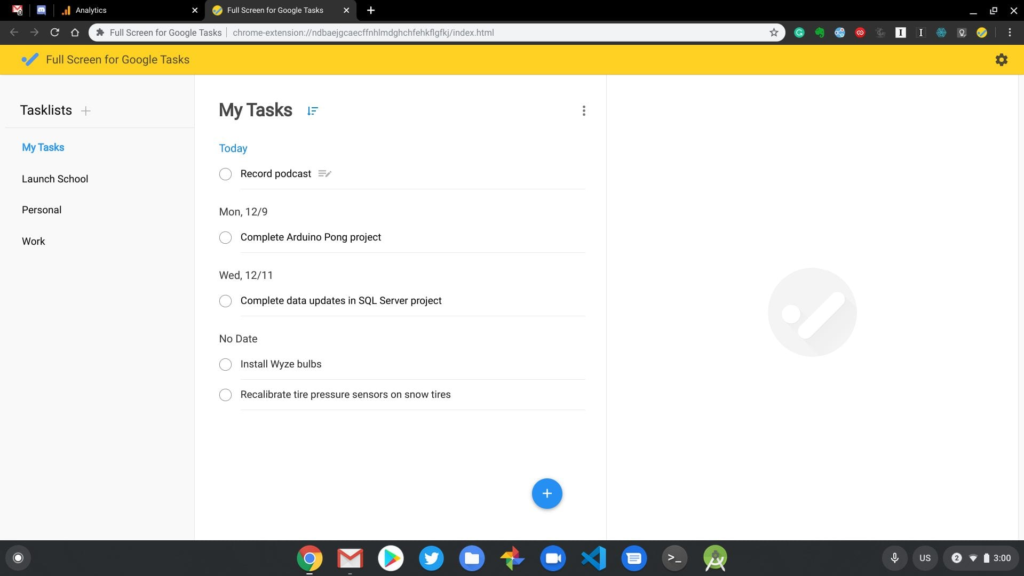
    I installed it on the Pixelbook Go earlier today and it’s so much better than the native Google Tasks functionality built into Google Calendar. Here’s a comparison showing how much more room there is to view and manage tasks between the two:
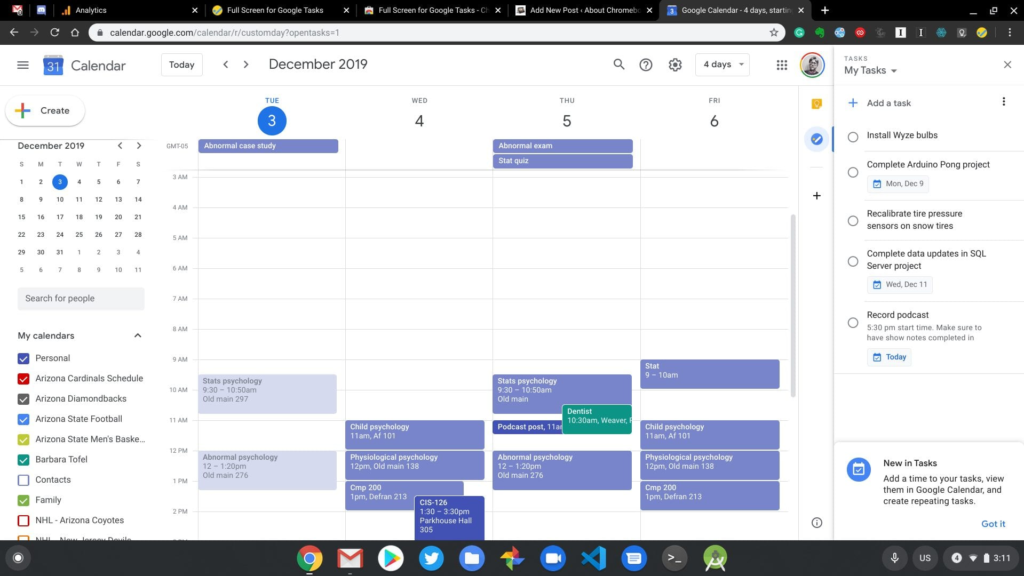
    Google Tasks in Google Calendar
    Tasks in Full Screen for Google Tasks

    You can add dates to your tasks and show your task list in date order if you’d like. Notes can be added to tasks as well.

    In terms of limitations, most of them are due to the features that Google doesn’t currently allow third-party apps to use. You can’t, for example, create a recurring task in the extension, although if you do so natively in Google Tasks, it will be set to recur. Due dates are supported but specific times due are not; again, Google’s APIs don’t offer that feature to non-native apps.
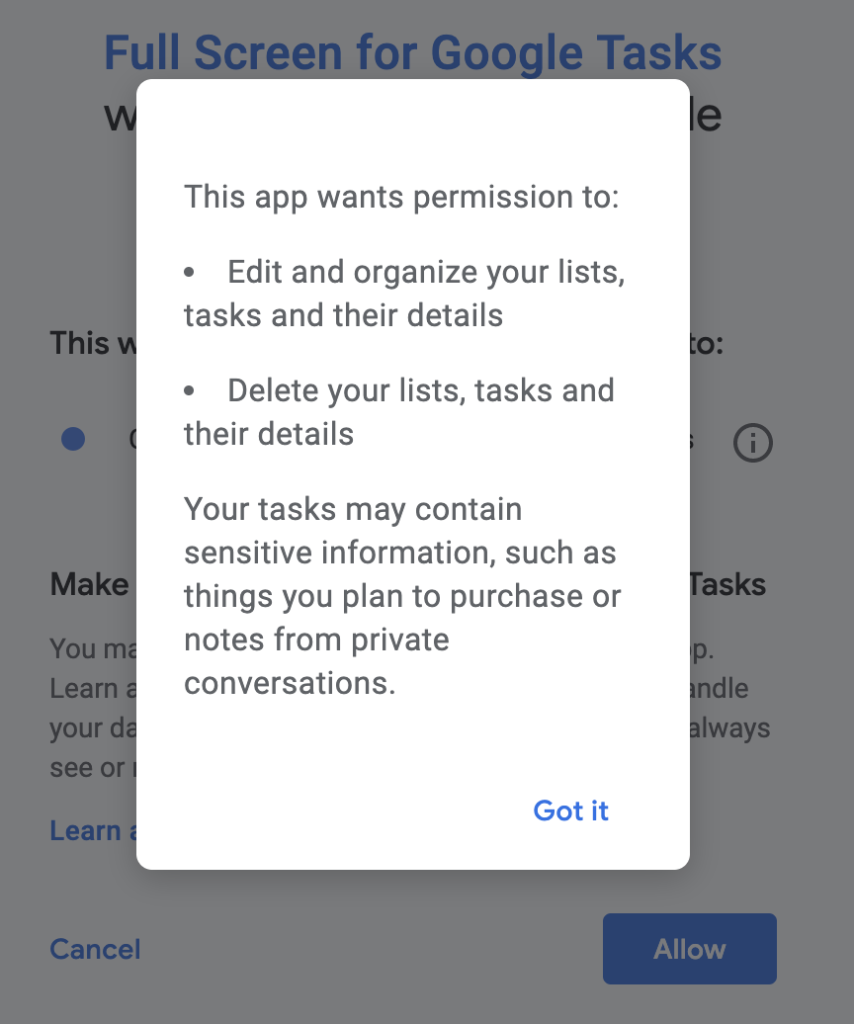
    Bear in mind that like most extensions, Full Screen for Google Tasks will have access to any data you input to the extension. There were no other permissions required when I installed it, but you’ll obviously have to decide if you trust the developer or not.

    Note too that if you install Full Screen for Google Tasks on your Chromebook and you sync extensions, you’ll have this functionality across any device you use when you’re signed in to the Chrome browser.

    Kevin Tofel
    • Website

    After spending 15 years in IT at Fortune 100 companies, Kevin turned a hobby into a career and began covering mobile technology in 2003. He writes daily on the industry and has co-hosted the weekly MobileTechRoundup podcast since 2006. His writing has appeared in print (The New York Times, PC Magazine and PC World) and he has been featured on NBC News in Philadelphia.

    Comments are closed.

    Best of AI

    Google Bard Statistics And User Data 2026

    April 10, 2026

    Llama 2 Ai Model

    April 10, 2026

    Azure OpenAI Explained

    April 10, 2026

    Whisper AI Review 2026

    April 9, 2026

    Openai Codex -The AI Code Editor

    April 9, 2026
    Trending Stats

    ChromeOS Security Incidents VS Other OS Statistics 2026

    April 13, 2026

    Chrome Lighthouse Statistics 2026

    March 26, 2026

    Chrome Incognito Mode Statistics 2026

    February 10, 2026

    Google Penalty Recovery Statistics 2026

    January 30, 2026

    Search engine operators Statistics 2026

    January 29, 2026
    • About
    • Tech Guest Post
    • Contact
    • Privacy Policy
    • Sitemap
    © 2026 About Chrome Books. All rights reserved.

    Type above and press Enter to search. Press Esc to cancel.