


Chromebooks are reliable machines, but hardware issues can come up. A stuck or broken power button is one of them. When that happens, you still have options. Knowing how to turn off a Chromebook without the power button saves you from being stuck with a device you cannot power down.
This guide covers every method that works, from menu options to keyboard shortcuts, so you can safely shut down or restart your Chromebook, even if the power button doesn’t respond.
How To Turn Off A Chromebook Without The Power Button?
ChromeOS gives you several built-in ways to shut down your device. None of them require the physical power button.
Use the Quick Settings Menu
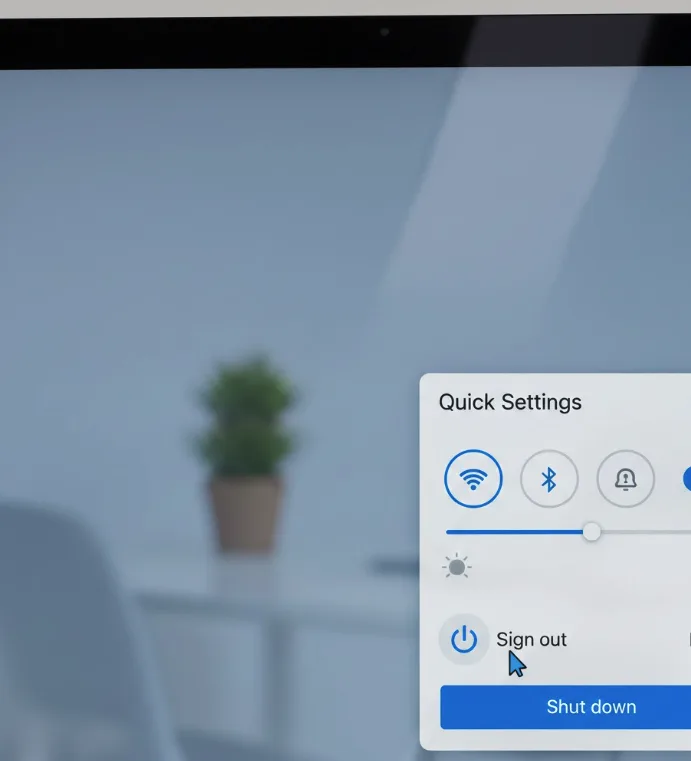
Click the time display in the bottom-right corner of your screen. This opens the Quick Settings panel.
Look for the power icon near the Sign Out option. Click it, then select Shut Down.
Your Chromebook will close all apps and power off cleanly.
Shut Down From the Sign-Out Screen
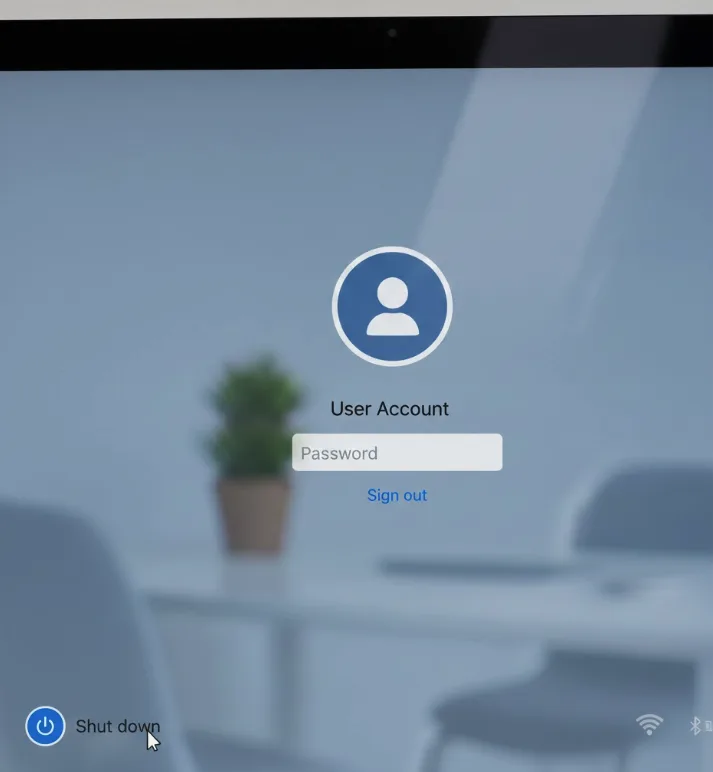
Click the time in the bottom-right corner and select Sign Out.
Once you reach the login screen, look for the Shut Down button in the bottom-left corner. Click it to power off the device.
You can also get to the sign-out screen faster using the keyboard shortcut Shift + Ctrl + Q, pressed twice.
Use the Chrome Browser to Restart
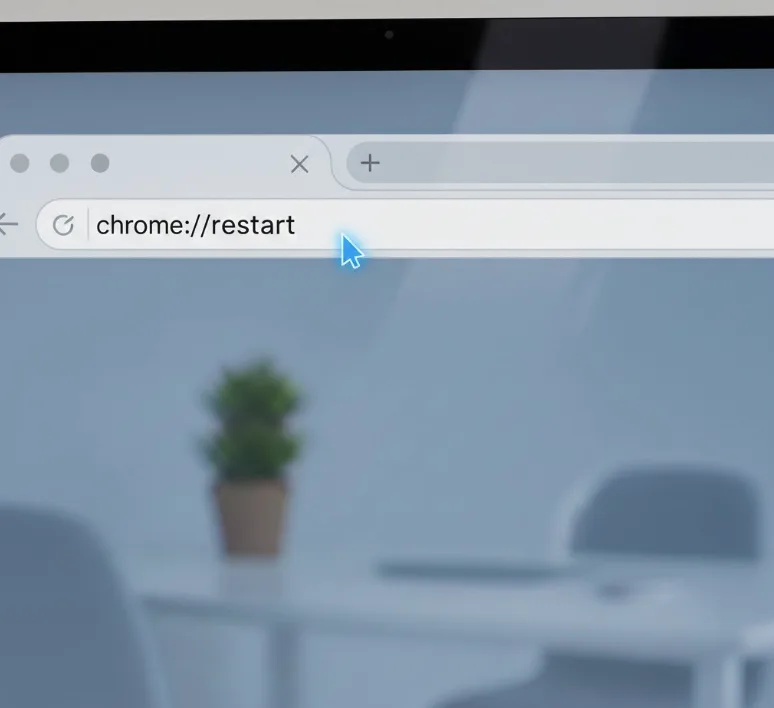
Open Google Chrome and type chrome://restart in the address bar, then press Enter.
This triggers an immediate restart. It works well when you need a quick reboot and the power button is not available.
Open Task Manager and Shut Down
Press Search + Esc to open the ChromeOS Task Manager.
From there, look for the power option to shut down the device. This method works when other shortcuts are unresponsive.
Lock the Screen First, Then Shut Down
Press Search + L to lock your Chromebook.
From the lock screen, select the Shut Down option in the corner. This is a quick two-step method that works on most ChromeOS devices.
Use an External Keyboard
If your built-in keyboard is also having issues, connect a USB keyboard. Many external keyboards include a dedicated power or lock key that triggers ChromeOS shutdown options.
If your Chromebook is completely unresponsive, you may be dealing with a frozen system. In that case, check out this guide on how to unfreeze a Chromebook for steps to recover without the power button.
If none of these steps work and your device still won’t respond, there may be a deeper hardware or software issue. This guide on what to do when your Chromebook won’t turn on covers additional troubleshooting steps worth trying.
If you notice your keyboard shortcuts are not working as expected alongside the power button, the issue might be with the keyboard itself. See this guide on fixing Chromebook keys not working for more help.
FAQs
Can I force shut down a Chromebook without the power button?
Yes. Open the Quick Settings panel by clicking the time in the bottom-right corner, then click the power icon and select Shut Down. You can also type chrome://restart in Chrome to reboot the device immediately.
What keyboard shortcut turns off a Chromebook?
Press Shift + Ctrl + Q twice to sign out, then click Shut Down from the login screen. You can also press Search + L to lock the screen and shut down from there.
Does chrome://restart fully shut down the Chromebook?
No. It restarts the device, not shuts it down completely. To power off fully, use the Quick Settings menu or the Shut Down option on the login or lock screen.
Will shutting down without the power button damage my Chromebook?
No. Using the menu or keyboard shortcuts to shut down is a normal, safe process. It is the same as using the power button, just accessed differently.
What should I do if my Chromebook is frozen and the power button does not work?
Try pressing Search + Esc to open Task Manager and shut down from there. If the device is completely unresponsive, you may need to wait for the battery to drain or seek hardware repair.
