


Chromebooks are easier to live with when the apps match what ChromeOS does well. Most users do not need a huge software library.
A few good choices can cover everyday browsing, work, communication, entertainment, privacy, and the occasional creative project.
The list below mixes Android apps, web apps, and services that work well through Chrome. The emphasis is on usefulness rather than having the most features. Some are obvious choices, while others solve smaller problems that come up regularly.
1. Open Adblocker
A Chromebook can spend a lot of its time inside the browser, so the quality of that browsing experience matters. Open Adblocker is designed to reduce advertising and other page elements that can make sites harder to use.
That can be particularly noticeable on older Chromebooks or when several browser tabs are open at once. Fewer page elements competing for attention can also make a busy website easier to navigate.
It is worth remembering that advertising supports many websites, so users may choose to disable blocking on sites they want to support.
2. Bitwarden
Password managers make more sense on Chromebooks because so much of the device experience is tied to web accounts.
Bitwarden stores passwords in an encrypted vault and can fill credentials into websites without requiring users to remember every login.
It is especially useful for anyone who uses multiple Google accounts, work platforms, shopping sites, and subscriptions. A password manager also makes it easier to use unique passwords rather than recycling the same few.
3. Canva
Canva works particularly well on a Chromebook because its main workflow already lives in the browser. It can handle presentations, social graphics, posters, simple documents, and other visual jobs without requiring traditional desktop design software.
For students and small businesses, that makes it a useful middle ground. It has more flexibility than a basic presentation editor without asking users to learn a full professional design application.
4. VLC
VLC is useful when ChromeOS’s built-in media options do not quite handle the file you have. It supports a broad range of audio and video formats and can play locally stored media.
That makes it handy for downloaded videos, personal recordings, and files received from someone using a different computer. It is also a good example of how Android apps can fill some of the gaps between a Chromebook and a conventional laptop.
5. Google Keep
Google Keep is a simple choice for notes, lists, reminders, and quick ideas. It is less about managing large projects and more about having somewhere to put information before it disappears from your head.
It is particularly convenient on a Chromebook because notes can be opened in a browser and accessed from other devices. A shopping list, short meeting note, address, or idea for later does not need a full document.
6. Zoom
Video calls are now a normal part of school, work, and everyday communication, and Chromebooks handle them well through browser and app-based options.
Zoom is worth having around because not every meeting takes place in Google Meet. For people using a Chromebook for work, keeping more than one video-conferencing option available can prevent compatibility problems when different organisations use different platforms.
Chromebooks have become increasingly common in business environments, which makes reliable access to communication services more important than it once was.
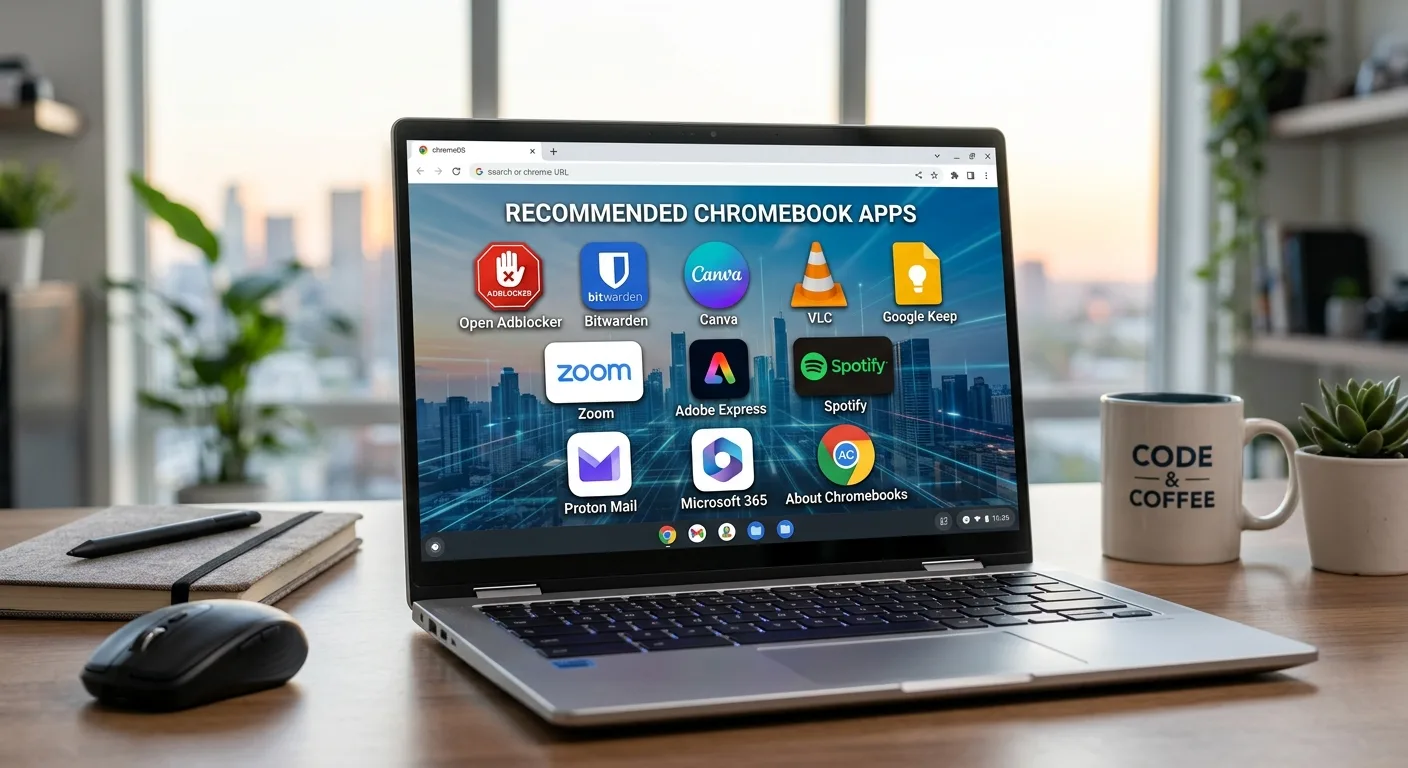
7. Adobe Express
Adobe Express gives Chromebook users access to more substantial creative tools without requiring a traditional desktop installation. It is aimed at quick designs, social content, presentations, and basic video work rather than professional production.
The browser-based approach suits ChromeOS particularly well. Projects can be picked up from another device, and there is less concern about local installation or storage.
8. Spotify
A Chromebook can make a perfectly good music player, particularly when using browser-based services. Spotify is useful for background listening while working, studying, or doing routine tasks.
The main advantage is simplicity. Open a tab, choose something to play, and carry on. For Chromebooks with limited local storage, streaming also avoids filling the device with large media libraries.
9. Proton Mail
Proton Mail is an alternative email service aimed at users who place greater emphasis on privacy. The web interface works naturally on ChromeOS, while its focus on encrypted communications gives it a different purpose from a standard Gmail account.
It can be useful as a separate account for sensitive correspondence, or simply for people who want an email provider with a stronger privacy focus.
That broader question of protecting personal information also comes up when using online communication services.
About Chromebooks has covered how to protect your personal information while messaging strangers online, which is worth considering when communication moves beyond familiar contacts.
10. Microsoft 365
Microsoft 365 remains useful for Chromebook users who regularly work with Word, Excel, and PowerPoint files. The web versions handle many everyday tasks without requiring Windows software.
This can be particularly relevant in workplaces where Microsoft remains the standard. ChromeOS does not have to mean abandoning familiar business workflows; much of the work can happen through the browser.
That fits with the wider role Chromebooks can play in modern business workflows, particularly when organisations already rely heavily on cloud-based systems.
Picking the right apps
The best Chromebook setup is usually smaller than people expect. ChromeOS already handles much of the basic computing experience, so additional apps are most useful when they solve a specific problem.
A browser-first workflow also means that users should not automatically look for an Android version of everything. A good web app or PWA can be just as useful, and sometimes works better on a larger Chromebook screen.
The ten options above cover a range of everyday needs without turning a Chromebook into a cluttered collection of software. That is really the advantage of the platform: install what you need, keep the rest in the browser, and let ChromeOS handle the underlying maintenance.
