


In 2026, people want clean and clear videos for social media sharing. Therefore, editors use video background remover tools for fast professional results. Many desktop programs now include smart features for easy, smooth editing.
These AI Background Remover tools give more helpful editing options today. Yet, choosing the right software can save time and improve video quality. Thus, this article explains the best desktop tools for Windows and Mac users.
Part 1. Features to Look for in Video Background Remover Desktop Software
Creators often search for tools that delete video background with better accuracy. Review the key elements below to choose the best software easily:
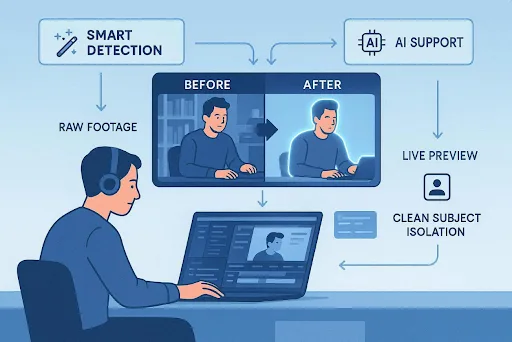
- Smart Detection: Such tools should find the person in your video without a green screen. This feature must handle moving hair and busy rooms at very high speeds.
- AI Support: The best software supports AI features like cutout and chroma key for flexible editing needs. Users can switch between both methods depending on video shooting conditions easily.
- Live Preview: Real-time preview shows changes instantly as you adjust background settings. Therefore, a quick preview helps avoid errors before the final video export rendering process every time.
- Mask Refinement: Mask tools help fix edges using brush feather and smoothing controls. Creators can adjust fine details to improve cutout accuracy results for better output.
- Core Removal Quality: AI detects and removes backgrounds accurately without a green screen. It also keeps hair edges clean and works in busy video scenes very smoothly.
Part 2. 5 Popular Video BG Remover Tools for Windows and Mac
In 2026, there are many tools available to erase video background with better speed and accuracy. This section provides you with simple details about popular desktop tools for Windows and Mac users:
Tool 1: Filmora
Filmora is the top choice for every creator to remove video backgrounds with an advanced algorithm. While removing a video background, it automatically maintains studio-level video quality. The tool shows a real-time preview of edits as you adjust background removal settings.
This dedicated software removes or replaces video backgrounds with one click using AI technology.
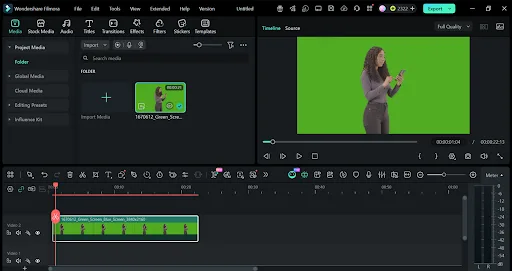
It even enables frame-by-frame adjustment for perfect background removal in every video segment. Wondershare Filmora has 2 Cutout modes, such as Advanced Cutout Mode and Quick Cutout Mode, that use smart algorithms to detect objects and remove backgrounds.
The tool even works without a green screen setup, making background removal easier. It has a Smart Cutout that lets users manually paint areas for precise AI-assisted background removal and corrections.
Additionally, creators can leverage Filmora.TV—an online visual AI canvas environment—to generate, preview, and organize AI background assets or character reference nodes before bringing them into the Filmora desktop editor.
By combining Filmora.TV’s web-based visual workspace for concept planning with Filmora desktop’s precise AI Portrait Cutout tools, creators can effortlessly draft, remove, and replace backgrounds within one connected ecosystem.
Pros
- Supports multiple video formats while performing background removal without quality loss issues.
- Removes backgrounds from full-length videos without trimming or duration restrictions applied.
- Preserves fine hair strands and edges during background removal for a natural appearance.
Con
- Background removal accuracy decreases in dark or noisy video footage.
Tool 2: Adobe Premiere Pro
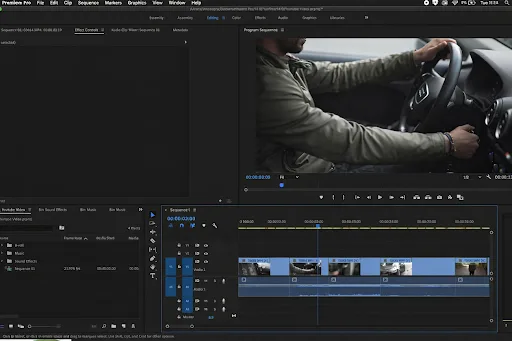
This video background remover tool supports 8-bit and 10-bit video for cleaner chroma key results. It provides a real-time preview of background removal during the editing workflow. For big projects, the tool even supports 10 to 120-minute timelines for long-form background removal editing.
Adobe Premiere Pro creates custom masks to isolate subjects and remove backgrounds, frame-by-frame.
Pros
- Works with MP4, MOV, and other formats for background removal projects.
- Enables frame-by-frame adjustment for precise background removal accuracy in clips
- Allows multiple layers for complex compositing and background replacement projects.
Cons
- 4K editing and multiple effects may reduce playback speed at once.
- Does not completely automate background removal like modern AI editors.
Tool 3: DaVinci Resolve
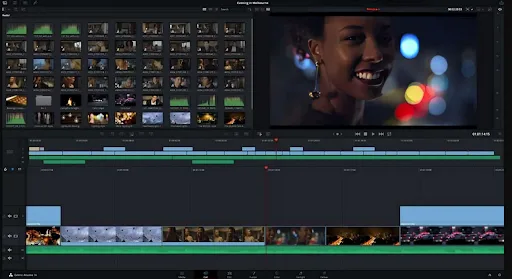
You can also use this tool, which removes backgrounds using hue and luminance controls for precise color selection. This even supports UHD 3840×2160 resolution for high-quality background removal output.
The tool stores motion data to maintain consistent background removal across scenes. It also provides advanced rotoscoping tools for frame-by-frame background removal accuracy.
Pros
- Enables frame-by-frame editing for precise background removal accuracy.
- Shows a real-time or cached preview of background removal adjustments.
- Creates high-quality matte for professional-level background removal output.
Cons
- Multiple pages make the software overwhelming for simple background tasks.
- 4K projects take a longer time to process and export.
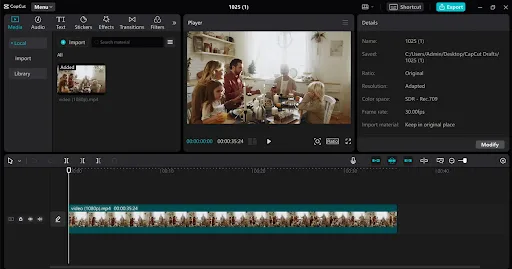
Tool 4: CapCut Desktop
This is another video BG remover that removes unwanted edges and halos for cleaner subject isolation from background areas. It has brush and eraser tools that allow for precise manual background removal with 1-click. The tool supports common formats like MP4 and MOV for background removal editing.
Pros
- Handles HD and 4K resolution for high-quality background removal output.
- Removes green or blue screen backgrounds using chroma key controls.
- Provides a real-time preview of background removal changes during the editing process.
Cons
- Lacks advanced controls for detailed matte and edge refinement editing.
- Background removal results depend on AI detection accuracy.
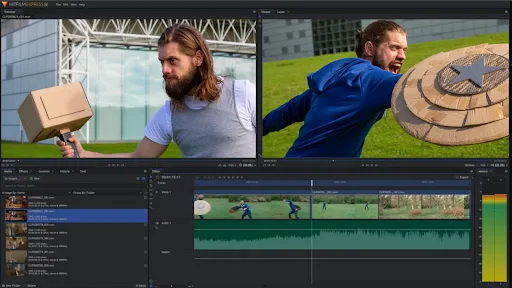
Tool 5: HitFilm
HitFilm also allows frame-by-frame manual subject isolation for complex background removal tasks, making it useful as a video background remover free solution. It supports 3D compositing for advanced background replacement and visual effects creation. While using it, you can adjust key strength levels to improve background removal accuracy in footage.
Pros
- Includes 2-dimensional effects for enhancing background replacement visual quality.
- Supports multiple layers for complex background removal and compositing tasks.
- Balances the lighting between the subject and background for seamless composite appearance results.
Cons
- Lacks one-click AI background remover for automatic subject detection.
- Requires manual masking or rotoscoping without green screen footage.
Part 3. What Is the Best Video Background Remover Tool? Full Comparison
After reviewing all tools, choosing the best background eraser for video depends on your needs. Below is a comparison table that helps you understand their strengths and limits:
| Feature | Filmora | Adobe Premiere Pro | DaVinci Resolve | CapCut Desktop | HitFilm |
| Removal Method | One-click AI removal | Chroma key and masking | HSL keying and rotoscoping | Auto AI plus chroma | Chroma key and masking |
| Edge Accuracy | Preserves all edge details | High precision manual control | Professional level matte quality | Basic edge smoothing control | Good edge cleanup tools |
| Preview | Real-time live preview | Near real-time preview | Real-time cached preview | Real-time fast preview | Standard preview workflow |
| AI Support | Advanced AI cutout modes | Limited built-in AI tools | AI Magic Mask support | Strong auto AI removal | No built-in AI |
| Green Screen | Works with or without a green screen | Chroma key support | Advanced color keying tools | Supports chroma key removal | Strong green screen tools |
Filmora Steps to Erase Video Background on Desktop Software
In this part, you will explore the complete guide to replace video background using the Filmora Desktop tool:
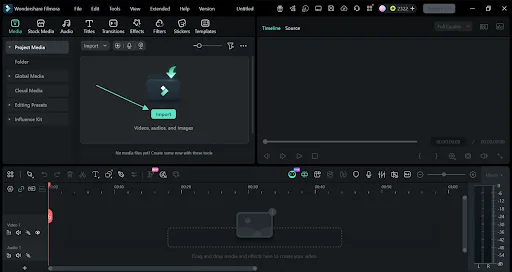
Step 1. Add a Video in Filmora
When you open the tool, press the “Import” button to add a video.
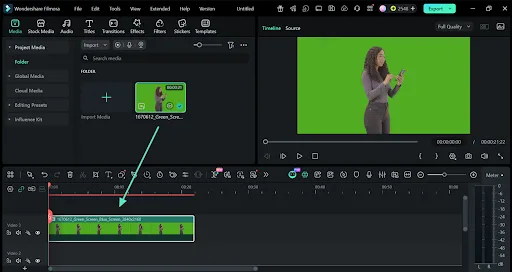
Step 2. Drag the Video to the Timeline
After adding a video, drag and drop it to the timeline and double-click on it.
Step 3. Remove Background from a Video
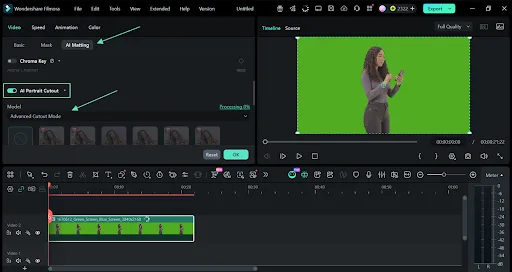
Following this, navigate to the “AI Matting” tab and enable “AI Portrait Cutout.” Next, select the “Advanced Cutout Mode” option from the menu. The tool will automatically remove a background within a few minutes.
Step 4. Review the Output and Save
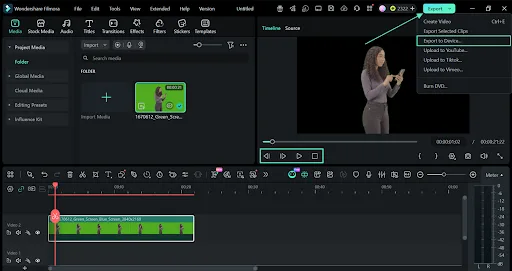
When your video background gets removed, use the preview feature to watch it. Once you agree with the result, opt for the “Export” button and select “Export to Device.”
Conclusion
To summarize, choosing the right software for removing the background from videos improves editing speed. Each tool offers different strengths for handling background removal in various situations. A good video background remover makes videos look clean and more professional.
However, Filmora is a smart option for everyday video projects.
