


Chromebooks work well with wireless earbuds through Google’s Fast Pair feature. This makes connecting your favorite audio devices quick and simple.
You can pair compatible earbuds to your Chromebook in seconds without digging through complicated Bluetooth menus. Fast Pair links your earbuds to your Google Account.
Once connected, your earbuds work across all your Google devices automatically. You need an Android phone to set this up initially.
The process takes less than two minutes. Your earbuds will remember your Chromebook for future connections.
How to Connect Earbuds in Chromebook?
Fast Pair works exclusively with Chromebooks running ChromeOS 111 or newer. Check your system version before starting.
Your earbuds must support Fast Pair technology. Google Pixel Buds and devices labeled “Made for Google” typically include this feature.
Check the packaging or product listing to confirm compatibility. You also need an Android phone linked to the same Google Account as your Chromebook.
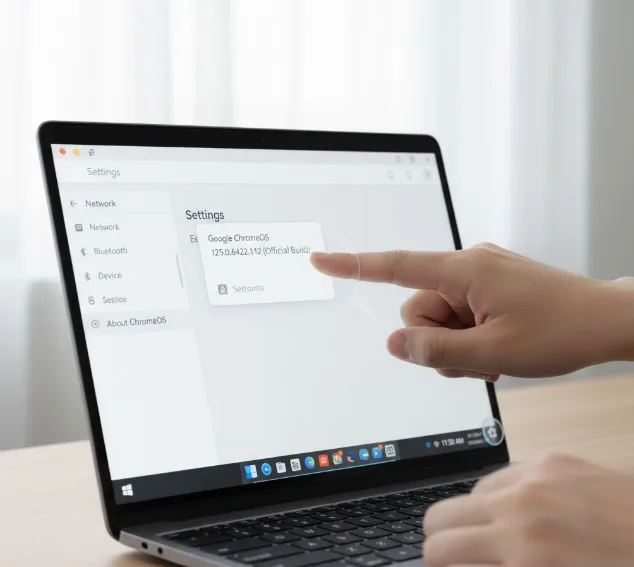
Check Your ChromeOS Version
Click the time icon in the bottom-right corner. Select the settings gear icon.
Scroll down and click “About ChromeOS.” Your version number appears here.
Update your Chromebook if it shows a version lower than 111. The update process happens automatically when available.
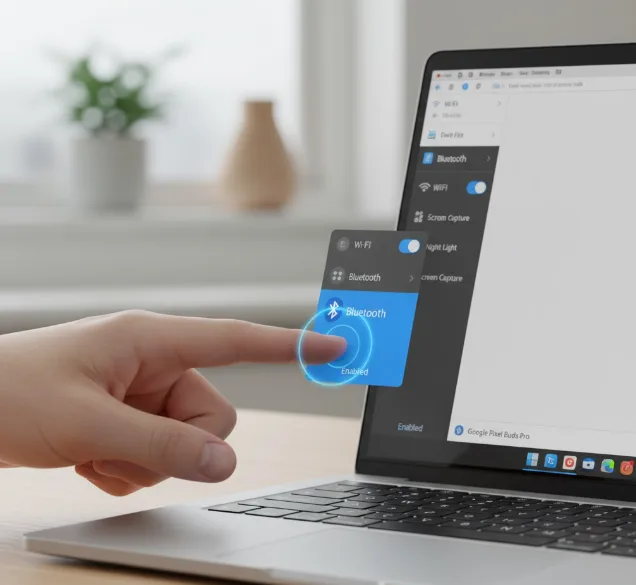
Enable Bluetooth on Your Chromebook
You need Bluetooth turned on for Fast Pair to work. Click the time icon in the system tray.
Find the Bluetooth icon. Click it to toggle Bluetooth on.
The icon turns blue when active. Your Chromebook starts scanning for nearby devices.
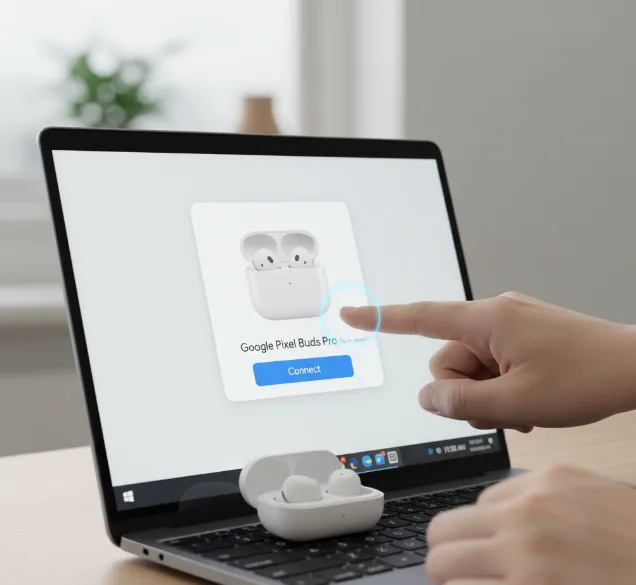
Pair Earbuds Using Fast Pair
Open your earbud case near your Chromebook. Keep the earbuds inside the case during this step.
A pop-up notification appears on your screen automatically. The notification shows an image of your earbuds.
Click “Connect” in the pop-up window. Your earbuds pair within seconds.
The Bluetooth icon shows a connected status. You can now use your earbuds with your Chromebook.
Set Up Fast Pair on Your Android Phone
Fast Pair requires initial setup through your Android phone. Turn on Bluetooth on your phone first.
Press the pairing button on your earbud case. The button location varies by model.
A pop-up appears on your phone showing your earbuds. Tap “Connect” to link them to your Google Account.
Tap “Save” when prompted. This stores the pairing information in your Google Account.
Your earbuds now work with any device using the same Google Account. You can also connect your phone to your Chromebook for additional features.
Manual Pairing Method
Open Settings on your Android phone. Tap “Connected Devices.”
Select “Pair new device.” Put your earbuds in pairing mode.
Find your earbuds in the available devices list. Tap the name to connect.
Grant permission to access contacts and call history if prompted. Click “Pair” to complete the connection.
Tap “Save device” to add them to your Google Account. This enables Fast Pair across your devices.
The pairing process mirrors how you would connect other Bluetooth devices to your Chromebook. Once saved, your earbuds automatically connect when near your Chromebook.
FAQs
Do all earbuds work with Fast Pair?
No, only specific earbuds support Fast Pair. Check the product packaging for “Works with Chromebook” or “Made for Google” labels before purchasing.
Can I use earbuds without an Android phone?
Yes, but you lose Fast Pair functionality. You must manually pair through standard Bluetooth settings each time you connect your earbuds.
Why won’t my earbuds connect automatically?
Ensure Bluetooth is enabled on your Chromebook. Check that your earbuds are charged and saved to your Google Account through your Android phone.
Do my earbuds work on multiple Chromebooks?
Yes, if both Chromebooks use the same Google Account. Your earbuds connect automatically to any device linked to your account.
How do I disconnect my earbuds?
Click the time icon and select Bluetooth settings. Find your earbuds in the connected devices list and click disconnect or forget device.
