


Working on documents late at night can strain your eyes. The bright white interface of Google Docs makes this worse, especially in dim lighting.
Google Docs does not include a built-in dark mode option for the web version on Chromebooks. However, you can enable this feature through Chrome extensions from the Chrome Web Store.
These extensions transform the interface into a darker theme that reduces eye fatigue during long editing sessions. The process takes just a few minutes to complete.
This guide shows you how to make Google Docs dark mode in Chromebook using two reliable extension options.
How To Make Google Docs Dark Mode In Chromebook?
Since Google Docs runs in your Chrome browser, you need a Chrome extension to enable dark mode. Here are the steps using the Google Docs Dark Mode extension.
Open the Chrome Web Store
Launch Chrome on your Chromebook. Type chrome.google.com/webstore in the address bar and press Enter.
The Chrome Web Store hosts thousands of extensions for various purposes.
Search for the Extension
Use the search bar at the top of the page. Type “Google Docs Dark Mode” and press Enter.
You will see several options in the results.

Install the Extension
Click on the Google Docs Dark Mode extension from the results. Select the blue “Add to Chrome” button.
A popup will ask you to confirm the installation. Click “Add extension” to proceed.
Open a Google Document
Navigate to docs.google.com and open any document. This is where you will apply the dark theme.
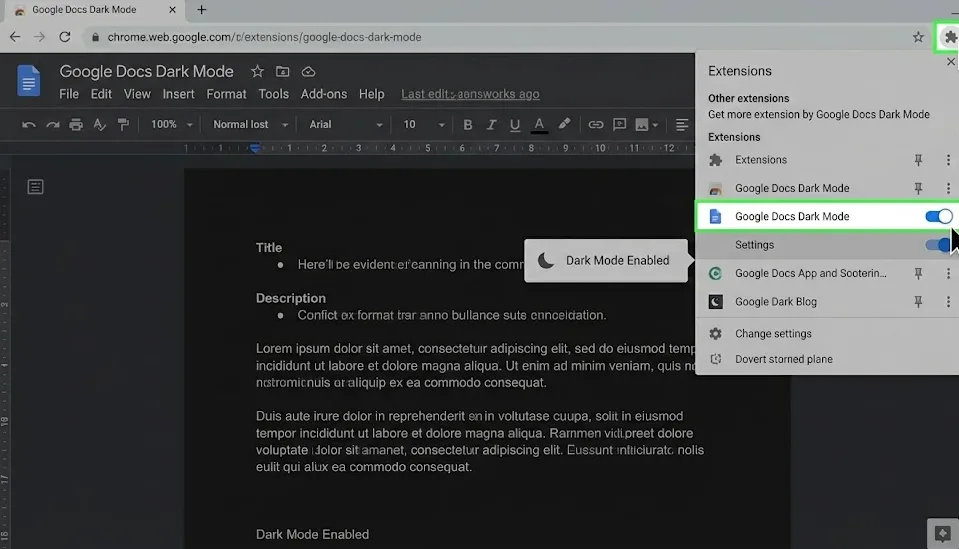
Access Your Extensions
Look for the puzzle piece icon in the top-right corner of Chrome. Click on it to view your installed extensions.
Activate the Dark Theme
Find the Google Docs Dark Mode extension in the list. Click on it to open the settings.
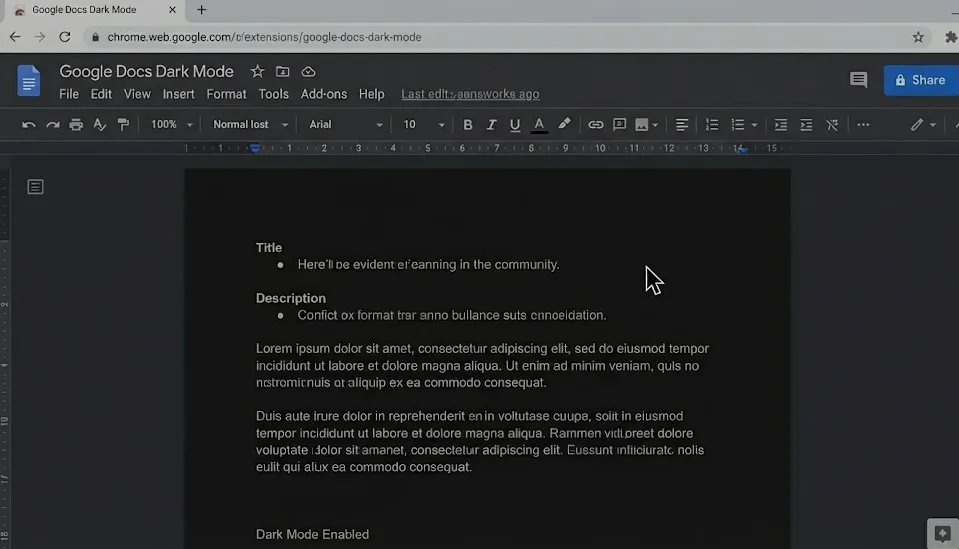
Toggle the dark mode option to enable it. Your document interface will switch to a darker theme immediately.
Alternative: Google Docs in Dark Extension
For a more complete dark mode experience, consider the Google Docs in Dark extension instead. This option darkens the document canvas itself, not just the surrounding interface.
The installation process follows the same steps above. Many users prefer this extension because it provides a more immersive writing environment.
If you install this second extension, disable the first one to prevent conflicts between them.
Note that adjusting your screen brightness alongside dark mode can further reduce eye strain during extended work sessions.
FAQs
Does Google Docs have a built-in dark mode for Chromebook?
No. The web version of Google Docs does not include a native dark mode setting. You must install a Chrome extension to enable this feature on your Chromebook.
Will dark mode affect how my document looks when printed?
No. Dark mode only changes your viewing experience. Your document content, formatting, and colors remain unchanged when you print or share the file with others.
Can I use system dark mode instead of an extension?
Chromebook system dark mode changes the interface but does not affect Google Docs specifically. A dedicated extension provides better results for document editing.
Are Google Docs dark mode extensions safe to use?
Extensions from the Chrome Web Store go through a review process. Check user ratings and reviews before installing. Remove extensions you no longer use.
Why does my document body still appear white?
Some extensions only darken the toolbar and menus. The Google Docs in Dark extension changes the document canvas color for a more complete dark theme experience.
