


Playing PS5 games on your Chromebook is possible through remote play technology. This feature streams games from your console directly to your portable device.
You need a third-party app, stable internet connection, and Bluetooth controller to get started. The setup takes about ten minutes and works with both PS5 and PS4 consoles.
Remote play works when both devices share the same network. Your PlayStation console stays at home while you play games anywhere in your house.
This guide covers app installation, console linking, and controller pairing. You’ll also learn how to adjust streaming quality for better performance on your Chromebook.
How to Connect PS5 to Chromebook?
Install PS Play App
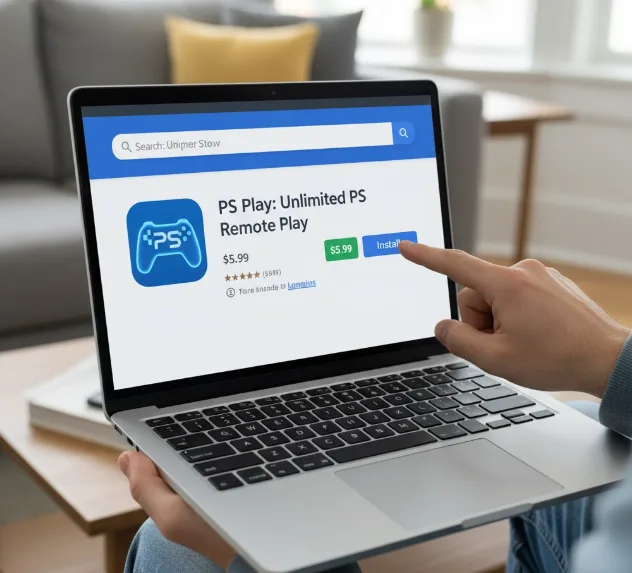
Open the Google Play Store on your Chromebook. Search for “PS Play: Unlimited PS Remote Play” and download it.
The app costs $5.99 but provides better stability than Sony’s official app. It supports both PS5 and PS4 consoles with enhanced streaming options.
Link Your Console
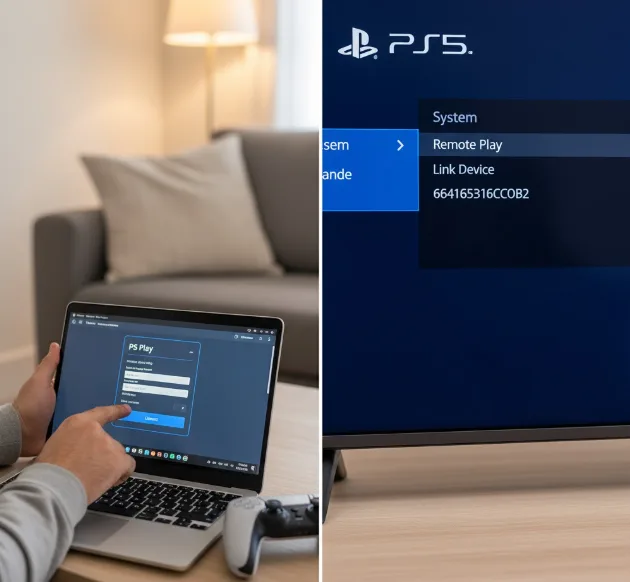
Launch the PS Play app and select your console type. Turn on your PlayStation and navigate to Settings > System > Remote Play.
Select “Link Device” to generate a six-digit code. Enter this code in the PS Play app on your Chromebook.
Sign into your PlayStation Network account when prompted. The app will establish a connection to your console.
Pair Your Controller via Bluetooth
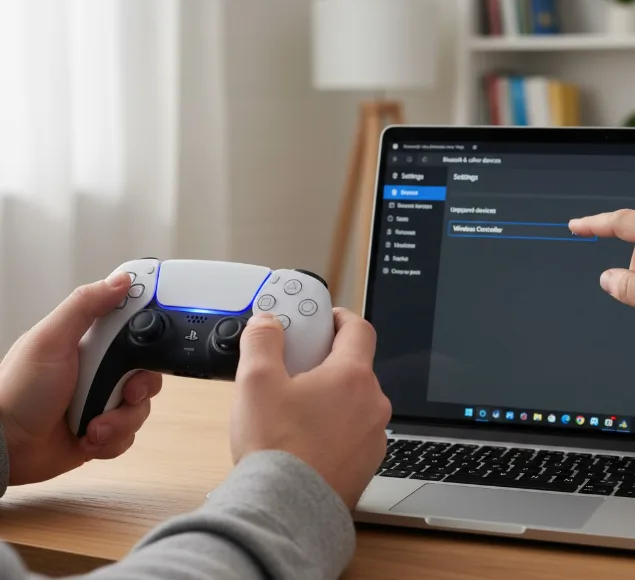
You need to connect your controller using Bluetooth since USB-OTG doesn’t work. Open your Chromebook Settings and go to the Bluetooth section.
Hold the PlayStation and Share buttons on your controller together. Keep holding until the light bar flashes rapidly.
Your controller appears under unpaired devices on your Chromebook. Click it to complete the pairing process.
Adjust Streaming Settings
Open the PS Play app settings and find Streaming Resolution. Change it from the default to 1080p if your internet supports it.
Go to Streaming Gamepad Layout and uncheck “Show On-Screen Gamepad Layout.” This removes unnecessary on-screen controls since you’re using a physical controller.
Configure Button Mapping
Some games reverse button functions during remote play. Open the Button Mapping section in the app settings.
Create custom profiles for specific games. This ensures buttons work as expected for each title you play.
Start Playing
Click “Local Connect” in the app to begin streaming. Your PS5 or PS4 screen will appear on your Chromebook.
The interface should display only your game without app UI elements. You can only play games installed on your console, not PlayStation Now titles.
For the best gaming experience on your Chromebook, connect via Ethernet instead of Wi-Fi. Position your Chromebook close to your router if using wireless connection.
The steps work similarly if you’re setting up a PS4 connection to your Chromebook. Both consoles use the same remote play technology and app.
If you want to explore other gaming options, check out how to play Windows games on Chromebook or try Xbox cloud gaming as an alternative.
FAQs
Can I connect PS5 to Chromebook without an app?
No, Chromebooks require a third-party app for remote play. The official PlayStation app doesn’t work reliably on Chrome OS devices.
Does remote play work over public Wi-Fi?
Yes, but performance depends on network stability and speed. Public networks often have restrictions that cause lag or disconnections during gameplay.
Can I use a wired controller connection?
No, USB-OTG doesn’t support DualShock 4 or DualSense controllers. You must pair your controller through Bluetooth for remote play functionality.
What internet speed do I need?
You need at least 15 Mbps for 1080p streaming. Faster speeds improve stability and reduce input lag during gameplay sessions.
Will PlayStation Now games work?
No, streaming services don’t work through remote play. You can only access games installed directly on your PS5 or PS4 console.
