


Managing multiple passwords across different websites can be overwhelming. Google Smart Lock offers a built-in solution for Chromebook users to generate and store secure passwords without needing third-party password managers.
This feature creates strong, unique passwords for each account and saves them automatically. You only need to remember your Google account password to access all your stored credentials.
Understanding how to use Google Smart Lock to generate secure passwords on a Chromebook helps you maintain better security practices. Instead of reusing weak passwords or struggling to create complex ones, Smart Lock handles the heavy lifting for you.
The process is straightforward and integrates seamlessly with Chrome OS. Once enabled, you can generate passwords with just a few clicks while creating new accounts online.
How to use Google Smart Lock to generate secure passwords on a Chromebook
Setting up password management on your Chromebook requires enabling Smart Lock first. After that, generating passwords becomes automatic during account registration.
Enable Smart Lock in Chrome OS settings
Open your Chromebook settings and scroll to the bottom. Click “Advanced” to reveal additional options.
Navigate to “Privacy and Security” from the expanded menu. This section controls how Chrome handles your personal data and security features.
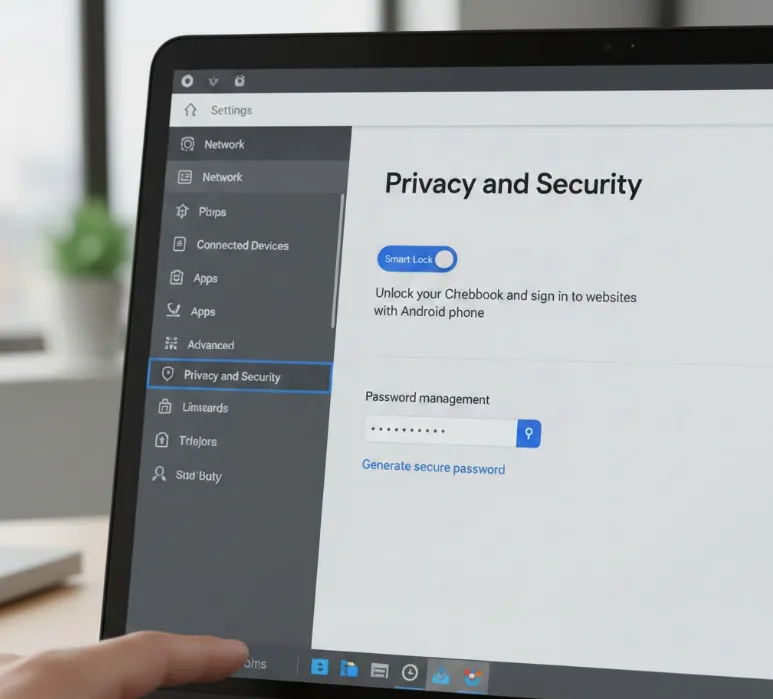
Turn on password management
Look for the “Passwords and Settings” card within Privacy and Security. Click “Manage Passwords” to access password controls.
Toggle the option to allow Google to manage your passwords. This enables Smart Lock to save and generate passwords for you.
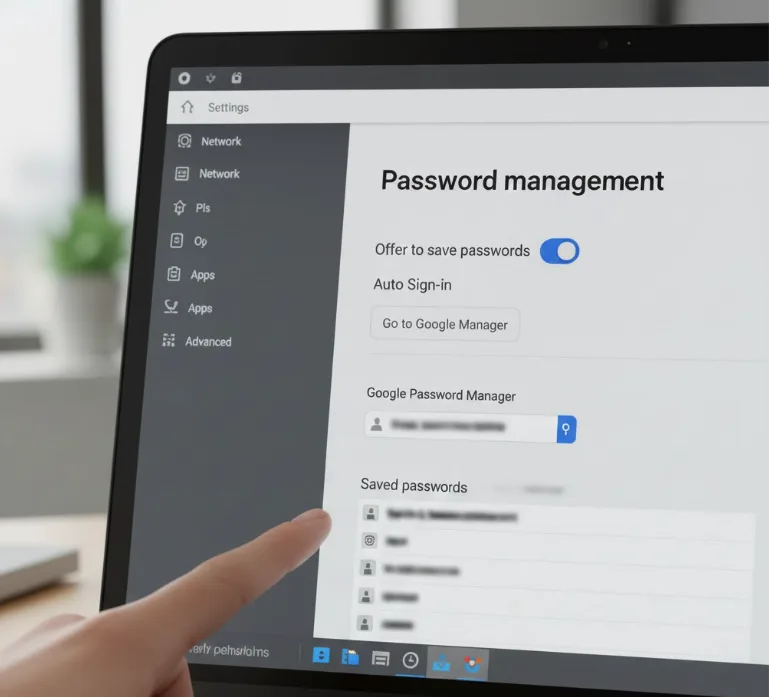
Generate a password when creating new accounts
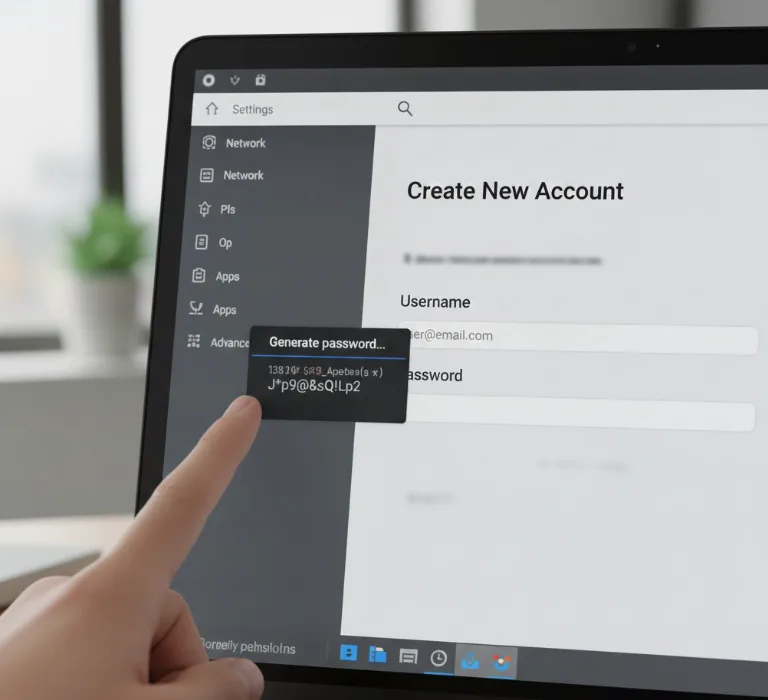
Visit any website where you want to register a new account. Enter your desired username or email in the appropriate field.
Right-click on the password field instead of typing anything. Select “Generate password…” from the context menu that appears.
Smart Lock creates a strong, random password automatically. The password gets saved to your Google account immediately without any additional steps.
Access generated passwords later
Navigate to passwords.google.com in your browser whenever you need to view stored passwords. Sign in with your Google account credentials when prompted.
Browse through your complete list of saved passwords. You can search for specific sites, copy passwords, or manage your credentials from this dashboard.
Smart Lock fills in your passwords automatically when you return to saved websites. You won’t need to remember individual passwords for each service.
In some cases, Smart Lock displays a password generation prompt automatically when it detects a new account registration. This eliminates the need to right-click manually.
FAQs
Can I use Google Smart Lock passwords on non-Chromebook devices?
Yes, your Smart Lock passwords sync across all devices where you’re signed into Chrome. They work on Windows, Mac, Android, and iOS devices.
Are Google Smart Lock passwords secure enough for sensitive accounts?
Google Smart Lock generates strong passwords with random characters, numbers, and symbols. The passwords are encrypted and stored securely in your Google account.
What happens if I forget my Google account password?
You’ll lose access to all Smart Lock passwords if you can’t access your Google account. Set up account recovery options immediately to prevent lockout.
Can I edit passwords that Smart Lock generates?
Yes, visit passwords.google.com to view and edit any saved password. You can change, delete, or manually add passwords as needed.
Does Smart Lock work with all websites?
Smart Lock works with most websites that use standard password fields. Some sites with custom security implementations may not support automatic password generation.
