


Chrome OS continues expanding file management capabilities with a new feature that displays Android app files directly in the native Files app. Previously limited to Linux files, the system now grants access to your Android file structure without requiring third-party apps.
This integration lets you browse, move, and manage files stored by Android applications through Chrome OS’s built-in file manager. You can access folders like Downloads, Movies, Music, and Ringtones without switching between different file management tools.
The feature eliminates the need for separate Android file managers on your Chromebook. Users who frequently work with media files, documents, or game saves stored by Android apps will find this particularly useful for organizing content across their system.
How to enable Chrome OS Files app to show Android files
The Android files feature currently requires manual activation through Chrome OS’s experimental settings. Follow these steps to access your Android file system.
Access the Chrome flags page
Open your Chrome browser and type chrome://flags#show-android-files-in-files-app directly into the address bar. Press Enter to navigate to the specific flag setting that controls Android file visibility. If you’re unfamiliar with Chrome flags, these are experimental features that enhance browser functionality.
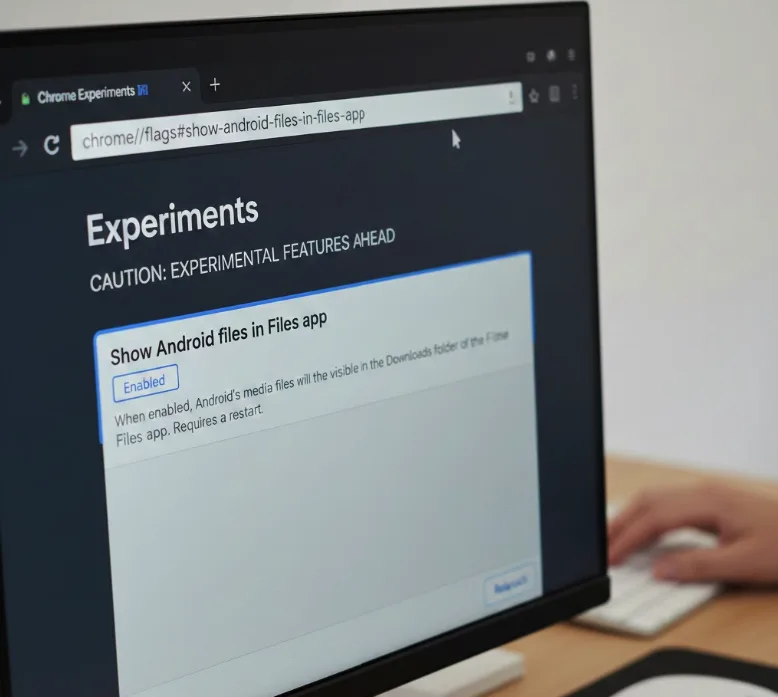
Enable the Android files flag
Locate the dropdown menu next to the flag name and change the setting from “Default” to “Enabled.” The page will prompt you to restart your Chromebook to apply the changes.
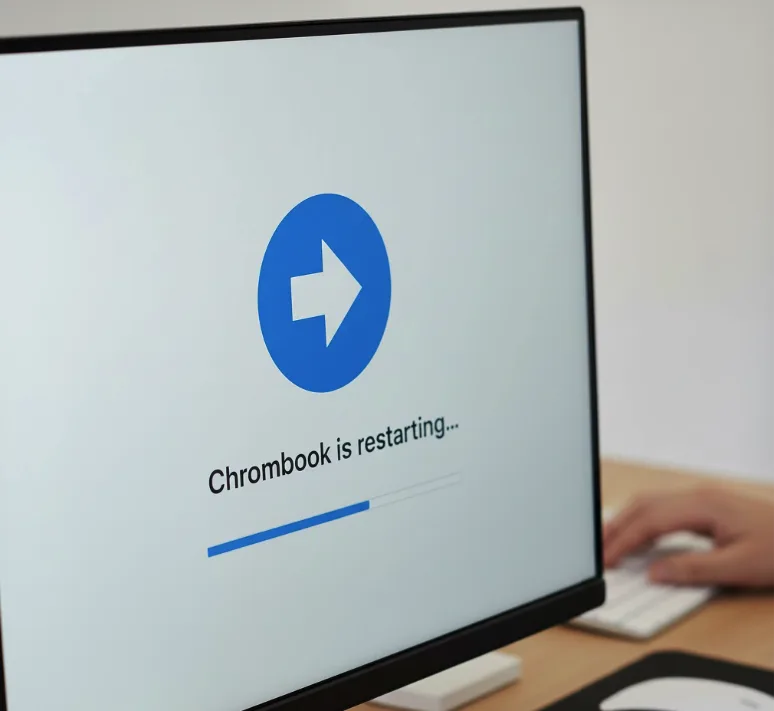
Restart your Chromebook
Click the blue “Restart” button that appears at the bottom of the flags page. Your device will reboot and activate the Android files integration.
Open the Files app
After your Chromebook restarts, launch the Files app from your shelf or app drawer. You’ll see a new “Android files” section in the left sidebar alongside your other folders.
Navigate your Android folders
Click on “Android files” to explore your Android file structure. You can access user folders including Downloads, Movies, Music, Ringtones, and other directories created by your installed Android apps.
This feature rolled out first to Canary Channel users and is now available on Dev Channel. Beta and Stable Channel users may need to wait for their channel updates before accessing this functionality.
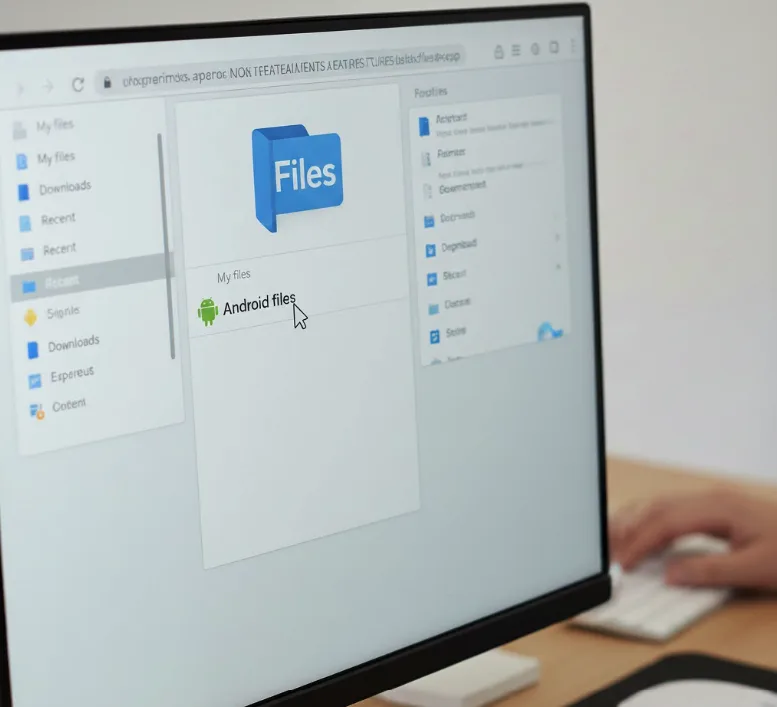
You can move files between Android folders and Chrome OS storage locations by dragging and dropping. The integration provides full read and write access to Android directories, letting you manage content without opening individual Android apps.
FAQs
Can I delete Android app files through the Chrome OS Files app?
Yes, you can delete files from Android folders using the Files app. Right-click any file and select delete to remove it from your Android storage.
Will this feature work on all Chromebooks?
The feature requires Chrome OS version 69 or higher and works on Chromebooks with Android app support enabled through the Play Store.
Do I need to enable developer mode?
No, developer mode is not required. You only need to enable the experimental flag through chrome://flags as described in the steps above.
Can I access files from all my Android apps?
You can access files in user-accessible folders, but some apps store data in protected directories that won’t appear in the Files app for security reasons.
Will enabling this flag cause stability issues?
Experimental flags may cause unexpected behavior. However, this particular flag has moved to Dev Channel and is relatively stable compared to early Canary releases.
