


Adobe Flash Player was once essential for viewing multimedia content, playing games, and interacting with dynamic websites.
Many users relied on Flash to access entertainment and educational material across the web. However, Adobe officially discontinued Flash support in December 2020 due to security vulnerabilities and the emergence of superior alternatives like HTML5.
Despite Flash being obsolete, some users still need to activate it for legacy content or old files stored locally. Understanding how to activate Adobe Flash Player on Chrome remains relevant for accessing archived material or working with older systems.
This guide explains the steps required to enable Flash while it was supported, helping users navigate their way through Chrome settings when working with legacy Flash content on compatible browser versions.
How To Activate Adobe Flash Player on Chrome?
Flash is no longer supported in modern Chrome versions, but users working with older Chrome builds or local Flash files may need activation instructions. The process involves accessing Chrome’s content settings and manually enabling Flash permissions.
Access Chrome Settings
Open Chrome and click the three-dot menu icon in the upper-right corner. Select Settings from the dropdown menu to access your browser configuration.
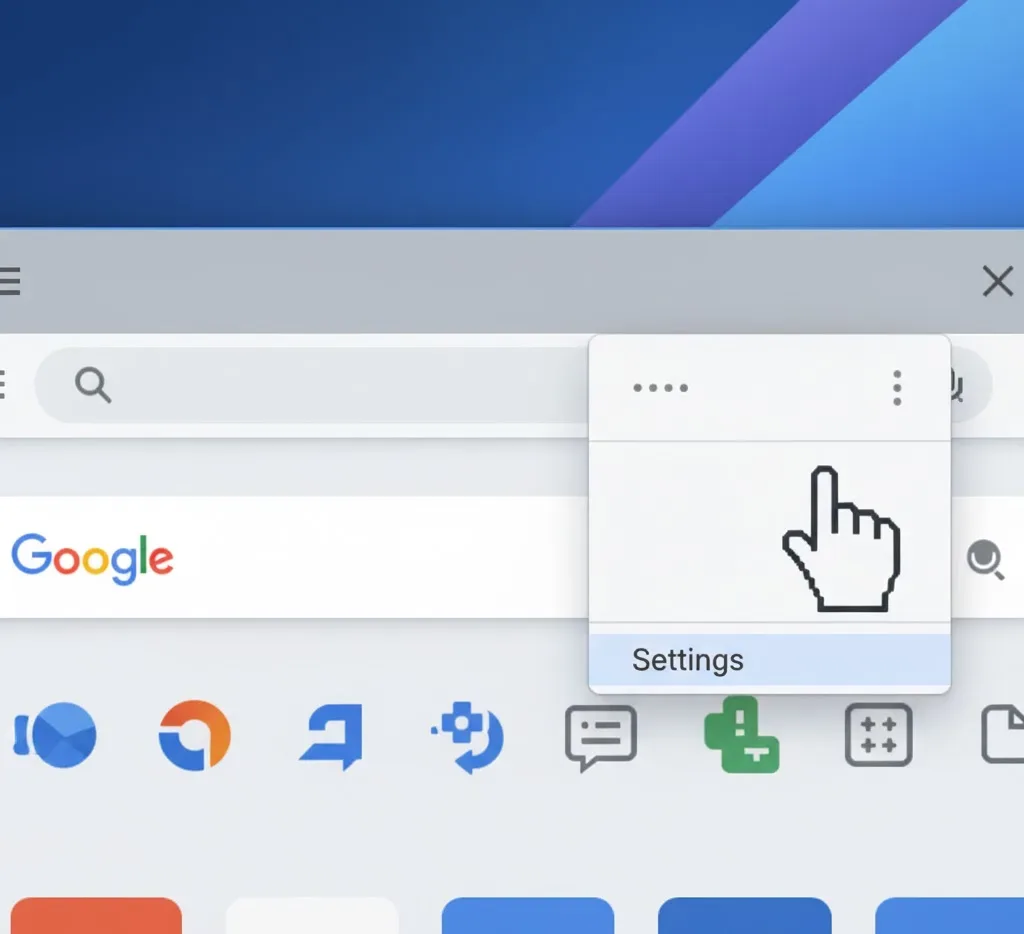
Navigate to Site Settings
Scroll down and click Advanced to reveal additional options. Under Privacy and security, locate Site Settings or Content settings depending on your Chrome version.
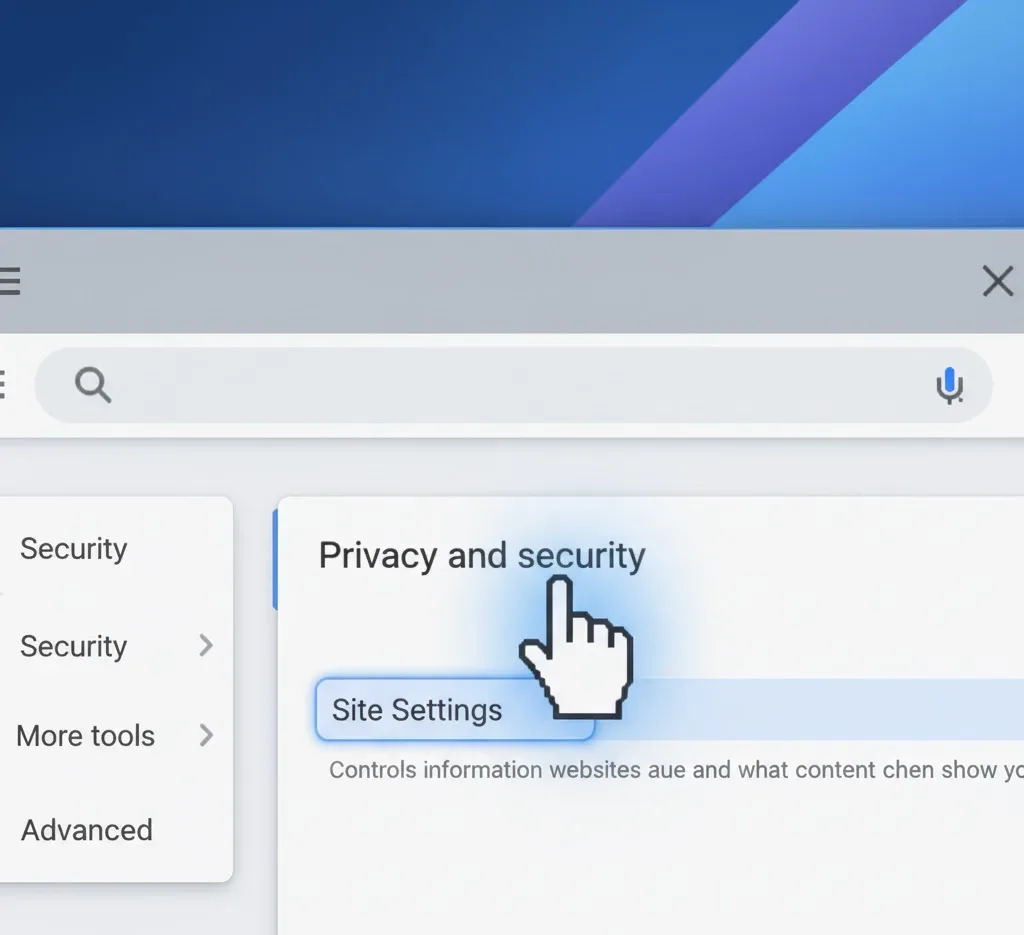
Find Flash Settings
Look for the Flash option within the site permissions list. This setting controls whether websites can run Adobe Flash Player content.
Enable Flash Permission
Toggle the switch from Block sites from running Flash to Ask first. This allows Chrome to prompt you when a website attempts to load Flash content.
Allow Flash on Specific Sites
Visit the website requiring Flash content. When Flash attempts to load, click the lock icon or information symbol next to the URL in the address bar. Select Site Settings and change the Flash permission to Allow.
Refresh the Page
After granting permission, refresh the webpage. The Flash content should now load properly after you click any additional prompts confirming your choice.
Modern websites have transitioned to HTML5 and other technologies that offer better performance and security. If you’re experiencing issues with Flash-dependent content, consider alternative browsers or updated versions of the content that don’t require Flash.
Keep in mind that Flash settings reset after closing Chrome, requiring reactivation on subsequent visits. Chrome versions 88 and later completely removed Flash Player support, making it impossible to activate Flash Player on Chrome in newer releases.
For users seeking to enhance their browsing experience with other tools, exploring Chrome extensions provides modern alternatives. The best Chrome extensions offer functionality that previously required plugins like Flash.
Users working with older Chrome versions should understand that continuing to use outdated software poses significant security risks. The Adobe Flash Player plugin for Chrome was discontinued for good reasons, including persistent security vulnerabilities that made systems susceptible to malware and attacks.
FAQs
Can I activate Adobe Flash Player on Chrome in 2025?
No, Flash is permanently disabled in Chrome versions 88 and above released after January 2021. Modern Chrome versions cannot run Flash content regardless of settings adjustments or plugin installations.
Why was Adobe Flash Player discontinued?
Flash had critical security vulnerabilities that made it a target for hackers. Additionally, modern technologies like HTML5 provide better performance, security, and compatibility without requiring browser plugins.
What replaced Adobe Flash Player?
HTML5, WebGL, and WebAssembly replaced Flash. These open web standards run natively in browsers without plugins, offering improved security, faster performance, and better mobile device compatibility.
How can I view old Flash content?
Use Flash emulators like Ruffle or download standalone Flash projectors for offline files. Some websites archive Flash content in formats compatible with modern browsers using HTML5 conversions.
Will activating Flash on older Chrome versions work?
Yes, Chrome versions 87 and earlier support Flash activation through content settings. However, using outdated browsers exposes you to security risks and isn’t recommended for regular browsing.
