


You empty a Gmail folder, then realize a minute later that something in there mattered. Gmail builds in a safety net for exactly this moment.
Most people just don’t know how long that net lasts. In this guide, you’ll find what deletion really does to your mail, and 3 ways to get it back. Dr.Fone iPhone data recovery software is one of them; learn what makes it a suitable choice.
Part 1. What Happens When Gmail Data Is Deleted?
Deleted Gmail messages do not disappear instantly; they sit in a temporary folder for a period. What happens next depends on whether that period ends before you restore them.
Gmail Trash vs Permanent Deletion
Before you try the iPhone recovery program, learn about Gmail trash and permanent deletion via the given table:
| Status | What Happens | Can You Recover It? |
| Trash | Deleted emails stay in Trash for up to 30 days. | Yes, restore directly from Trash. |
| Permanently Deleted | Emails are removed after 30 days or when Trash is emptied manually. | Recovery becomes much more difficult. |
| Archived | Emails stay in All Mail and aren’t deleted. | Yes, simply move them back to the Inbox. |
Factors That Affect Gmail Data Recovery
Whether you try iPhone recovery software or a built-in method, the following table covers certain factors that can affect the recovery rate:
| Factor | Why It Matters |
| Time Since Deletion | Recently deleted emails are much easier to recover than older ones. |
| Trash Status | Emptying Trash removes Gmail’s easiest recovery option. |
| Phone Activity | New data can overwrite recoverable traces stored on the device. |
| Google Workspace | Administrators may restore deleted work emails through the Admin Console recently. |
Part 2. How Dr.Fone Helps Recover Gmail Data on iPhone
When Gmail deletes a message, the app hides it, but raw data remains on your phone for a short time. A recovery scan searches this temporary gap before the storage clears completely.
Hence, you can use Dr.Fone – Data Recovery (iOS), the first iPhone recovery software that can recover Gmail data in less than 10 minutes. The tool uses a read-only scan, which is free and needs no skills to start.
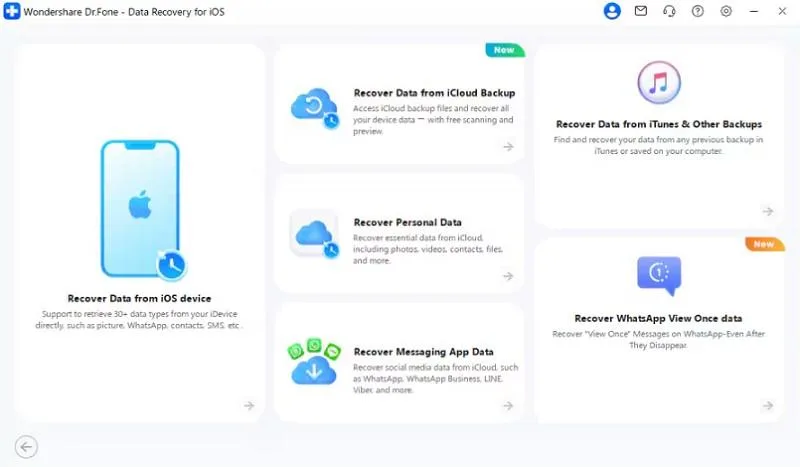
It scans the device’s storage directly and displays the recoverable results, letting you select only the emails you want.
The scan doesn’t modify or erase existing data, and you don’t need an older backup to begin. Once the scan finishes, you can preview recoverable items for free and choose to save them to your iPhone or computer.
Check Your iPhone Compatibility
- Supports iPhone 16 and Earlier: iPhone 17 models are not supported.
- Supports iOS 17.0–18.7.1 and iOS 26.0–26.0.1: These are separate supported ranges, with no coverage in between.
- Prepare Your iPhone and Computer: Charge your iPhone, free up storage for recovered data, and use a reliable USB cable.
Part 3. 3 Ways to Recover Deleted Gmail Data
Three routes are worth your time, and they barely overlap. Review all, and know why iPhone recovery software is a helpful and suggested choice.
Method 1. Recover Gmail Data with Dr.Fone – Data Recovery (iOS)
Use this when the Trash is empty and no backup covers the date you need. To see how this tool scans the device, try the following 3 simple steps:
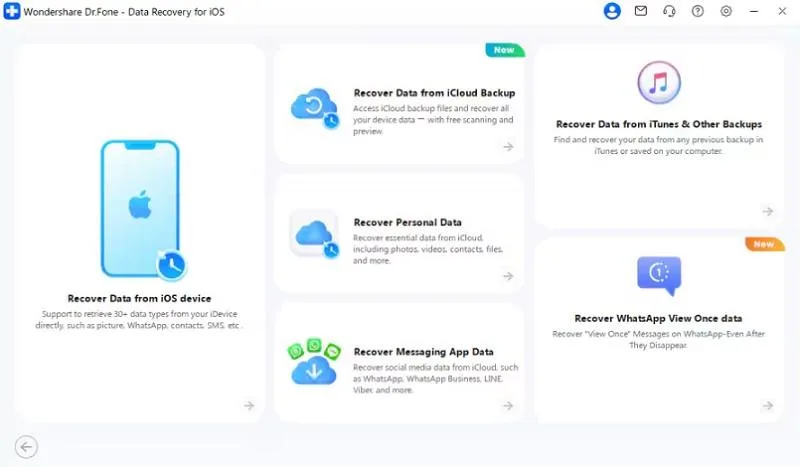
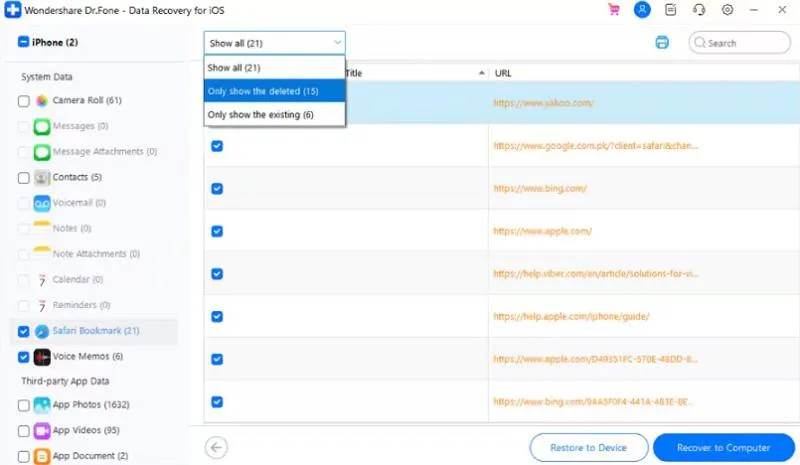
Step 1. Open Data Recovery and Choose iOS Mode
Go to the “Toolbox” tab, access the “Data Recovery” tool for “iOS,” and click on the “Recover Data from iOS Device” feature.
Step 2. Attach the Phone and Start Scanning
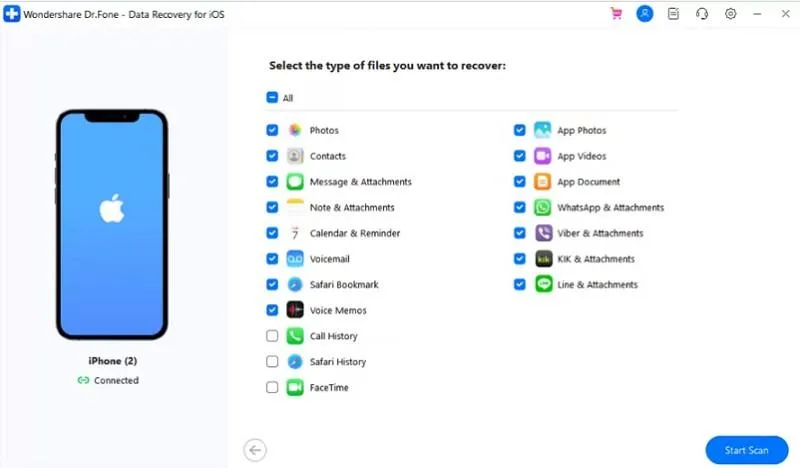
Connect the iPhone with a cable, then select “Gmail” from the data types and press the “Start Scan” button.
Step 3. Preview and Save What You Need
Review the results, mark any emails worth keeping, press the “Restore to Device/Computer” button, and save.
Method 2. Recover Emails from the Gmail Trash Folder
It’s free, and you’ll know within a minute whether your email is still there. Follow these simple steps to check.
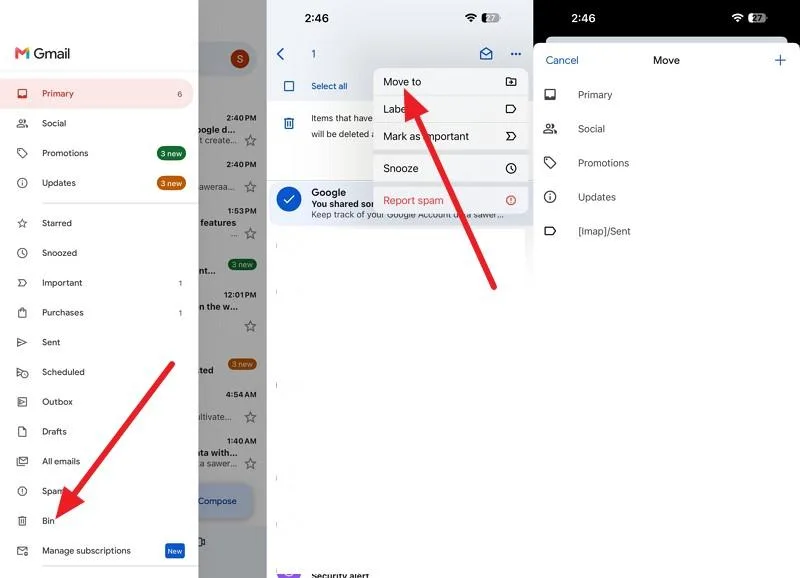
Instructions. Open Gmail on your iPhone > Press the “Hamburger” icon > Go to “Bin” > Choose the mail you want to recover. Press “Three Dots > Move To” > Choose where to recover it.
Method 3. Request Help Through Google’s Gmail Recovery Options
Google holds copies on its own side that never reach your phone. There are two ways to request them, depending on whether the account is personal or work; here’s how:
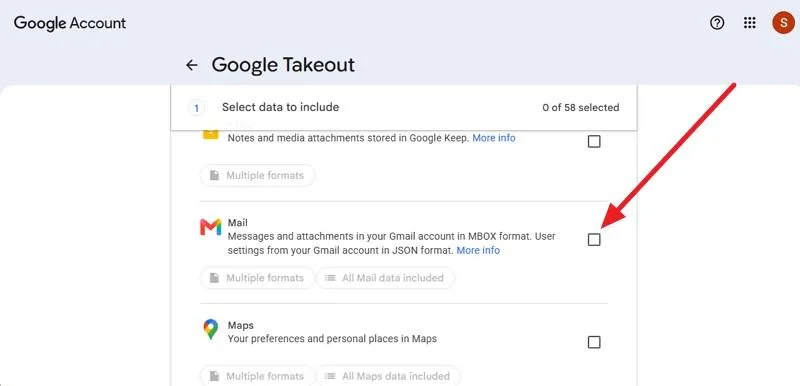
Step 1. Go to the Google Takeout page > Sign in > Deselect all and choose “Mail” and “Next” options.
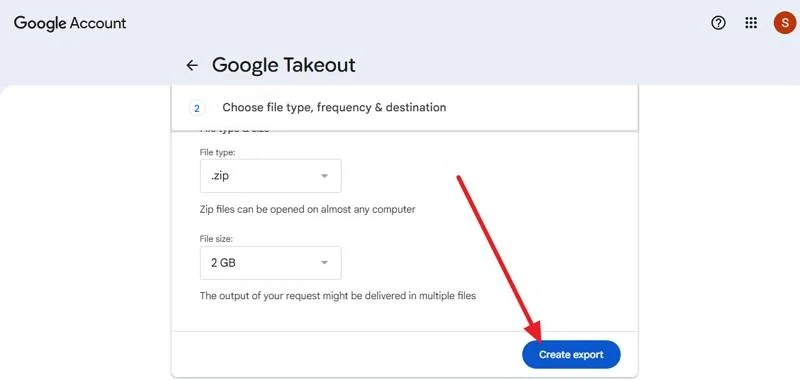
Step 2. Pick the file type, frequency & destination along with “Transfer To” details and click on the “Create Export” button.
Note: For work or school address, ask your administrator instead. They can often restore recently deleted mail from the admin console.
Part 4. Tips to Improve Gmail Recovery Results
While you use iPhone data recovery or other methods, follow these practical tips for best results:
| Tips | Benefits |
| Act Quickly | Increases the chance of recovering emails before Gmail permanently removes them. |
| Check Gmail Trash First | Restores emails directly from Trash without using any extra tools. |
| Check Existing Backups | Finds emails preserved in exported archives or available account backups. |
| Preview Before Recovering | Confirms you’ve selected the exact emails before restoring or exporting them. |
Conclusion
You can often recover deleted Gmail data on an iPhone, depending on when it was deleted. Check free options first, such as Gmail Trash, All Mail, and backups, since Trash keeps items for 30 days. If those fail, use Dr.Fone iPhone recovery software to scan the remaining data in your phone’s storage.
