

Close Menu
    Facebook X (Twitter) Instagram
    • About
    • Privacy Policy
    • Write For Us
    • Newsletter
    • Contact
    Instagram
    About ChromebooksAbout Chromebooks
    • Linux
    • News
      • Stats
      • Reviews
    • AI
    • How to
      • DevOps
      • IP Address
    • Apps
    • Business
    • Q&A
      • Opinion
    • Gaming
      • Google Games
    • Blog
    • Podcast
    • Read More
      • Review
      • Insights
    About ChromebooksAbout Chromebooks
    News

    Chrome Password Manager will add Notes to password exports

    Kevin TofelBy Kevin TofelNovember 15, 2022Updated:September 12, 2025No Comments2 Mins Read

    The Google Chrome Password Manager has been getting an overhaul for a while now. And the latest upcoming feature builds upon the addition of custom Notes you can add. If you export your passwords from Chrome currently, those Notes don’t come along for the ride. That’s changing though because the Chrome Password Manager will add Notes to your password exports.

    I found a bug internally reported at Google last month requesting this addition. And of course, exporting notes is sort of pointless without the ability to import them, so that’s in the works too:

    Currently only “username”, “ulr”, and “password” are exported and the same fields can be imported. With the launch of notes for passwords, import and export flows need to be updated to include the new field.

    Just for fun, I exported a test file from the Chrome Password Manager and sure enough, the above-mentioned fields are the only ones there.

    Note, no pun intended, that I added the Notes field manually to the file for illustration purposes.
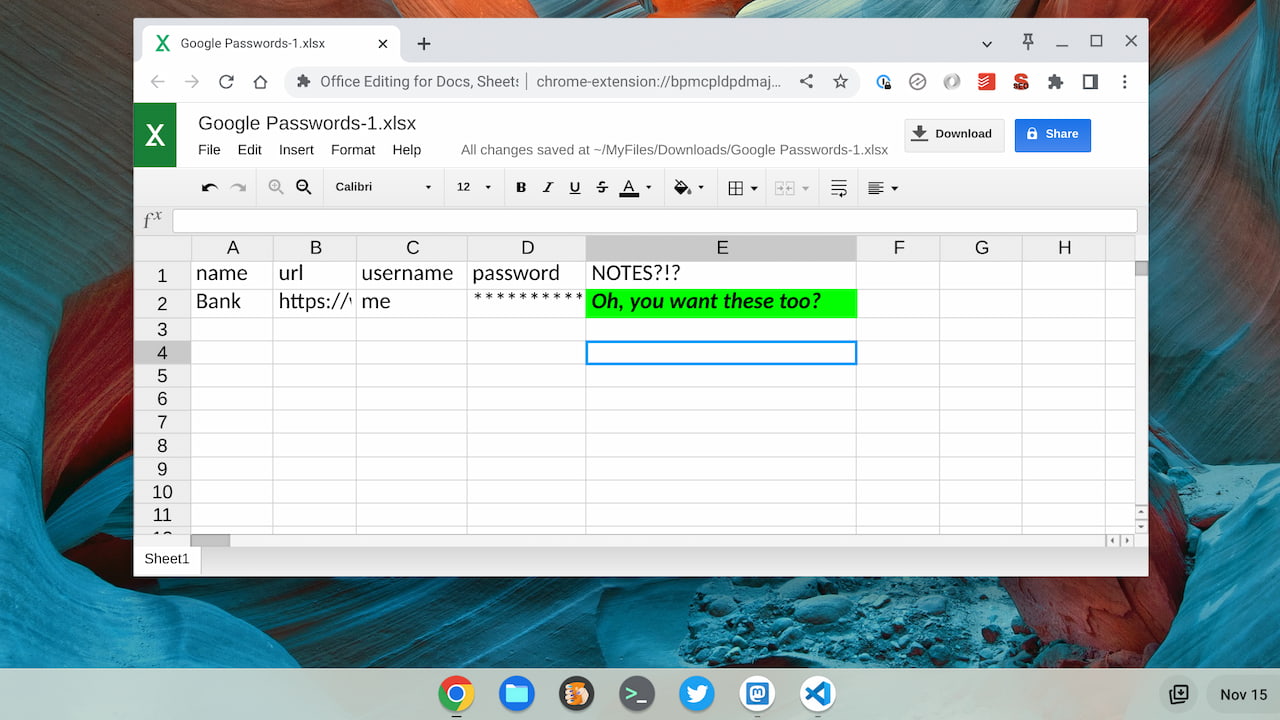
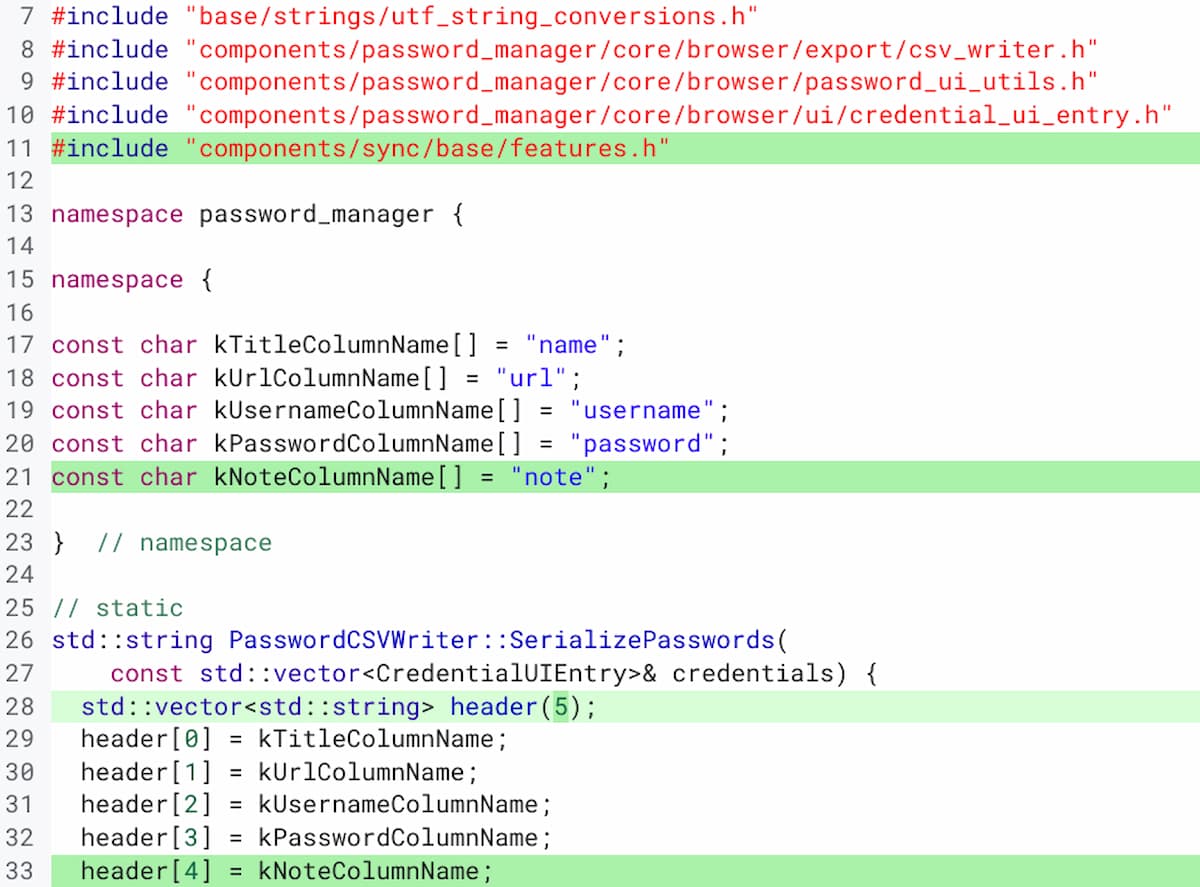
    The code change to implement support for importing and exporting Notes in the Chrome Password Manager is relatively simple.

    Google is adding a column in the file for importing and exporting to save Notes. And as the import or export function loops through each password record, data in the new Notes field will be captured or written.
    I’m sure many folks will be glad to see this implemented. You certainly don’t want to lose all of those notes you added if you migrate your passwords.

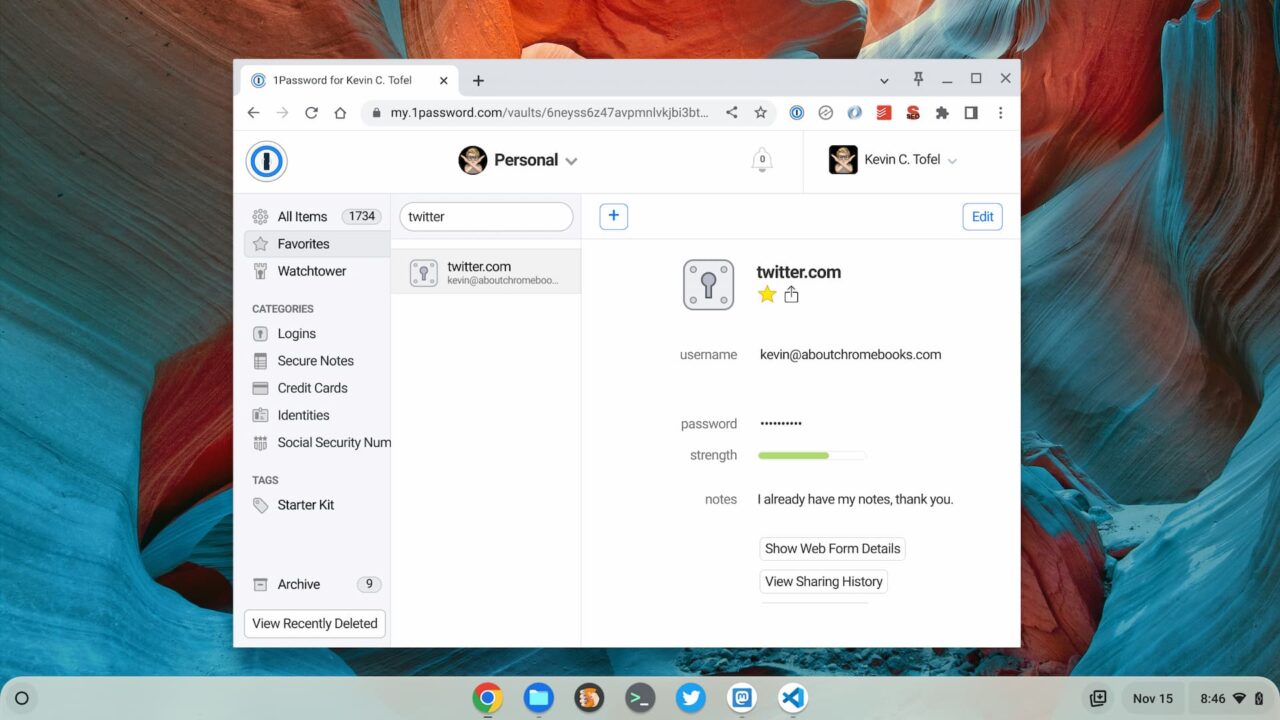
    Although it’s a personal choice with no “wrong” approach, I feel better using a trusted third-party password service. And I’m still using 1Password across Windows, Linux, iOS, Android, and ChromeOS.

    Aside from keeping my data outside of the operating system, I already have the ability to save notes or just about any other info I want to associate with a password.
    How about you? Are you relying on Google or Apple to securely manage your passwords? Or are you in the “third party” camp instead of using the Chrome Password Manager?

    Kevin Tofel
    • Website

    After spending 15 years in IT at Fortune 100 companies, Kevin turned a hobby into a career and began covering mobile technology in 2003. He writes daily on the industry and has co-hosted the weekly MobileTechRoundup podcast since 2006. His writing has appeared in print (The New York Times, PC Magazine and PC World) and he has been featured on NBC News in Philadelphia.

    Best of AI

    ElevenLabs Statistics 2026

    October 9, 2026

    Enterprise LLM Vendor Market Share Statistics 2026

    October 1, 2026

    Qwen AI statistics 2026

    September 30, 2026

    Multimodal AI Market Statistics 2026

    September 30, 2026

    AI in Journalism Statistics 2026

    September 26, 2026
    Trending Stats

    Chromebook Carbon Footprint Statistics 2026

    October 3, 2026

    Linux Kernel Contributor Statistics 2026

    September 26, 2026

    Chromebook Enterprise Deployment Statistics 2026 [Setup Times, Fleet Volumes, Licensing and Migration Data]

    September 22, 2026

    Vector Database Market Statistics 2026

    September 15, 2026

    Chromebook Screen Refresh Rate Distribution Statistics 2026

    September 12, 2026
    • About
    • Tech Guest Post
    • Contact
    • Privacy Policy
    • Sitemap
    © 2026 About Chrome Books. All rights reserved.

    Type above and press Enter to search. Press Esc to cancel.