


On a whim last week, I bought an E Ink monitor to use as an extended display. I plan to use it with both my PC and my Chromebooks, but I’ll focus on the latter aspect here. No, I wouldn’t want to use a Chromebook and E Ink monitor for every activity. However, it’s great for reading and typing. And for coding, which is the main reason I bought it.
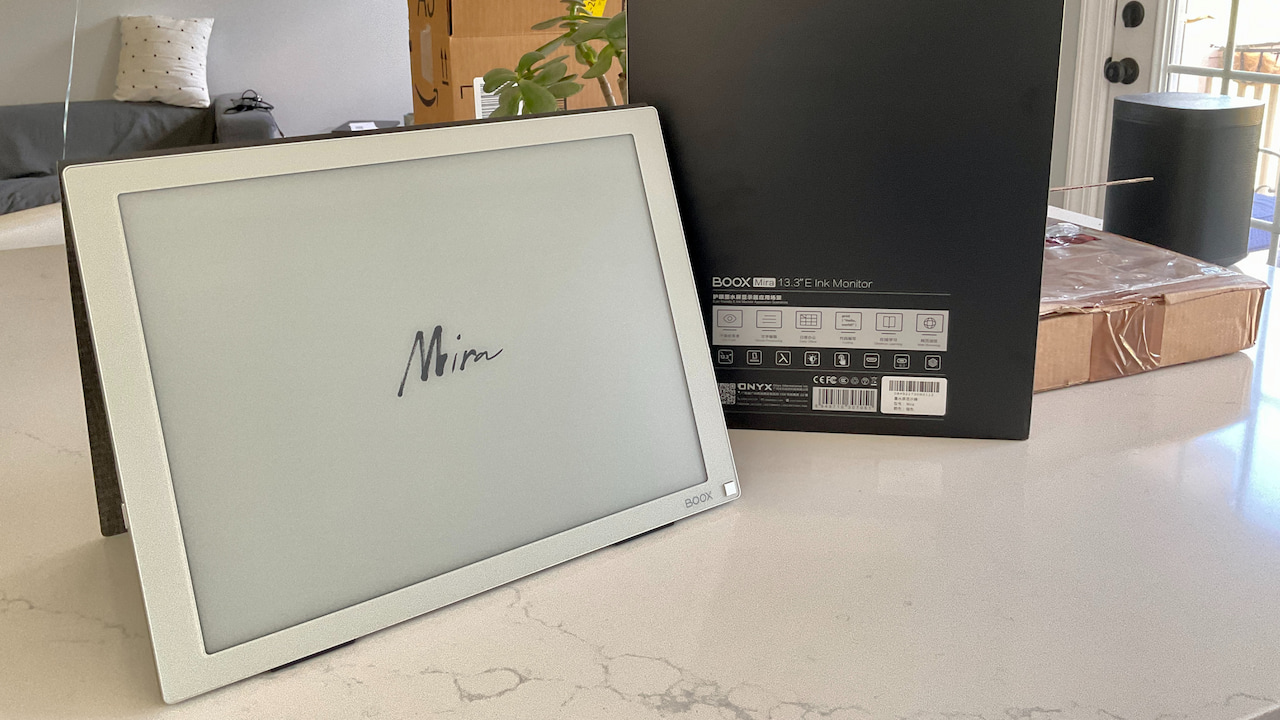
After reading reviews and scouring for deals, I bought the 13.3-inch Boox Mira E Ink display.
It retails for $799 although I paid $100 less than that. The eye-friendly paperlike display has a resolution of 2200 x 1650 and supports capacitive touch. There are a pair of USB Type-C ports and a mini-HDMI port. Both a USB Type-C cable and an HDMI to mini-HDMI cable are included.
The display has a backlight and you can set it to warm color levels to help reduce eyestrain. Also included is a built-in cover that doubles as a stand. Or you can use the 75mm x 75mm VESA mount on the back to attach it to a monitor stand.
To use the Boox Mira, I just connected it to one of the USB Type-C ports on the Acer Chromebook Spin 714 that I recently bought. It appeared in my ChromeOS settings like any other display would. Because it’s an E Ink monitor, it only uses power when the screen changes. So it’s sipping juice from my Chromebook; there’s no power brick for or battery in the display.
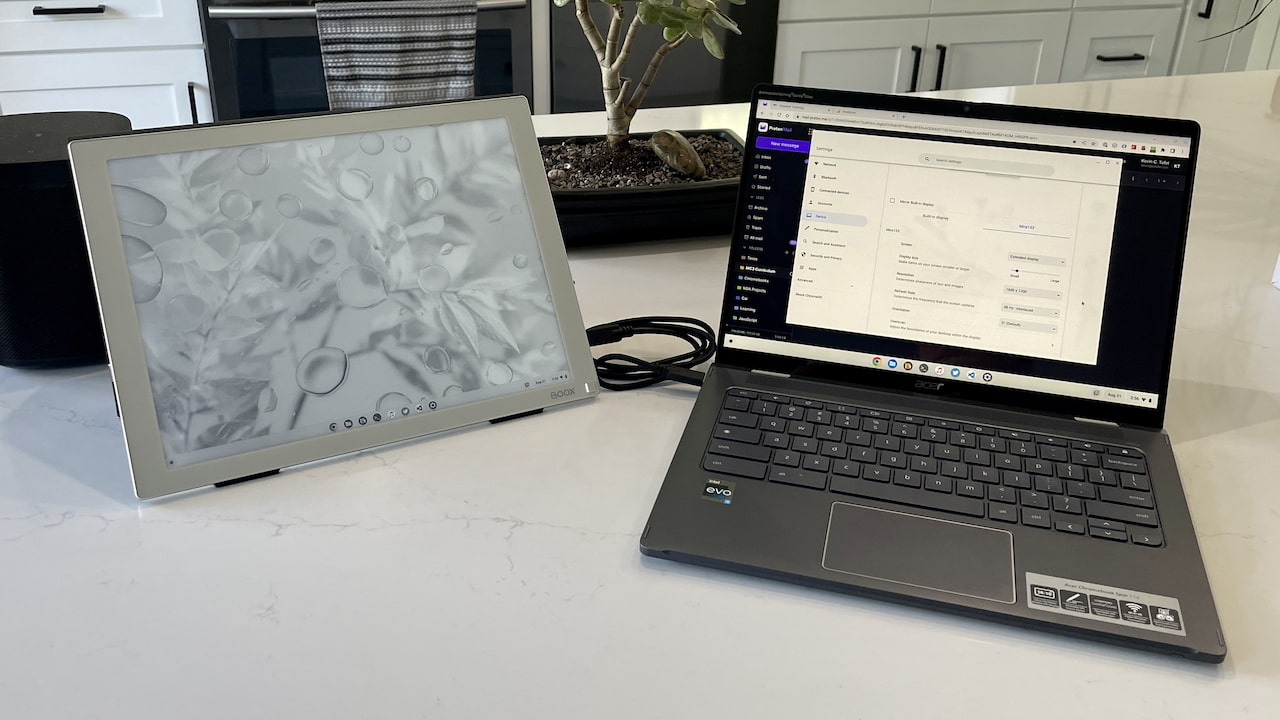
If you’ve seen any E Ink devices in the past, you’ve probably seen that they have low refresh rates.
That means they’re not at all good for watching videos. And I’m fine with that; I didn’t even try to watch anything on YouTube, for example. This is a secondary display for me, so I can spend less time looking at a backlit LCD panel.
That means I’ll be doing some reading and some writing. And even with the lower refresh rate, the Boox Mira is pretty capable. No, the text may not be as crisp as that on my Chromebook. But it’s definitely readable.
Here’s an image of this site on the E Ink monitor after I used my finger to scroll down a little and used a pinch-and-zoom.
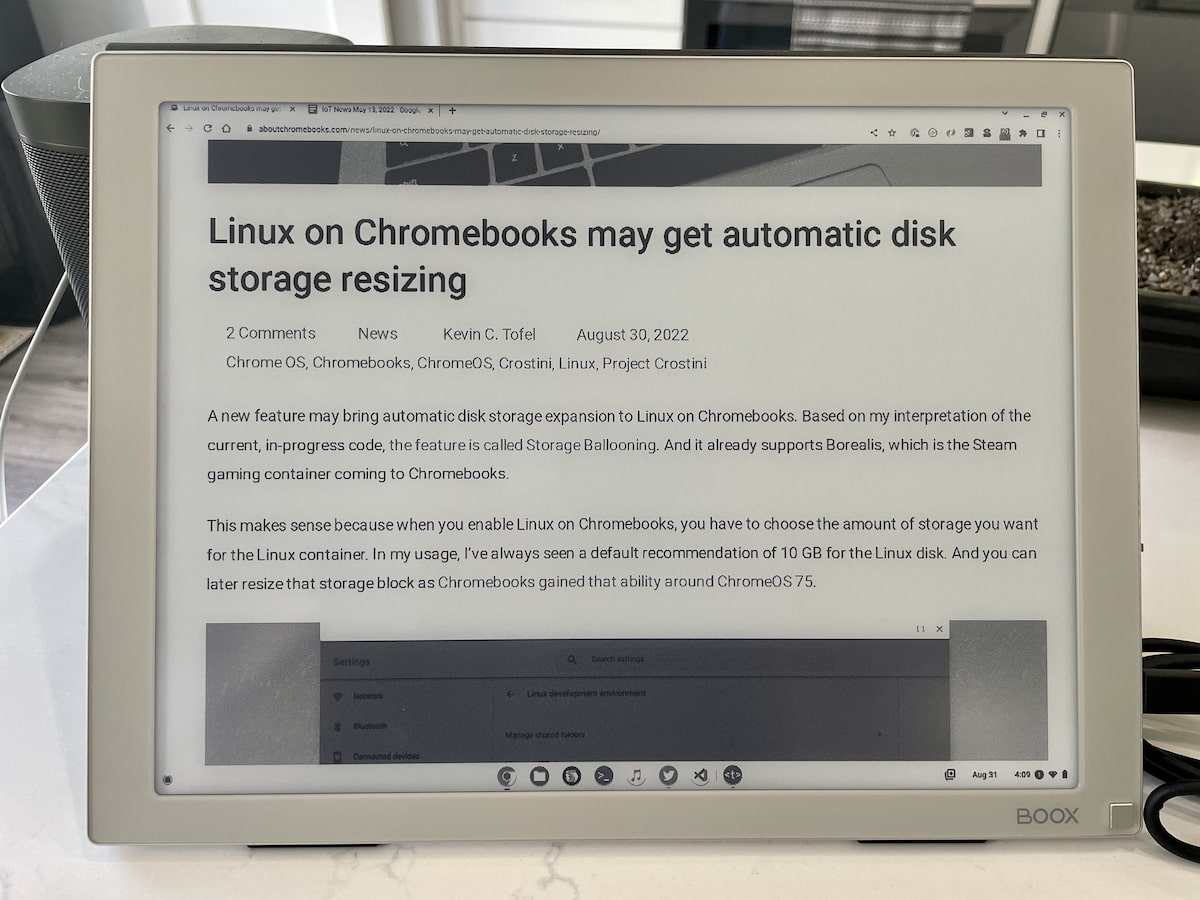
I’ll give up some clarity if the screen is easier on my tired, old eyes.
Of course, another likely use case for a Chromebook and E Ink monitor is Google Docs. I didn’t create or edit one, but I did look at some old Docs I have stored up in Google Drive.
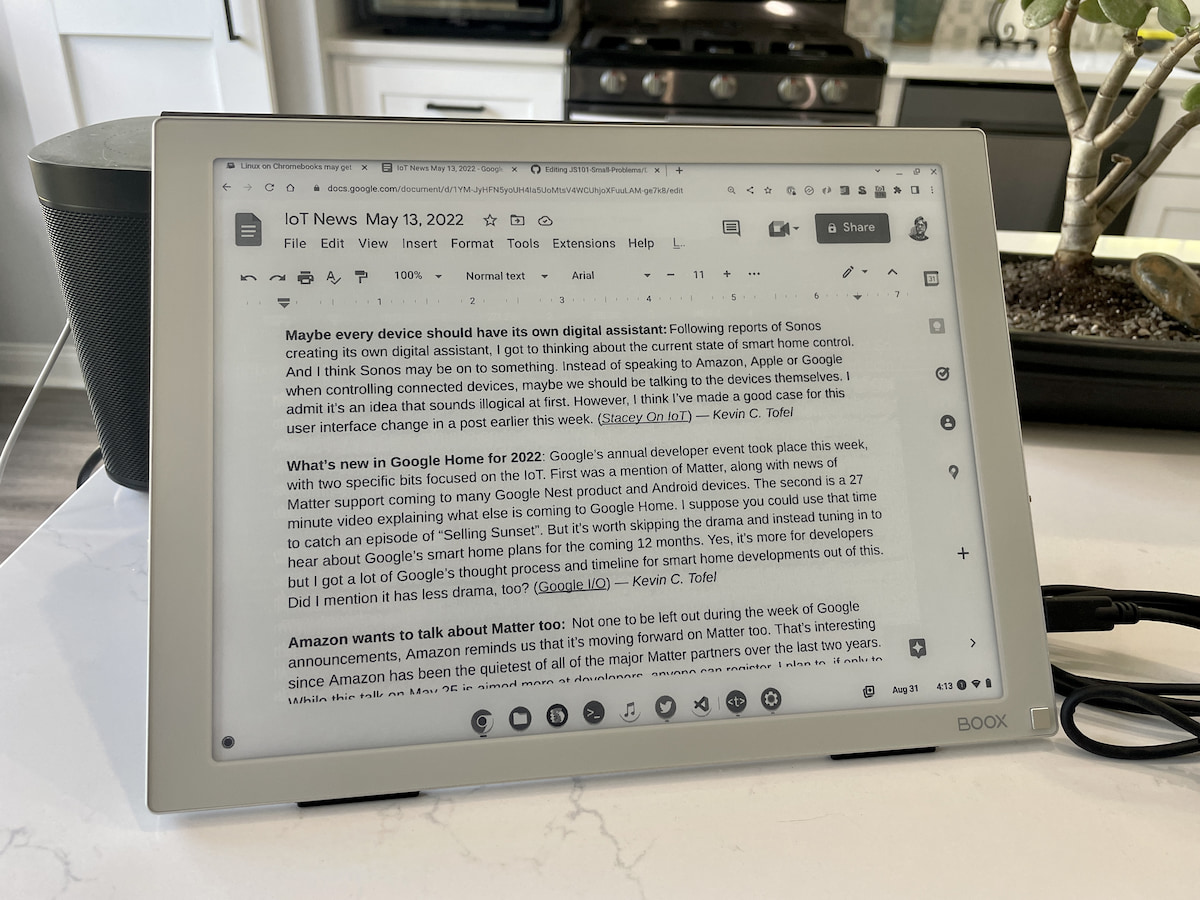
I’m still learning what the optimal brightness, screen mode, and contrast levels are best for me, but I think that document looks pretty good.
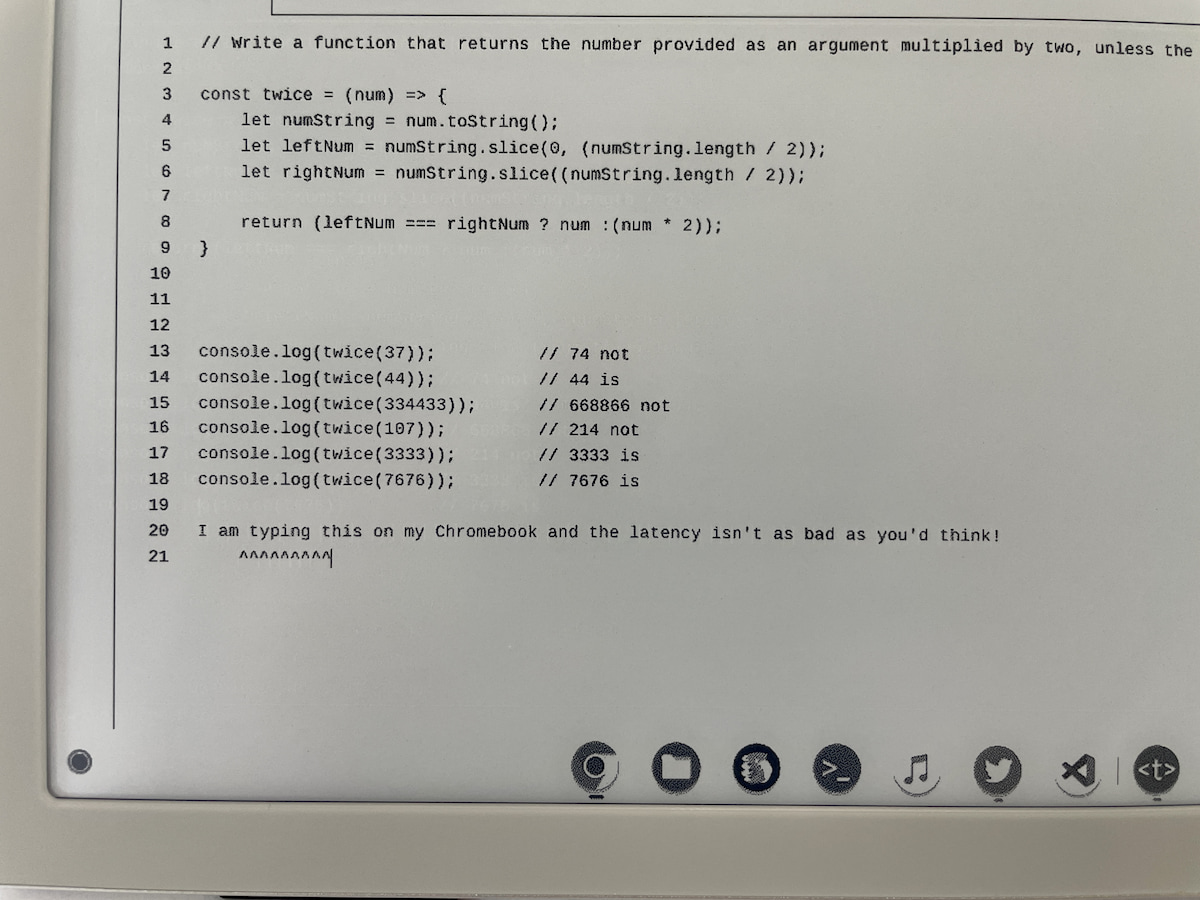
Lastly, I wanted to try some text input. My fear was that there would be too much input lag using a Chromebook and E Ink monitor. Here I was actually impressed.
While my typed characters didn’t appear in what I’d call “real-time” compared to my Chromebook alone, they show up with barely a noticeable lag. I’d take a video, but honestly, the lag is likely in the nanoseconds range. This is just a test sample of editing some code on the GitHub website. Note that this is the default font for GitHub code; I’ll be looking into adjusting fonts for some of my apps as I continue to use this monitor.
Would I recommend that anyone looking to add an external monitor to their Chromebook spend $799 for the Boox Mira? Definitely not. It’s a limited device and it’s expensive compared to a traditional display. You’ll only appreciate it for certain Chromebook activities.
I wrote this entire blog post in the browser on the Boox Mira, for example. However, I did edit my photos on the Chromebook’s internal display.
I stare at my Chromebook screen for hours every day. And during a good chunk of those hours, I’m looking at simple text. That ranges from reading on websites, reviewing JavaScript documentation, and writing code, to name a few text-only activities. So even if I can offload those to a display that reduces my eye strain just a few hours a day, I think it’s worth it.
