


Chrome OS 89 introduced the Tote feature, but not everyone appreciates this addition to their Chromebook. Many users find the extra icon near the Quick Settings panel unnecessary and prefer a cleaner interface.
The good news is you can currently disable this feature with a simple flag adjustment. The bad news? This option may not last forever.
Tote provides quick access to screenshots, downloads, and pinned files directly from the shelf. Google designed it to boost productivity by keeping important files one click away. You can pin files through the Files App context menu and access recent screenshots without opening folders.
While some users find this helpful, others see it as clutter they don’t need. If you fall into the latter camp, removing Tote takes less than a minute.
Don’t like the new Tote feature in Chrome OS 89? Here’s how to disable it.
You can disable the Tote feature in Chrome OS 89 through the flags menu. This process removes both the icon and functionality from your system.
Access the Tote flag in Chrome browser
Type chrome://flags/#enable-holding-space into your Chromebook’s address bar. You can also click directly on that link to reach the flag settings page.
The browser will take you straight to the holding space flag, which controls the Tote feature.
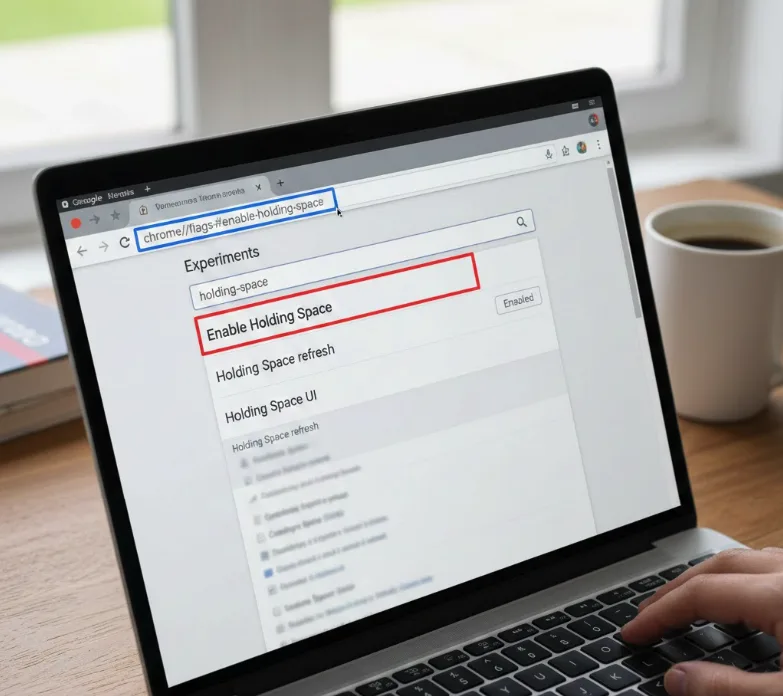
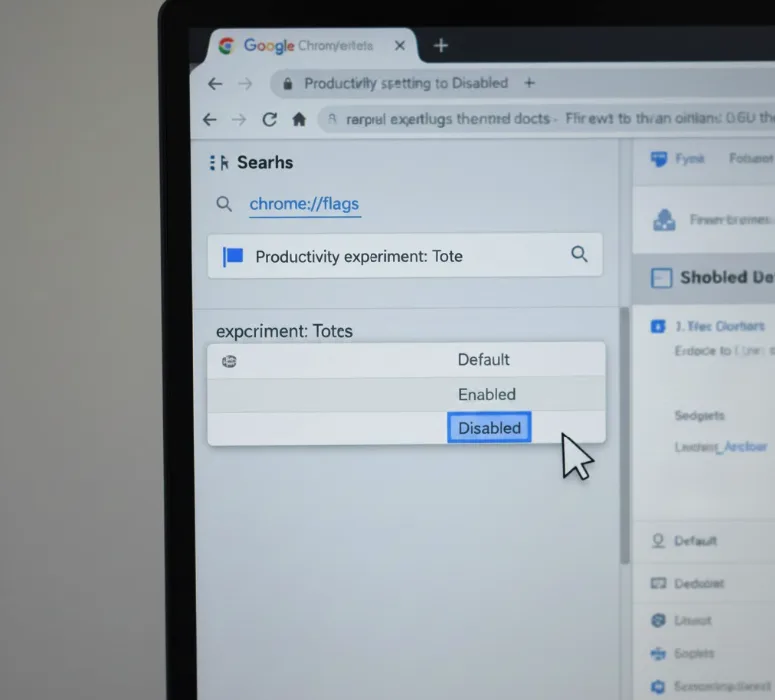
Change the flag setting to Disabled
Find the dropdown menu to the right of the flag information. Click it and select “Disabled” from the available options.
This tells Chrome OS to turn off the Tote feature completely.
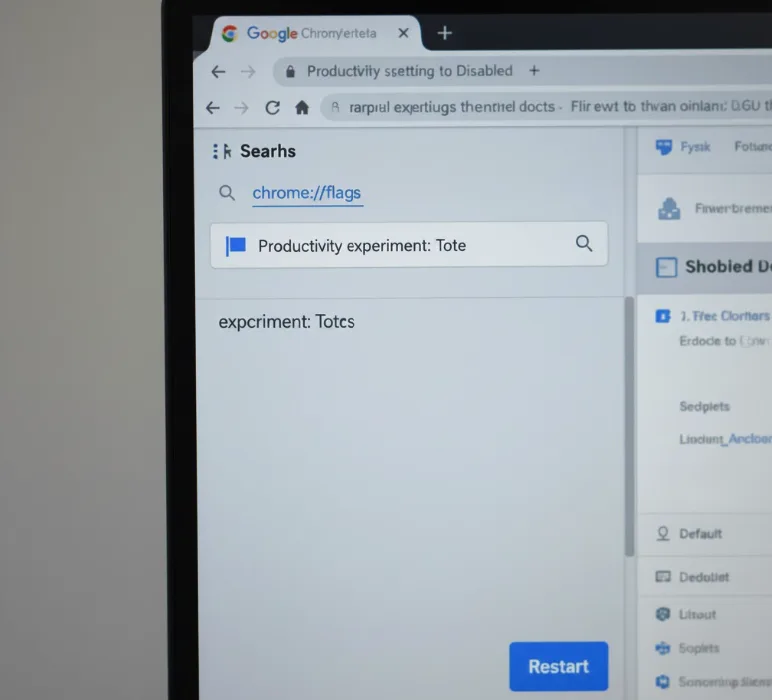
Restart your Chromebook to apply changes
Click the blue “Restart” button that appears at the bottom right of your screen. Your Chromebook will reboot in a few seconds.
After restarting, the Tote icon will be gone from your shelf.
However, there’s an important caveat. This flag only works in Chrome OS 89 Stable Version. Testing on Chrome OS 91 Dev Version showed the flag has already been removed.
Flags exist for experimental features. Once Tote became generally available in the Stable Channel, it stopped being experimental. Google will expire this flag as Chrome OS versions advance.
Users on future versions will have no built-in option to disable Tote. The feature will become a permanent part of Chrome OS without user configuration options.
This seems like an oversight. Features that significantly change the user interface should include toggle options in Chrome OS Settings. Users should choose whether to enable or disable Tote based on their workflow preferences.
If you want Google to reconsider this approach, send feedback directly through Chrome OS. Press Alt + Shift + I to open the feedback screen. Describe your concerns about Tote being mandatory, capture a screenshot if helpful, and submit your thoughts.
Enough user feedback might convince Google to add a configuration option in Settings. This would let users decide whether Tote fits their workflow without forcing it on everyone.
FAQs
What is the Tote feature in Chrome OS 89?
Tote provides quick access to recent screenshots, downloads, and pinned files from an icon on your Chromebook’s shelf for faster file management.
Will disabling Tote affect my Chromebook’s performance?
No. Disabling Tote only removes the feature and icon. Your Chromebook will function normally, and you can still access files through the Files app.
Can I re-enable Tote after disabling it?
Yes. Return to chrome://flags/#enable-holding-space and change the setting from “Disabled” back to “Default” or “Enabled,” then restart your Chromebook.
Why is the Tote disable flag missing in newer Chrome OS versions?
Google removes flags once features become generally available. Tote is no longer experimental, so the flag was expired in Chrome OS versions after 89.
How do I access my files without Tote?
Open the Files app from your shelf or app launcher. You can still access all downloads, screenshots, and documents through the standard Files app interface.
