


Programming an Arduino microcontroller on a Chromebook presents unique challenges since Chrome OS handles USB devices differently than traditional operating systems.
While Chromebooks support Linux through Project Crostini, USB connectivity for Arduino boards isn’t fully supported in the stable Chrome OS versions. The standard Arduino IDE requires direct USB access to upload code to the microcontroller.
You might need this solution if you’re taking electronics or computer science classes that require Arduino projects but only have access to a Chromebook. Students, educators, and hobbyists who prefer Chrome OS can benefit from understanding these workarounds.
Several browser-based solutions exist that bypass the USB limitation by handling code compilation on remote servers before pushing it to your connected Arduino device.
How to code an Arduino with a Chromebook
You can program an Arduino on a Chromebook using web-based development environments that compile code on external servers and communicate with your device through Chrome’s USB protocols.
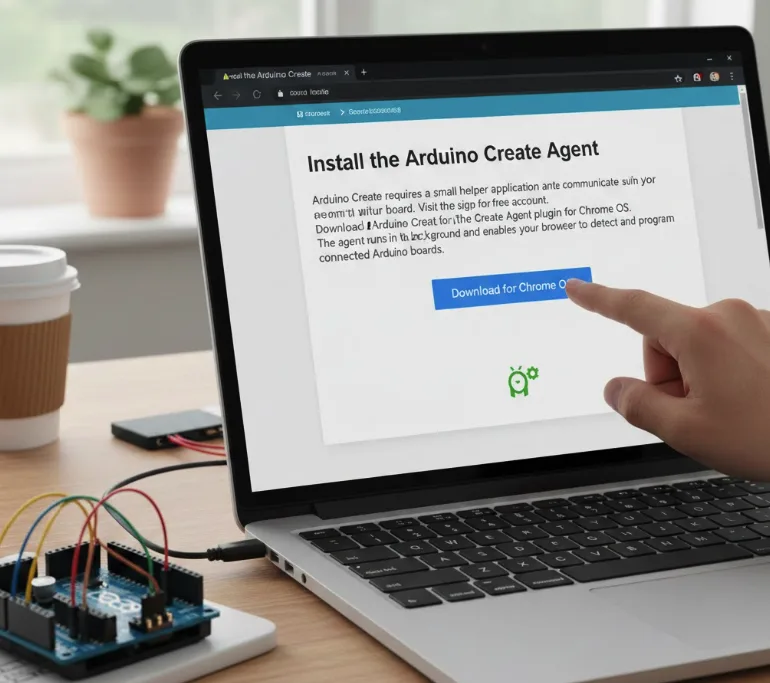
Install the Arduino Create Agent
Arduino Create requires a small helper application to communicate with your board.
Visit the Arduino Create website and sign up for a free account. Download the Arduino Create Agent plugin for Chrome OS.
The agent runs in the background and enables your browser to detect and program connected Arduino boards.
Connect Your Arduino Board
Plug your Arduino into your Chromebook’s USB port using a standard USB cable.
The Arduino Create Agent will automatically detect compatible boards. You’ll see a notification in the browser when the connection is established.
Make sure your board has power and the LED indicator lights up.
Create a New Sketch
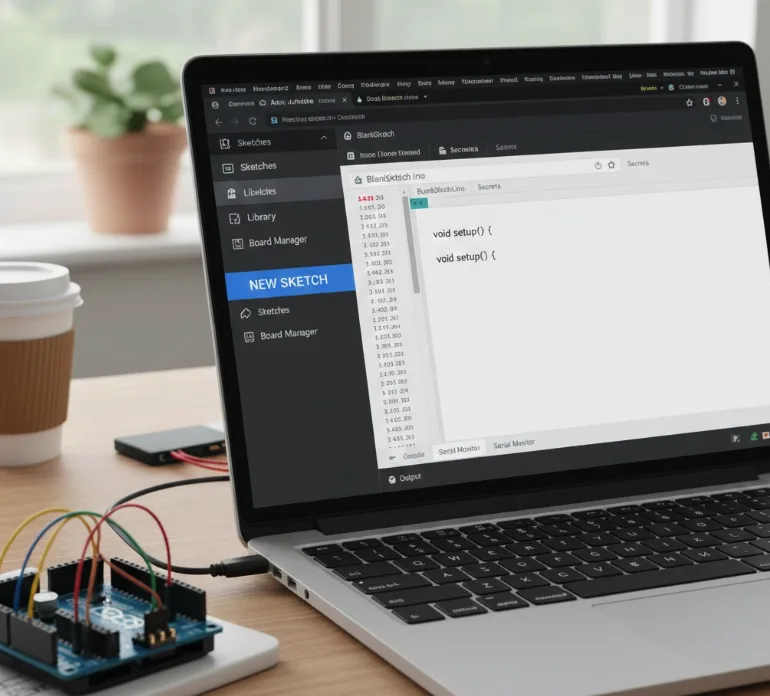
Open Arduino Create in your Chrome browser and navigate to the editor.
Click “New Sketch” to start a blank project. The editor provides syntax highlighting and auto-completion for Arduino code.
You can also access example sketches from the library to test your setup or learn from existing code.
Write Your Arduino Code
Type or paste your Arduino program into the web editor.
The interface resembles the traditional Arduino IDE with setup and loop functions. Use the built-in examples and documentation if you’re new to Arduino programming.
Your sketches automatically save to the cloud, allowing access from any device.
Verify and Upload the Code
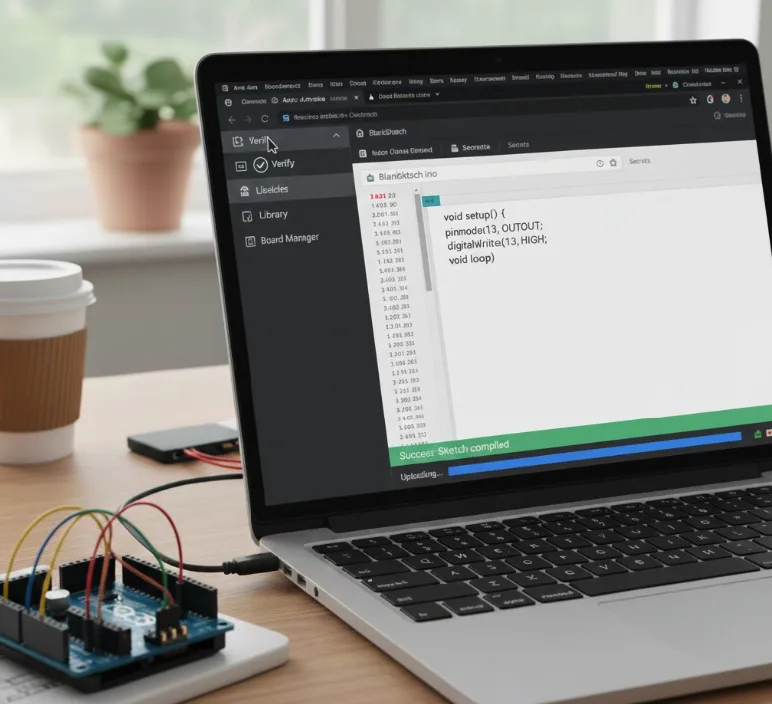
Click the checkmark icon to verify your code for syntax errors.
The server compiles your sketch remotely. If compilation succeeds, click the arrow icon to upload.
The Arduino Create Agent transfers the compiled code to your connected board. You’ll see status messages indicating upload progress and completion.
Alternative options include Chromeduino 2, a free Chrome extension that uses external compilation servers, though you should verify the server source.
Codebender offers similar functionality with collaboration features but costs $10 monthly. If you’re interested in other ways to code on a Chromebook, Linux development environments provide additional flexibility.
FAQs
Can I use Arduino IDE directly on a Chromebook?
The traditional Arduino IDE doesn’t work on Chrome OS because Linux containers don’t fully support USB devices. Use browser-based solutions like Arduino Create instead.
Is Arduino Create free for Chromebook users?
Arduino Create offers a free tier with limited compilation time and device support. Full features require a $6.99 monthly subscription or $69.99 annually.
Do I need internet to program Arduino on Chromebook?
Yes, most solutions require internet connection since code compilation happens on remote servers. Offline programming isn’t currently possible with standard Chrome OS methods.
Which Arduino boards work with Chromebooks?
Most official Arduino boards work through Arduino Create, including Uno, Mega, Nano, and MKR series. Check Arduino Create’s compatibility list before purchasing.
Can multiple students share Arduino Create accounts?
Arduino Create supports individual accounts only. Educational institutions should explore Arduino’s education plans for classroom licensing and bulk pricing options.
