


Coding on a Chromebook presents challenges since these devices run Chrome OS rather than traditional operating systems. Many developers need alternatives to cloud-based solutions that cost money or Developer Mode that reduces security.
This method uses a Raspberry Pi as a remote coding environment. You connect it to your home network and access it from your Chromebook using built-in Chrome OS apps.
The setup costs around $35 for a Raspberry Pi and requires no Chrome OS modifications. Python comes pre-installed on the Raspberry Pi, and you can access your files as if they were stored locally on your Chromebook.
How I code on a Chromebook using Python and a Raspberry Pi?
This approach lets you code on a Chromebook without compromising security or paying for cloud services. The process takes about an hour to complete and works with any Chromebook that supports modern Chrome OS features.
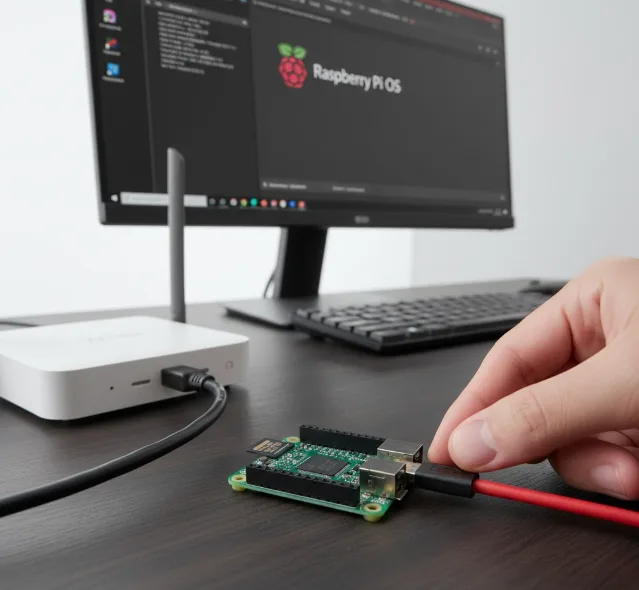
Set up your Raspberry Pi
Purchase a Raspberry Pi for around $35 and install Raspbian OS. Connect it to your home network using an Ethernet cable for better speed.
Python comes pre-installed on Raspbian. The wired connection provides maximum throughput when running code.
Install SSH app on your Chromebook
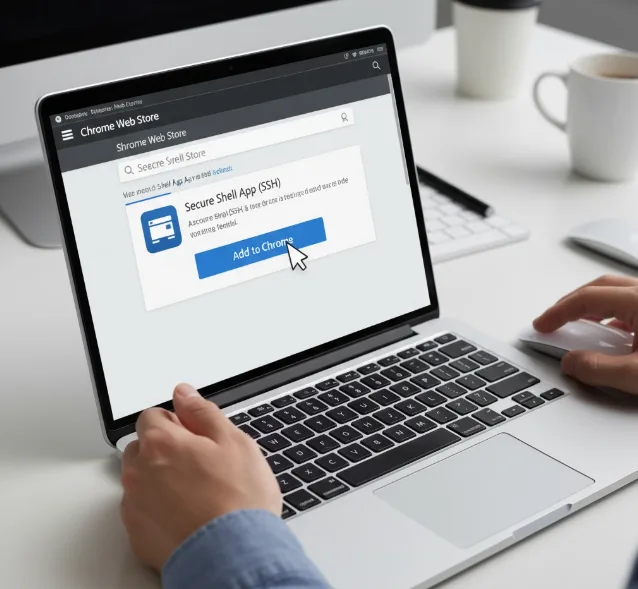
Open the Chrome Web Store and install the Secure Shell app. This app creates secure connections to remote devices.
SSH lets you access your Raspberry Pi through a terminal window. You can run Python scripts without needing a graphical interface, which is more similar to how developers work with the Linux command line.
Create an SFTP mount
Open the SSH app and configure it to connect to your Raspberry Pi’s IP address. Enable SFTP mounting in the connection settings.
The SFTP mount displays your Raspberry Pi files in the Chrome OS Files app. You can now access Python files as if they were stored on your Chromebook.
Set up a text editor
Install a text editor like Text or Carat from the Chrome Web Store. Both editors support offline use and syntax highlighting.
Double-click any Python file from your mounted Pi drive. The file opens in your Chromebook’s text editor while staying stored on the Raspberry Pi.
Write and run your code
Make changes to your Python files using the text editor on your Chromebook. Save the files as you normally would.
Switch to the SSH terminal window to run your code. Type your Python commands to see output or debug errors.
This workflow keeps your code on the Raspberry Pi while letting you edit comfortably on your Chromebook. The SSH connection handles everything securely.

You can also use VNC Viewer if you need a graphical interface. VNC provides remote desktop access to the Raspberry Pi.
The method works well for learning Python and building small projects. Many Chromebooks now support Linux apps natively through Crostini, which offers another option.
FAQs
Do I need Developer Mode to code on a Chromebook using Python and a Raspberry Pi?
No. This method keeps Chrome OS security intact because it uses standard Chrome Web Store apps and network connections without system modifications.
Can I use wireless instead of Ethernet for my Raspberry Pi?
Yes. Wireless works but Ethernet provides faster data transfer when running code or moving files between your Chromebook and Raspberry Pi.
What if I need to see a graphical interface?
Install VNC Viewer from the Chrome Web Store. This app displays the Raspberry Pi desktop on your Chromebook for visual programming tasks.
Does this work with other programming languages?
Yes. The Raspberry Pi supports many programming languages. You can install additional tools using the terminal or through the Raspbian package manager.
Is there a simpler native solution now?
Modern Chromebooks support Linux apps through Crostini. This built-in feature lets you install development tools directly without external hardware.
